
TL;DR: The Fastest Way to Dictate
- 1Open your document in Chrome, Edge, or Safari on desktop. Firefox does not support Voice Typing.
- 2Click Tools → Voice typing, or press
Cmd+Shift+Son Mac /Ctrl+Shift+Son Windows. - 3Click the microphone, speak, click again to stop.
Free, works for casual writing. For offline mode, mobile, or better accuracy on jargon, install Spokenly — it runs Parakeet and Whisper locally and types into Docs and any other app.
How to Turn On Google Docs Voice Typing
Google Docs Voice Typing is built into the document editor. You do not need an extension or add-on. The setup takes under a minute on a supported browser.
- 1Open a Google Doc at docs.google.com in Chrome, Edge, or Safari. Voice Typing does not work in Firefox.
- 2Click Tools in the top menu bar, then choose Voice typing. A microphone icon appears on the left side of the document.
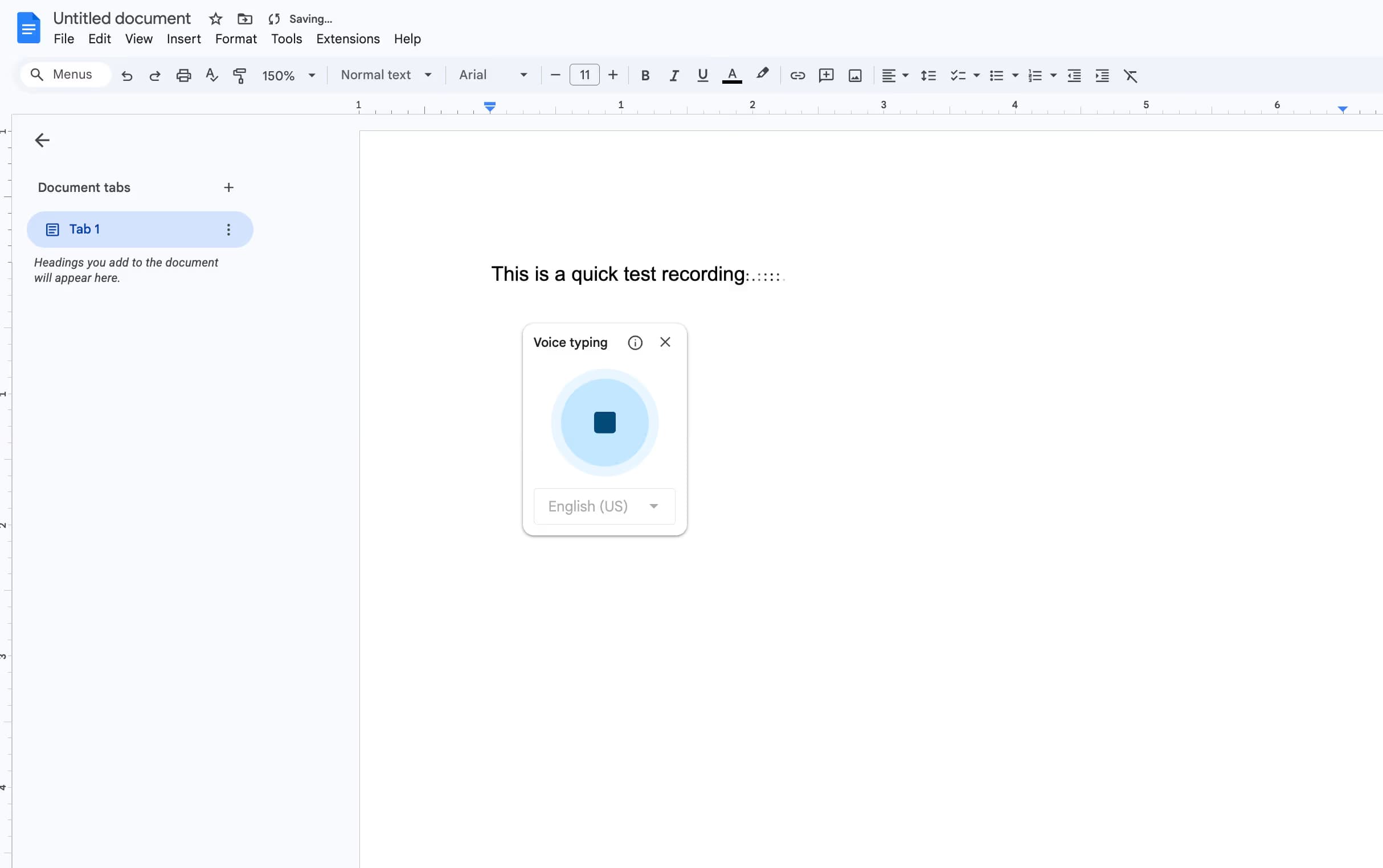
- 3Click the microphone icon. The browser asks for microphone permission the first time. Click Allow.
- 4The icon turns red. Speak naturally and your words appear at the cursor in real time.
- 5Click the microphone again to stop, or say stop listening. Voice Typing also pauses after a few seconds of silence.
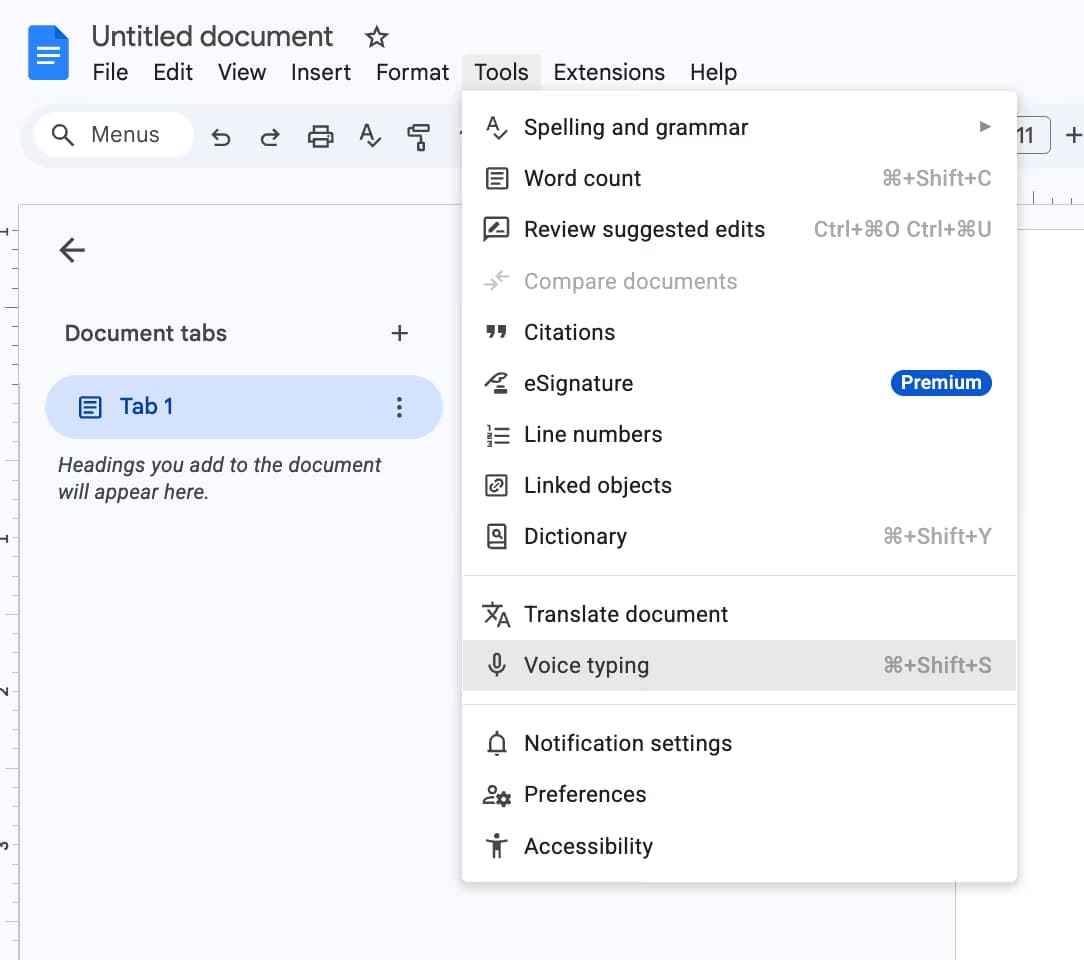
Clicking Voice typing opens a floating panel with a microphone icon. The panel stays on screen while you dictate. Click the microphone, speak, and the text appears at your cursor in real time.
The keyboard shortcut is Cmd+Shift+S on Mac and Ctrl+Shift+S on Windows or Chromebook. The shortcut toggles the microphone without opening the Tools menu.
Browser & System Requirements
Voice Typing uses the Web Speech API and Google's cloud speech recognition. The feature is browser-specific, not OS-specific.
| Requirement | Supported |
|---|---|
| Chrome (latest) | Yes, full support |
| Microsoft Edge (latest) | Yes, full support |
| Safari on Mac | Yes, with occasional command misses |
| Firefox | No, not supported |
| Internet connection | Required, no offline mode |
| Google Docs mobile app | No, Voice Typing is desktop browser only |
| Microphone (built-in or USB) | Required |
| Operating system | macOS, Windows, ChromeOS, Linux |
Voice Typing always sends audio to Google's servers for processing. If you need a dictation tool that works without internet or keeps audio on your device, see the alternatives section below. The full official requirements list is on Google's Voice Typing help page.
Voice Commands Cheat Sheet
Voice Typing supports voice commands for punctuation, formatting, navigation, and editing. Commands only work when both your account language and document language are set to English.
| Category | Examples |
|---|---|
| Punctuation | period, comma, exclamation point, question mark, new line, new paragraph |
| Formatting | bold, italics, underline, strikethrough, superscript, subscript, uppercase, title case, lowercase |
| Headings | apply heading 1 through 6, apply normal text, apply subtitle, apply title |
| Selection | select [word], select all, select all matching text, select paragraph, select next word, deselect |
| Lists | create bulleted list, create numbered list |
| Tables | insert table, insert table [rows] by [columns], insert row, delete column, exit table |
| Editing | copy, cut, paste, delete, delete last word, delete [word], insert link [URL], copy link, delete link |
| Navigation | go to end of line, go to end of paragraph, next paragraph, scroll up, scroll down |
| Font | increase font size, decrease font size, font size [6-400], make bigger, make smaller |
| Color | text color red, highlight, background color yellow, remove highlight |
| Voice control | stop listening, resume, resume with [word], voice typing help, voice commands list |
Say voice commands list inside Voice Typing to open Google's full reference. The complete list runs into the hundreds, but the table above covers the commands most writers use daily.
Dictating on iPhone, iPad, and Android
This is the most common confusion: Google Docs Voice Typing does not exist in the mobile Docs app. The Tools, Voice Typing menu only appears in desktop browsers. On phone and tablet, you dictate using the device keyboard's microphone, which works in any text field including Docs.
On iPhone and iPad
- 1Open Settings, General, Keyboard, and turn on Enable Dictation.
- 2Open the Google Docs app and tap into a document.
- 3Tap the microphone icon on the iOS keyboard (next to the space bar).
- 4Speak. Words appear in the document as you talk. Tap the keyboard icon to stop.
For better accuracy on iPhone, install Spokenly's custom keyboard from the App Store. It replaces the system mic with AI-powered transcription (local model or cloud, your choice) and works in Docs, Mail, Slack, ChatGPT, and any other iOS app.
On Android
- 1Make sure Gboard is your active keyboard (Settings, System, Languages & Input).
- 2Open Google Docs and tap into the document.
- 3Tap the microphone icon on the top right of Gboard.
- 4Speak. Tap the microphone again to stop.
Gboard's offline mode works for short dictation if you have downloaded the language pack. See Google's Gboard voice input help for language pack setup. For long-form work or accent-heavy speech, the keyboard mic falls short and a dedicated dictation app delivers better results.
Languages Supported
Google Docs Voice Typing recognizes more than 100 languages and regional dialects. English alone has 10+ variants (US, UK, Australian, Indian, South African, and more). Spanish has 15+, Arabic has 11+. The full list is available in the Tools, Voice Typing language picker.
One catch: voice commands (bold, period, new paragraph) only work in English. You can dictate text in any supported language, but to use commands like inserting a list or bolding a word, both your Google account language and your document language must be English.
Spokenly supports 100+ languages for dictation. The Parakeet V3 model handles 25 languages locally on Apple Silicon, and Whisper Large V3 Turbo covers 99 languages with automatic detection. See the Spokenly for Mac page for the full language list.
Voice Typing Not Working: 7 Fixes
Most Voice Typing failures come down to seven causes. Work through them in order until your microphone responds.
1. Microphone icon does not appear
Switch to Chrome, Edge, or Safari. Firefox is not supported. If you are using a managed Google Workspace account, ask your admin if Voice Typing is disabled at the organization level.
2. Browser blocks microphone access
In Chrome, click the padlock icon in the address bar, choose Site settings, set Microphone to Allow, and reload the document.
3. Operating system blocks microphone access
On Mac, open System Settings, Privacy & Security, Microphone, and enable the browser. On Windows 11, open Settings, Privacy & Security, Microphone, and toggle access for your browser.
4. Wrong microphone selected
Open Chrome Settings, Privacy and security, Site Settings, Microphone, and pick the right input device from the dropdown. Bluetooth headsets often default incorrectly.
5. Another app is holding the microphone
Close Zoom, Teams, Discord, OBS, or any other app that captures audio. Only one app can use the microphone at a time in many browsers.
6. Privacy extension is blocking access
Some ad blockers and privacy extensions disable Web Speech API access. Pause them on docs.google.com or whitelist the domain.
7. Voice Typing stopped working after a Chrome update
Clear cookies and site data for docs.google.com, then sign back in. Stale service-worker caches can break the Voice Typing component.
Still broken after all seven? See our deeper guide on voice typing not working for OS-level fixes that apply across apps.
5 Biggest Limitations
Google Docs Voice Typing is free and convenient, but it carries real constraints worth knowing before you rely on it for serious work.
- 1
No offline mode
All audio is processed on Google's cloud servers. Voice Typing stops working the moment you lose internet. There is no on-device fallback.
- 2
Desktop browser only
The Tools, Voice Typing menu does not appear in the mobile Docs app, in Google Drive, in Slides, in Sheets, or in any non-Docs context. You must be in docs.google.com on a supported desktop browser.
- 3
No custom vocabulary
Voice Typing has no personal dictionary, no team glossary, and no per-document term list. Technical jargon, proper nouns, and product names get misheard the same way every time.
- 4
Accuracy drops on accents and noise
Real-world accuracy sits around 90 to 95 percent in optimal conditions and falls into the 70s for accented English, technical speech, or background noise. Modern engines like Whisper Large V3 and GPT-4o Transcribe score consistently higher.
- 5
Pauses kill long sessions
Voice Typing stops listening after roughly five seconds of silence. For a 30-minute brain dump or interview transcription, you spend half the session re-clicking the microphone.
Better Alternatives That Work in Google Docs
Any system-wide dictation app that writes into the active text field works inside Google Docs, because Docs is built on a standard contenteditable input. Below are the six options that actually deliver, with a quick fact line each.
1. Spokenly
Mac, Windows, Linux, iPhoneWorks in any app including Google Docs. Local Parakeet V3 and Whisper Large V3 Turbo on Apple Silicon, plus BYOK to OpenAI, Deepgram, and Groq. Modes with AI Instructions, MCP server for AI coding agents.
2. macOS Dictation (Fn Fn)
MacApple's built-in dictation runs on-device on Apple Silicon. Types into Google Docs in Chrome and Safari. Accuracy is fine for casual writing, weaker on jargon and accents.
3. Windows Voice Typing (Win+H)
Windows 10/11Microsoft's built-in voice typing (full guide on Microsoft Support) works in any text field, including Google Docs in Chrome or Edge. Good baseline accuracy. No custom vocabulary or AI cleanup.
4. Wispr Flow
Mac, Windows, iOS, AndroidCloud-only system-wide dictation with AI cleanup. Works inside Google Docs. Always sends audio to their servers.
5. Voice In (Chrome extension)
Chrome, EdgeBrowser extension explicitly built for Google Docs and other web apps. Free tier covers basic dictation, Plus adds commands and vocabulary.
6. Superwhisper
Mac, Windows, iOSLocal Whisper and Parakeet plus BYOK cloud. Power-user friendly with custom modes. Works system-wide so types into Docs.
Note: Speechnotes, a popular dictation web app, explicitly does not type into Google Docs. Speechpad is also unreliable inside Docs. If you see them recommended elsewhere, double-check before paying.
Comparison: Native vs Spokenly vs Others
Quick side-by-side of the five most common ways to dictate into Google Docs, with the criteria that matter for daily writing.
| Feature | Spokenly | Google Voice Typing | Wispr Flow | Voice In |
|---|---|---|---|---|
| Price | Free, Pro $9.99/mo | Free | $15/mo | Free or $7.99/mo |
| Works offline | Yes (local models) | No | No | No |
| Works on mobile | Yes (iOS keyboard) | No | Yes | No |
| Works outside Docs | Yes (system-wide) | No | Yes | Web pages only |
| Custom vocabulary | Yes | No | Yes (Pro) | Yes (Plus) |
| AI text cleanup | AI Instructions | No | Built-in | Limited |
| 100+ languages | Yes | Yes | Yes | 50+ |
| BYOK cloud APIs | Yes (free) | No | No | No |
| MCP for AI agents | Yes | No | No | No |
How to Dictate in Google Docs Offline
Native Voice Typing requires internet, so the straight answer is that Google's built-in feature does not work offline. The workaround is to dictate with a local speech-to-text app that types into the open Doc, then sync the document when you reconnect.
- 1Enable offline access for Google Docs by going to Drive Settings (gear icon) and turning on Offline. Pin the document you want to edit.
- 2Install Spokenly and pick a local model. Parakeet V3 is the fastest on Apple Silicon, Whisper Large V3 Turbo is the most accurate on accented English.
- 3Open the Doc, place your cursor in it, and trigger Spokenly's dictation hotkey. Words type directly into the document.
- 4When you reconnect, Drive syncs your changes automatically. Voice Typing stays unused, but you got the same outcome with no internet.
This approach also covers the privacy gap. Google's cloud sees every word you dictate when Voice Typing is on. With a local model, audio stays on your device. Combine it with Spokenly's Local Only Mode (which blocks all outbound network requests) for fully air-gapped dictation.
Best Tool by Use Case
Writers and journalists
Spokenly with Whisper Large V3 Turbo for long-form drafting. Accurate on proper nouns and works on a plane.
Students
Native Voice Typing if you write short essays in a quiet dorm. Spokenly with student 50% off Pro at $4.99/mo if you need offline support for lectures and library work.
Multilingual users
Spokenly. It dictates in 100+ languages with commands working in every language, not just English.
Privacy-conscious professionals
Spokenly with Local Only Mode. Lawyers, doctors, and anyone handling confidential drafts cannot send audio to Google's servers.
Developers writing docs
Spokenly with the MCP server enabled. Voice input pipes directly into Claude Code, Cursor, or Codex for technical writing tasks.
Accessibility users
Spokenly. Handles tremors and atypical speech patterns far better than the device keyboard mic, and the free local-model tier means no subscription pressure if needs change month to month.
FAQ
What is the keyboard shortcut for Google Docs voice typing?
Ctrl+Shift+S on Windows and Chromebook, Cmd+Shift+S on Mac. The shortcut toggles the Voice Typing microphone in the Google Docs editor. Google does not officially document this shortcut on the help page, but it works in current Chrome, Edge, and Safari versions.
Why is the microphone icon missing in Google Docs?
Three common causes: you are using an unsupported browser (Firefox is not supported, Chrome, Edge, and Safari are), Voice Typing is disabled by a Google Workspace admin, or you are working in the mobile Docs app where Voice Typing does not exist as a feature. Switch to a desktop browser, contact your admin, or use the device's keyboard microphone on mobile.
Does Google Docs voice typing work on iPhone or Android?
No. The Tools, Voice Typing menu is desktop-browser only and does not exist in the Google Docs mobile app. On iPhone use the keyboard microphone (Settings, General, Keyboard, Enable Dictation). On Android use Gboard voice input. Both work in any text field, including Docs.
Can Google Docs voice typing work offline?
No. Google Docs Voice Typing requires an active internet connection because audio is processed on Google's cloud servers. For offline dictation in Google Docs, install Spokenly with a local Parakeet or Whisper model and dictate system-wide. The text appears in Docs the same as if you typed it.
Why does Google Docs voice typing stop after a few seconds?
Google Docs stops listening after roughly five seconds of silence or background noise that masks your voice. Click the microphone again to resume, or speak more continuously. Apps with dedicated audio buffers, like Spokenly, handle longer sessions without auto-stopping on a brief pause.
Are voice commands available in languages other than English?
No. Voice typing recognizes speech in 100+ languages, but voice commands (bold, period, new paragraph) only work when both your Google account language and the document language are set to English. For multilingual dictation without the command-syntax gap, use a system-wide dictation app instead.
Is there a Google Docs voice typing extension?
Voice Typing is built into Google Docs and does not require an extension. Browser extensions like Voice In add system-wide dictation in Chrome that also types into Docs, but they are not Docs-specific. Speechnotes, despite being a popular dictation tool, explicitly does not work inside Google Docs.
How accurate is Google Docs voice typing in 2026?
Roughly 90 to 95 percent accuracy for clear English audio in a quiet room. Accuracy drops for accented English, technical jargon, rapid speech, and proper nouns. Modern speech-to-text engines like GPT-4o Transcribe, Deepgram Nova, and NVIDIA Parakeet V3 score noticeably higher and are available through Spokenly with no extra cost.
Is Spokenly really free to use in Google Docs?
Yes. Spokenly's local Parakeet and Whisper models run on your Mac with no time limit, no word cap, and no account. Dictate into Google Docs the same way you would into any other app. Bring your own OpenAI, Deepgram, or Groq API keys for cloud accuracy at zero markup, or subscribe to Spokenly Pro at $9.99/mo for managed cloud models.