
What Is Mac Dictation
Mac dictation, also called voice typing or voice to text on Mac, is the built-in feature in macOS that converts what you say into typed text in any application. You press a shortcut, speak a sentence, and the words appear at your cursor in Notes, Mail, Pages, Slack, or anywhere else you can type.
Apple Dictation has been part of macOS since 2012. On Apple Silicon Macs (M1 and later) it runs entirely on-device, so audio never leaves the computer. macOS Ventura and later add automatic punctuation, and Sonoma improved live preview latency.
macOS dictation supports about 50 languages and works in any text field across the system. Accuracy is good for casual writing but degrades on technical jargon, proper nouns, and accented English. For those scenarios, modern alternatives running Parakeet, Whisper, or cloud models like GPT-4o Transcribe perform measurably better.
How to Enable Dictation on Mac
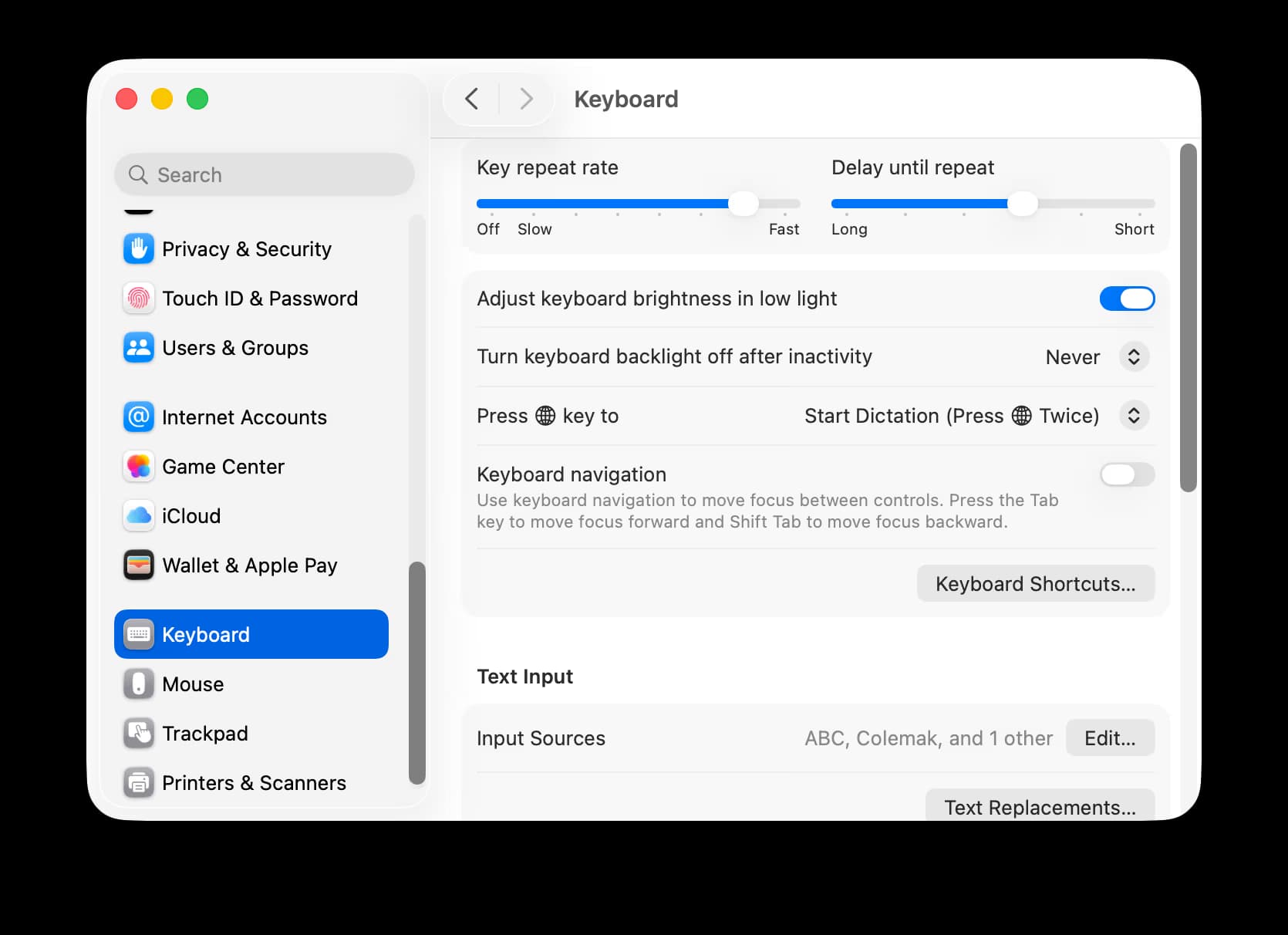
Mac dictation is off by default. Here is how to turn it on in macOS Sonoma, Sequoia, and Tahoe (macOS 26):
- 1Click the Apple menu in the top-left corner and choose System Settings.
- 2Click Keyboard in the sidebar.
- 3Scroll to the Dictation section.
- 4Toggle Dictation on. macOS will ask whether to download an enhanced model. Choose Enable for offline use.
- 5Pick a default language and a shortcut for activation.
On the first activation, macOS may take a minute or two to download the language model. Once it finishes, you can dictate even with no internet connection.
How to Turn On Dictation (Shortcut)
Once dictation is enabled in System Settings, you start it with a keyboard shortcut. The default depends on your Mac model:
| Mac model | Default shortcut |
|---|---|
| MacBook Pro / Air with dictation key (2021+) | F5 (microphone) |
| Older MacBook with no dictation key | fn fn (tap function key twice) |
| Mac with external keyboard | control control |
You can change the shortcut in System Settings → Keyboard → Dictation → Shortcut. Pick any key combination that does not conflict with existing apps. Many users prefer a single function key like F13 for one-press activation.
How to Dictate on Mac (Step by Step)
With dictation enabled and the shortcut configured, dictating is the same in every app:
- 1Click into any text field, like a Notes window, an email body, a Slack message, or a code editor.
- 2Press the dictation shortcut. A small microphone indicator appears next to the field.
- 3Speak naturally. Words appear at your cursor as you speak.
- 4Press the shortcut again or click the Done button to stop dictation.
Apple Dictation uses an inline insertion model: it shows a live preview while you talk and commits the final text when you stop. There is no need to wait for processing in most cases.
Voice Commands & Punctuation
Apple Dictation accepts spoken punctuation. Say the symbol name and it inserts the character:
"period" or "full stop"→."comma"→,"question mark"→?"exclamation mark" or "exclamation point"→!"new paragraph"→(line break)"new line"→(soft line break)"open quote" / "close quote"→" ""open parenthesis" / "close parenthesis"→( )
With the latest macOS releases, automatic punctuation is on by default. The system inserts commas and periods from sentence rhythm, so you only need to speak the exotic ones manually.
Dictation vs Voice Control: Which One Do You Need?
macOS ships two separate voice features, and mixing them up is the most common source of confusion. Dictation converts speech to text: you talk, words appear at the cursor. Voice Control (System Settings → Accessibility → Voice Control) is a full hands-free navigation layer: it lets you click buttons, open menus, switch apps, and edit text entirely by voice.
If you only want to type with your voice, keep Voice Control off. Running both at once causes double-typed words and shortcut conflicts. Voice Control makes sense for motor-accessibility needs; for everyday voice typing on Mac, Dictation (or a third-party dictation app) is the right tool.
Tips for Better Accuracy
A few simple habits make a big difference, especially if you find Apple Dictation hit-or-miss:
- +Position the mic 10 to 20 centimeters from your mouth. The built-in MacBook mic works, but a USB or wired headset mic gives noticeably better results.
- +Speak naturally, not slowly. Modern dictation models trained on conversational audio do worse with robotic pacing than with normal speech.
- +Pick a quiet room. Echo and background voices throw the model off more than a bit of mic distance.
- +Use the right language profile. Even within English, US, UK, and Australian variants behave differently for the same accent.
- +Avoid trailing off at sentence ends. Dictation cuts off audio when it detects a long silence.
- +If accuracy stays poor, try Spokenly with a Whisper model. Whisper handles accents and technical terms much better than Apple's default engine.
How to Change the Dictation Language on Mac
Apple Dictation supports about 50 languages with regional variants for English, Spanish, French, German, Chinese, Arabic, and others. To change or add a dictation language:
- 1Open System Settings → Keyboard and scroll to the Dictation section.
- 2Use the Language selector to add or switch languages. macOS downloads a separate offline model for each one.
- 3To switch while dictating, pick the language from the dictation pop-up's language menu instead of going back into Settings.
Two caveats. Apple dictates in one language at a time, so bilingual writing means manual switching. And if the language you need is missing from Apple's list (many African, Indic, or Southeast Asian languages), third-party apps using Whisper or Parakeet models cover 100+ languages, and Whisper-class models detect the spoken language automatically, so mixed-language dictation needs no switching at all.
Common Problems & Fixes
| Problem | Fix |
|---|---|
| Dictation key does nothing | Check System Settings, Keyboard, Dictation. Toggle off, wait a few seconds, toggle back on. Reboot if needed. |
| Dictation key opens Siri instead | Open System Settings, Apple Intelligence & Siri. Confirm the Siri shortcut does not match your dictation shortcut. Remap one in Keyboard, Dictation. |
| Microphone not detected | Open System Settings, Privacy & Security, Microphone. Ensure SystemUIServer has access. Re-grant access for any app where dictation fails. |
| Wrong language | Click the dictation menu icon in the menu bar and pick the right language, or change the default in Keyboard, Dictation, Language. |
| Audio cuts off mid-sentence | Raise the microphone input gain in System Settings, Sound, Input. Also disable any noise-cancellation app that might be muting low-volume input. |
| Words come out garbled | Re-download the language model. Open Keyboard, Dictation, Language, tap your language, then download again. |
| Dictation works in some apps but not others | Some sandboxed apps block system-wide dictation. Use a third-party app like Spokenly that inserts text directly through the keyboard layer. |
| Bluetooth headset audio sounds bad | Apple Dictation can downgrade Bluetooth mic quality to phone-call mode. Switch to a wired or USB mic for the best results. |
| Dictation is slow on older Macs | Switch to a faster local model. Spokenly with Parakeet runs comfortably on Intel Macs and is faster than Apple Dictation on the same hardware. |
When Apple Dictation Falls Short
Apple Dictation works well for casual writing in supported languages. If you regularly hit its limits (technical jargon, accented English, missing languages, sandboxed apps, slower older Macs), Spokenly is a free alternative built for those scenarios.
- Modern cloud models (GPT-4o Transcribe, Deepgram Nova) for top accuracy on jargon and accents.
- Local Parakeet or Whisper for 100% offline mode. Audio never leaves your Mac.
- 100+ languages, including ones Apple does not ship (most Indic, Southeast Asian, African).
- Free with your own API keys (BYOK) for cloud-quality dictation with no markup.
- Works in any Mac app, including code editors, terminal, and Office, where Apple Dictation fails.
See Spokenly for Mac for the full feature list, or read the 2026 dictation app roundup to compare it with Wispr Flow, SuperWhisper, and others.
FAQ
How do I enable dictation on a Mac?
Open System Settings, click Keyboard in the sidebar, scroll to the Dictation section, and toggle it on. macOS downloads an on-device language model the first time. Dictation then works system-wide in any text field, online or offline on Apple Silicon Macs.
What is the keyboard shortcut for dictation on Mac?
Newer MacBooks (2021 and later) use the dedicated dictation key in the function row, which sits on the F5 position with a microphone icon. Older Macs default to tapping the function key twice (fn fn) or control twice on external keyboards. You can change the shortcut in System Settings, Keyboard, Dictation, Shortcut.
Does Mac dictation work offline?
Yes. Apple Dictation runs fully on-device on Apple Silicon Macs (M1 and later) once the language model finishes downloading. Intel Macs may use Apple's servers for some languages. Spokenly defaults to cloud models for accuracy, with local Parakeet and Whisper options that run fully offline when you switch to them.
How do I dictate on a Mac without saying punctuation?
Use a dictation engine with automatic punctuation. macOS Sonoma and later add commas and periods automatically, but the inference can lag behind your speech. Whisper Large V3 and GPT-4o Transcribe (available through Spokenly) infer punctuation from full context, so you can speak naturally and skip every comma command.
How do I change the dictation language on my Mac?
Open System Settings, click Keyboard, scroll to Dictation, and use the Language selector to add or switch languages. macOS downloads an offline model per language, and you can switch the active one from the dictation pop-up's language menu while dictating. Apple dictates in one language at a time; for automatic language detection or languages Apple does not ship, use a Whisper-based app like Spokenly.
Why is Mac dictation not working?
The four most common causes are a revoked microphone permission, the Dictation toggle flipping off after a macOS update, a partially downloaded language model, or a third-party shortcut conflict. Toggle Dictation off and on, then re-download the language model. If still broken, check System Settings, Privacy & Security, Microphone for SystemUIServer access.
Is there free dictation software for Mac better than Apple Dictation?
Yes. Spokenly is free with local Parakeet and Whisper models, supports BYOK cloud transcription with your own OpenAI or Deepgram keys, and works system-wide in any Mac app. Modern cloud models like GPT-4o Transcribe and Deepgram Nova are noticeably more accurate than Apple Dictation on technical terms, proper nouns, and accented English.
How long can I dictate continuously on Mac?
macOS Ventura and later have no fixed time limit on enhanced dictation, but the system can pause if microphone activity stops for several seconds. Older versions had a 30 to 60 second cap. For uninterrupted multi-hour sessions, third-party apps with their own audio buffers handle long-form dictation more reliably.
Why does my Mac dictation key open Siri instead?
Recent macOS versions can map the dictation key to Siri if Siri is set to use a Globe-key shortcut. Open System Settings, Apple Intelligence & Siri, and confirm the Siri shortcut does not match your dictation shortcut. If it does, change one or remap the dictation key under Keyboard, Dictation, Shortcut.
Can I dictate code with my voice on Mac?
Apple Dictation handles plain English well but stumbles on syntax, brackets, and operators. For voice coding, use Spokenly with a Whisper model and AI Instructions that convert spoken intent to code, or use the MCP integration with Claude Code, Cursor, or Codex so the AI agent itself receives your voice input. See our guide on voice dictation for developers.
Ready to try Spokenly?
Free to use with local models. No account required.
Download SpokenlyRead next