
Why is Mac dictation not working?
Mac dictation usually stops working because of a denied microphone permission, a Voice Control conflict, a missing offline language model, or a glitch after a macOS update. The fastest fix is to toggle Dictation off and back on in System Settings, Keyboard, Dictation. The fixes below cover every cause in order.
Quick Diagnosis (30 Seconds)
Most Apple Dictation failures fall into one of three buckets. Match your symptom to the right fix and skip ahead.
- 1No response at all (no tone, no icon). Dictation toggle is off or the shortcut got remapped. Go to Fix 1 and Fix 5.
- 2Tone plays, microphone icon appears, but no text. The recognition daemon is hung. Go straight to Fix 6.
- 3Works sometimes, fails in specific apps. Per-app microphone permission. Go to Fix 2.
Jump to the symptom table for the full mapping. The fixes below are ordered by frequency, easiest first.
Fix 1: Toggle Dictation Off and On
macOS minor updates occasionally reset the Dictation switch. This is the single most common cause of dictation breaking after an update.
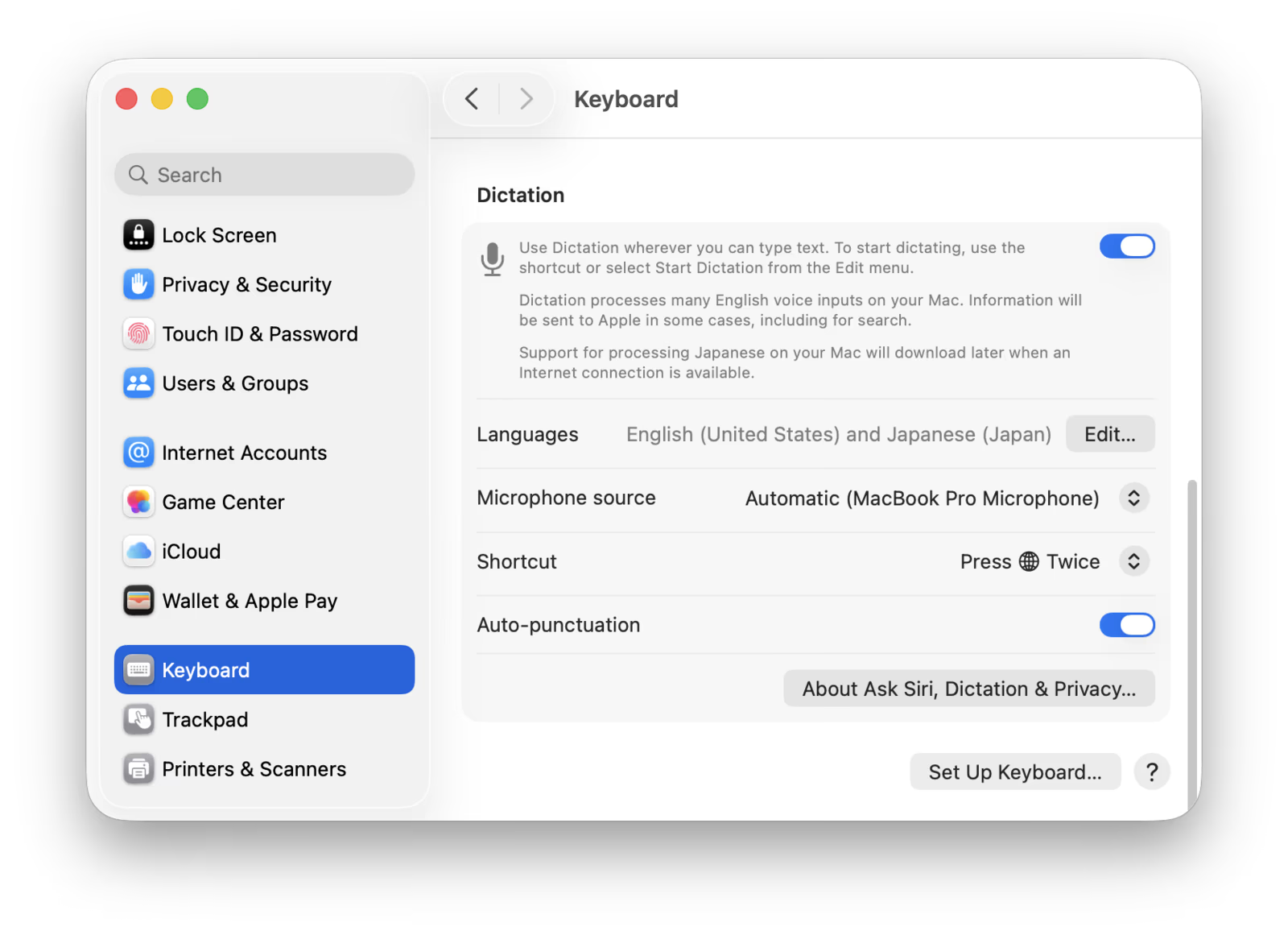
- 1Open System Settings from the Apple menu.
- 2Click Keyboard in the sidebar.
- 3Scroll to the Dictation section.
- 4Toggle Dictation off, wait ten seconds, toggle it back on.
- 5Click Enable when macOS prompts about microphone access.
Particularly common after upgrading from macOS 14 to 15, or 15 to 26. If toggling does not help, move to Fix 2.
Fix 2: Re-grant Microphone Permission
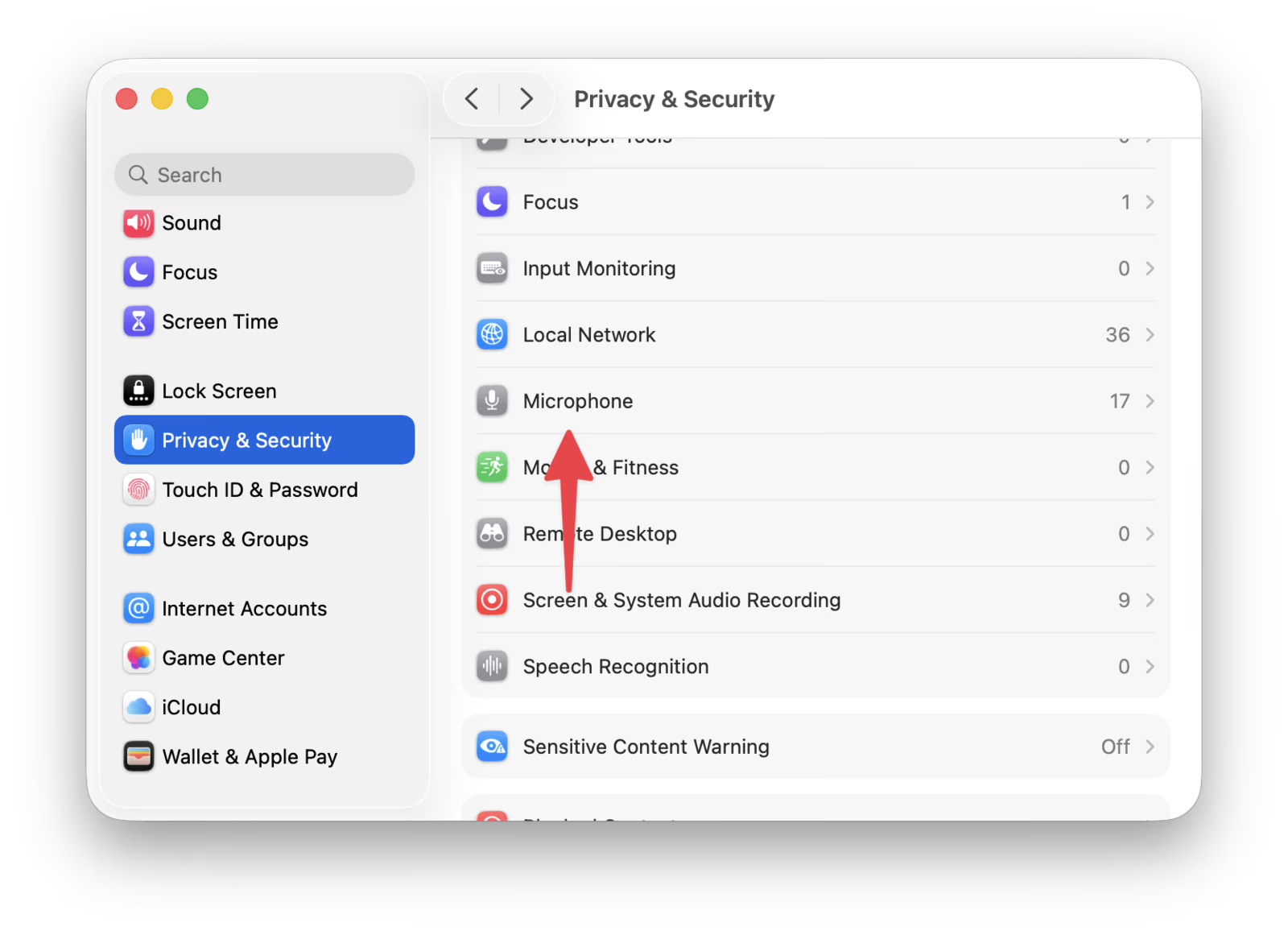
If dictation works in Notes but fails in Chrome, Slack, Cursor, VS Code, or any third-party app, the microphone permission has been revoked or never granted for that specific app.
- 1Open System Settings, Privacy and Security, Microphone.
- 2Find the affected app in the list.
- 3Toggle the switch off, then back on.
- 4Quit the app fully with Command-Q.
- 5Relaunch and try dictation. macOS only refreshes mic permissions on app launch.
Power user shortcut: open Terminal and run tccutil reset Microphone to reset every app at once. macOS will re-prompt for permission on next launch.
Fix 3: Disable Voice Control
Voice Control and Dictation share the same audio input pipeline. macOS does not warn you when both are enabled, but Voice Control wins silently. Often-overlooked cause of sudden dictation failure.
- 1Open System Settings, Accessibility.
- 2Click Voice Control in the sidebar.
- 3Turn the Voice Control toggle off.
- 4Test dictation immediately.
Voice Control sometimes turns itself on through an Accessibility shortcut (triple-press of the Touch ID button). Check System Settings, Accessibility, Accessibility Shortcut and remove Voice Control from the list if you do not use it intentionally.
Fix 4: Re-download the Language Model
A partially downloaded or corrupted language model causes dictation to start, show the icon, but never produce text. Forcing a refresh fixes it.
- 1Open System Settings, Keyboard, Dictation.
- 2Click Edit next to Languages.
- 3Add a second language (English UK if your primary is English US).
- 4Switch active dictation to the new language and dictate one phrase.
- 5Switch back to your original language. macOS refreshes both models in the process.
Stay on Wi-Fi during this process. The on-device language model is one to two gigabytes per language. Cellular tethering or weak signal causes silent failures.
Fix 5: Fix Dictation Key Opening Siri
On 2021 and later MacBooks, F5 doubles as the dictation key and the Globe key. If both Dictation and the assistant use the same shortcut, the assistant wins.
- 1Open System Settings, Keyboard, Dictation, Shortcut.
- 2Pick a unique combo: F13, double-tap Right Control, or Option-Z.
- 3Open System Settings, Apple Intelligence and Siri, Keyboard Shortcut.
- 4Confirm the assistant uses a different key.
- 5Test dictation with your new shortcut.
Single-key F-key shortcuts (F13 through F19) never collide with system features and work instantly. See our complete shortcut guide for every preset and custom combo.
Fix 6: Restart corespeechd via Terminal
corespeechd is the macOS daemon that handles speech recognition. When it hangs, you get the F5 tone but no text. Killing the process forces a clean restart, which fixes the silent-mic state instantly in most cases.
- 1Open Terminal from Applications, Utilities.
- 2Paste: sudo killall -9 corespeechd
- 3Enter your password if prompted.
- 4Test dictation immediately. macOS auto-relaunches the daemon.
If killing corespeechd alone does not restore dictation, also restart the assistant daemon:
sudo killall -9 corespeechd sudo killall -9 assistantdThis is the canonical fix for the F5-tone-no-text symptom reported on multiple macOS Sequoia and Tahoe builds.
Fix 7: Delete Corrupted Preferences
When every other fix fails, the assistant preference file is corrupted. Deleting it forces macOS to rebuild dictation configuration from scratch.
- 1Quit System Settings completely.
- 2In Finder, choose Go, Go to Folder.
- 3Paste: ~/Library/Preferences/
- 4Drag com.apple.assistant.plist to the Trash.
- 5Restart your Mac.
- 6Re-enable Dictation when prompted on first login.
Power user one-liner: defaults delete com.apple.assistant && killall cfprefsd wipes the prefs cache too. Your dictation custom shortcut will reset to default.
Fix 8: Fix Bluetooth and AirPods Audio
When AirPods or any Bluetooth headset route audio in HFP (call) mode, the microphone samples at 8 to 16 kHz instead of full bandwidth. Apple Speech often cannot decode the result consistently, producing garbled or empty transcriptions even when the mic icon shows activity.
- 1Open System Settings, Sound, Input.
- 2Pick Internal Microphone explicitly. Do not leave on Automatic.
- 3For AirPods, also open Bluetooth, click the i next to your AirPods, and set Microphone to Always Left or Always Right.
- 4Test dictation with the internal mic first to confirm.
Same issue applies to Bose QC, Sony WH-1000XM, and most over-ear Bluetooth headsets. Wired USB microphones bypass the problem entirely.
Fix 9: Check Screen Time Restrictions
Education and corporate-managed Macs sometimes have Dictation blocked by Screen Time content restrictions. The block is invisible from the Keyboard panel.
- 1Open System Settings, Screen Time.
- 2Click Content and Privacy.
- 3Under App Restrictions, confirm Siri and Dictation is allowed.
- 4If managed by an organization profile, contact your MDM administrator.
Family Sharing children accounts have this restriction enabled by default in many configurations.
Fix 10: Enable Offline Dictation
On Apple Silicon Macs, dictation runs entirely on-device once the offline model downloads. Without it, weak Wi-Fi or no internet causes silent failures.
- 1Connect to Wi-Fi. Stay connected for the full download.
- 2Open System Settings, Keyboard, Dictation.
- 3Toggle Use Offline Dictation on.
- 4Wait for the language model to finish downloading (one to two gigabytes).
- 5Test dictation. After the download, it works without internet.
Fix 11: Disable Low Power Mode
On M1 and M2 MacBook Air, Low Power Mode on battery sometimes throttles the speech daemon enough to break dictation. If dictation works on AC power but fails on battery, this is the cause.
- 1Open System Settings, Battery.
- 2Click Options.
- 3Set Low Power Mode to Never, or only on AC.
- 4Test dictation again on battery.
Fix 12: Quit Karabiner and Shortcut Apps
Karabiner-Elements, BetterTouchTool, Raycast, and Hammerspoon can intercept the dictation key before macOS sees it. Karabiner complex modifications often capture Globe and Fn keys silently.
- 1Quit Karabiner-Elements, BetterTouchTool, Raycast, or any other shortcut manager.
- 2Press your dictation shortcut. If it now works, the manager was intercepting it.
- 3Audit your remappings. In Karabiner, check complex_modifications.
- 4Either disable the conflicting rule, or change Dictation to a key the manager does not capture.
Fix 13: Install macOS Patch
Anyone stuck on the .0 release of any macOS major version is likely hitting a known bug. macOS 15.2 contains explicit Dictation fixes, and Tahoe 26.1 fixes the F5-tone-no-text regression for many Apple Silicon users.
- 1Open System Settings, General, Software Update.
- 2Install any pending macOS updates.
- 3Restart when prompted.
- 4Test dictation after the update completes.
Fix 14: Reset Audio Input Routing
If you use Loopback, BlackHole, Krisp, or any virtual mic for podcasting or Zoom, dictation can route to the wrong input source.
- 1Open System Settings, Sound, Input.
- 2Pick MacBook Pro Microphone (or your built-in input) explicitly.
- 3Quit Krisp, Loopback, BlackHole, or any virtual audio app.
- 4Test dictation. Switch back to your aggregate device after confirming.
Still Broken? Use Spokenly Instead
Apple Dictation has architectural limits no fix can address: silence cutoffs, accuracy regressions across releases, no custom vocabulary, and frequent silent failures after macOS updates. Spokenly is a free alternative that works while you wait for the next Apple patch.
- Free with local Parakeet and Whisper models. Audio never leaves your Mac in local mode.
- Optional BYOK cloud (GPT-4o Transcribe, Deepgram Nova, Soniox) for top accuracy on jargon and accents.
- 100+ languages, including ones Apple does not ship.
- Works in any Mac app, including Cursor, VS Code, and Terminal where Apple Dictation can fail.
- Push-to-hold or toggle modes that stay alive as long as you need, no silence timeout.
Spokenly is completely free with local models and BYOK. Your own OpenAI, Deepgram, or Groq key gives you cloud-quality dictation for pennies per hour. See Spokenly for Mac or compare against alternatives in the 2026 dictation app roundup. For deeper research, see Apple's official Dictation troubleshooting page and the Apple Community thread on Dictation not responding.
Diagnose by Symptom
| Symptom | Likely cause | Go to |
|---|---|---|
| F5 plays the activation tone but no text appears | corespeechd daemon hung | Fix 6 (Terminal kill) |
| No tone, no microphone icon, no response | Dictation toggle off or shortcut conflict | Fix 1 + Fix 5 |
| Text appears for 1 second then disappears | Language model corrupted | Fix 4 |
| Dictation key opens Siri | Globe key shortcut collision | Fix 5 |
| Works in Notes, fails in Chrome or Slack | App-specific microphone permission | Fix 2 |
| Cuts off after a few seconds | Voice Control intercepting input | Fix 3 |
| Garbled or wrong words consistently | Bluetooth headset HFP mode | Fix 8 |
| Works on power, fails on battery | Low Power Mode throttling speech daemon | Fix 11 |
| Was working before macOS update, broken now | Toggle reset or partial update | Fix 1 + Fix 13 |
| Custom shortcut intercepted | Karabiner or BetterTouchTool remap | Fix 12 |
FAQ
Why is my Mac dictation not working in macOS Sequoia or Tahoe?
The most common causes after a macOS update are a flipped Dictation toggle, a revoked microphone permission, and a partially downloaded language model. Open System Settings, Keyboard, Dictation, and toggle it off then on. If text still does not appear when you speak, re-grant microphone permission for the app you are typing in and add a second language to force a model re-download.
Why does the dictation icon appear but no text shows up when I speak?
This is the silent-mic bug. The Speech Recognition daemon (corespeechd) has hung. Open Terminal and run sudo killall -9 corespeechd. macOS relaunches it automatically. Test dictation immediately. If the issue returns, delete ~/Library/Preferences/com.apple.assistant.plist and restart your Mac.
How do I fix dictation that stopped working after a macOS update?
Open System Settings, Keyboard, Dictation. Toggle Dictation off, wait ten seconds, toggle it back on. Click Enable when prompted to re-download the language model. After updates, Dictation can also lose microphone permission for individual apps. Open System Settings, Privacy and Security, Microphone, and toggle the affected app off and on. Restart any app where dictation was failing.
Why does dictation work in Notes but not in Chrome, Slack, or VS Code?
These apps need explicit microphone permission. Open System Settings, Privacy and Security, Microphone, and confirm the app is enabled. After enabling, fully quit the app (Command-Q) and relaunch it. macOS only refreshes microphone permissions on app launch, not while the app is running.
Why does my Mac play the dictation tone but nothing happens?
The activation tone confirms the keyboard shortcut works, so the failure is in the speech recognition pipeline. Common causes are a hung corespeechd daemon, a corrupt language model, or a Bluetooth headset in low-quality call mode. Try a Terminal kill of corespeechd, switch input to your built-in microphone, and re-add your dictation language under Keyboard, Dictation, Edit.
Does Voice Control conflict with Dictation on Mac?
Yes. Voice Control and Dictation share the same audio input pipeline, and macOS does not warn you when both are active. Open System Settings, Accessibility, Voice Control and turn it off. Most users who report dictation suddenly stopping had Voice Control silently enabled by an Accessibility shortcut.
How do I make Mac dictation work with AirPods or a Bluetooth headset?
When AirPods route audio in HFP call mode, bandwidth drops from 256 kbps to 64 kbps and Apple Speech cannot decode reliably. Open System Settings, Sound, Input, and pick Internal Microphone explicitly instead of Automatic. For AirPods, set Microphone to Always Left or Always Right under Bluetooth device settings.
Why does dictation cut off mid-sentence on Mac?
Apple Dictation pauses on extended silence (typically a few seconds). Modern macOS no longer has the strict 30 to 60 second hard cap of older versions, but the system still ends a session if it detects a long pause. For uninterrupted long-form dictation, Spokenly's push-to-hold or toggle modes stay active until you release the key.
What is the best alternative to Apple Dictation when nothing works?
Spokenly is free with local Parakeet and Whisper models, plus BYOK cloud transcription using your own OpenAI, Deepgram, or Groq key for top accuracy when you need it. It works in any Mac app, including the ones where Apple Dictation silently fails (Cursor, VS Code, Terminal). No account required, no quota, no upload caps.
How do I download the offline dictation language model on Mac?
Open System Settings, Keyboard, Dictation. Toggle Dictation on, then click Edit next to Languages. Select your language and wait for the download to complete (typically one to two gigabytes). Stay on Wi-Fi for the duration. After it finishes, Dictation works without an internet connection on Apple Silicon Macs.
Why is Mac dictation accuracy worse than it used to be?
Apple Dictation accuracy regressions are widely reported across recent macOS releases on forums like Apple Communities and MacRumors. Modern cloud models score in the single digits on standard benchmarks, while Apple Dictation lags noticeably on technical jargon, proper nouns, and accented English. Spokenly with Whisper Large V3 or GPT-4o Transcribe is a free way to bypass this gap.
Will reinstalling macOS fix dictation?
Almost never. Dictation issues are configuration-level, not file-system-level. Reinstalling macOS in place preserves user preferences, so the bad state persists. The fastest fixes are toggling Dictation, re-granting microphone permission, and killing corespeechd in Terminal. Reserve a clean reinstall for the rare case where everything else fails.
Ready to try Spokenly?
Free to use with local models. No account required.
Download SpokenlyRead next