
TL;DR Shortcut Cheatsheet
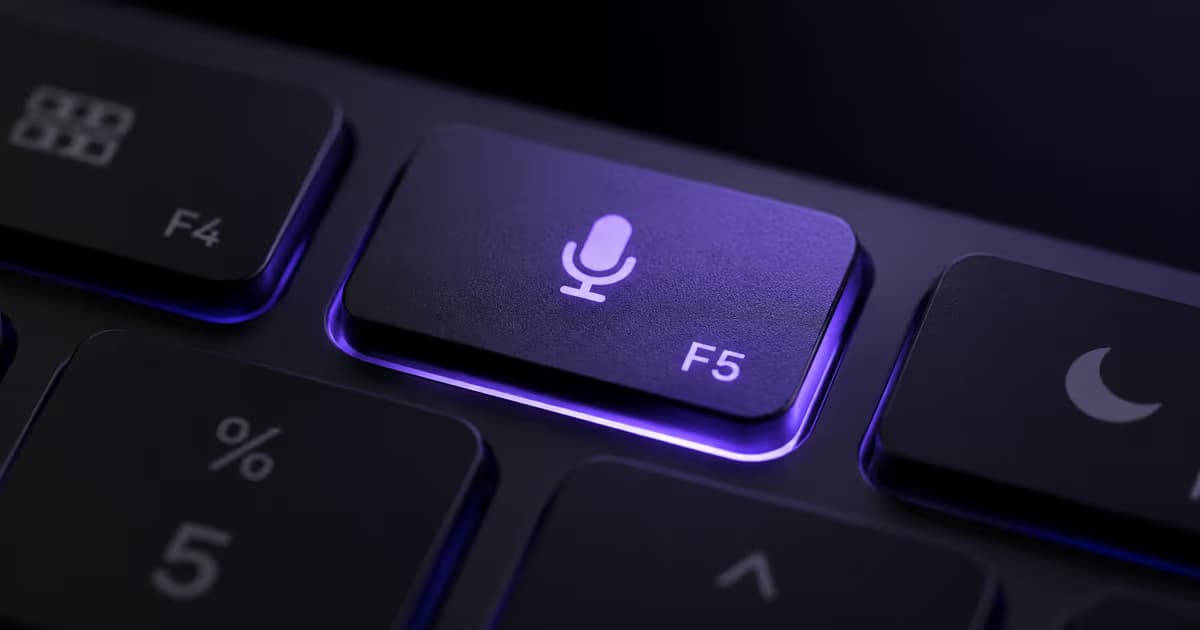
- +2021+ MacBook Pro/Air: press
F5(microphone key) once. - +Older MacBook: double-tap
fnkey. - +External keyboard: double-tap
controlkey. - +Customize: System Settings, Keyboard, Dictation, Shortcut, Customize.
- !Best single-key: F13 through F19 if your keyboard has them. No conflicts in default macOS or major apps.
Skip Limits: Use Spokenly Instead
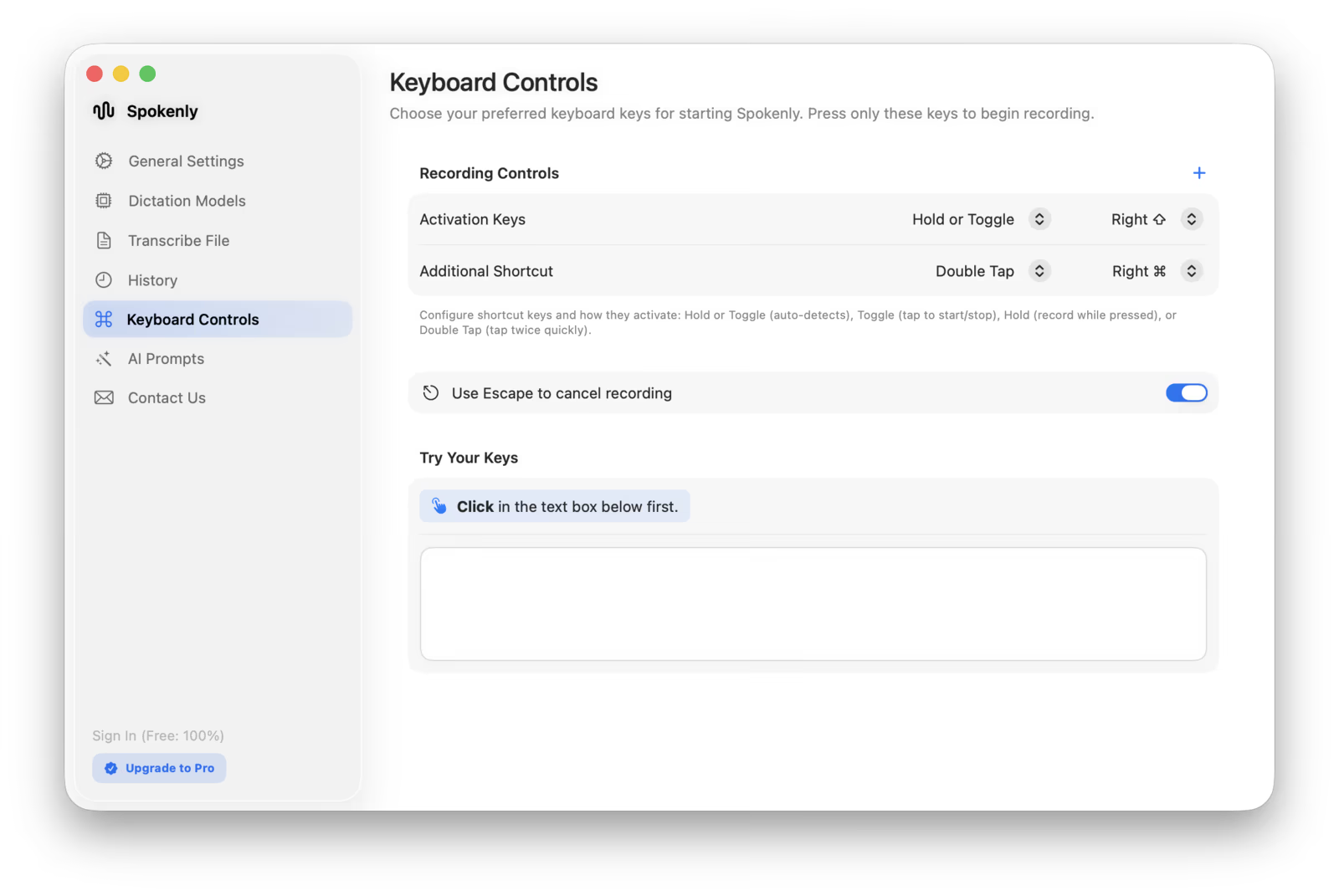
Apple Dictation locks you into about a dozen shortcut presets and a few customs. Spokenly is free and supports any key, any modifier, push-to-hold, toggle mode, and per-app behavior.
- Any single key (including F1-F19), any modifier combo, double-tap modifiers.
- Push-to-hold or toggle modes (Apple has only toggle).
- Per-app shortcuts and prompts. Different model in Cursor than in Slack.
- Free with local Whisper and Parakeet, or BYOK cloud models for top accuracy.
See Spokenly for Mac.
Default Shortcuts by Mac Model
| Mac model | Default shortcut | Note |
|---|---|---|
| MacBook Pro / Air with dictation key (2021+) | F5 (microphone) | Single press to start, single press to stop. |
| MacBook Air M2 / M3 / M4 | F5 (microphone) | Same as 2021+. May need fn+F5 if F-keys are standard function keys. |
| MacBook Pro Touch Bar (2016-2020) | fn fn (double-tap) | Add Dictation icon via Customize Touch Bar for direct access. |
| Older MacBook (pre-2021, no dictation key) | fn fn (double-tap) | First press starts, second press or Esc ends. |
| External keyboard (no fn or mic key) | control control | Default if no microphone key detected. Set custom for single-press. |
| Magic Keyboard with dictation key | Microphone/F5 key | Single press. Globe key separate. |
| Magic Keyboard without dictation key | fn fn or Globe key | Configurable in Keyboard settings: Press Globe key to → Start Dictation. |
| Mac mini, Mac Studio, Mac Pro | Depends on keyboard | Inherits whatever the connected keyboard supports. |
Apple's Dictation panel auto-syncs with the "Press fn key to" / "Press 🌐 key to" Keyboard setting. Choosing one mutates the other. See Apple's official Dictation guide for the full preset list.
How to Change the Shortcut
Steps work identically on macOS Sonoma 14, Sequoia 15, and Tahoe 26.
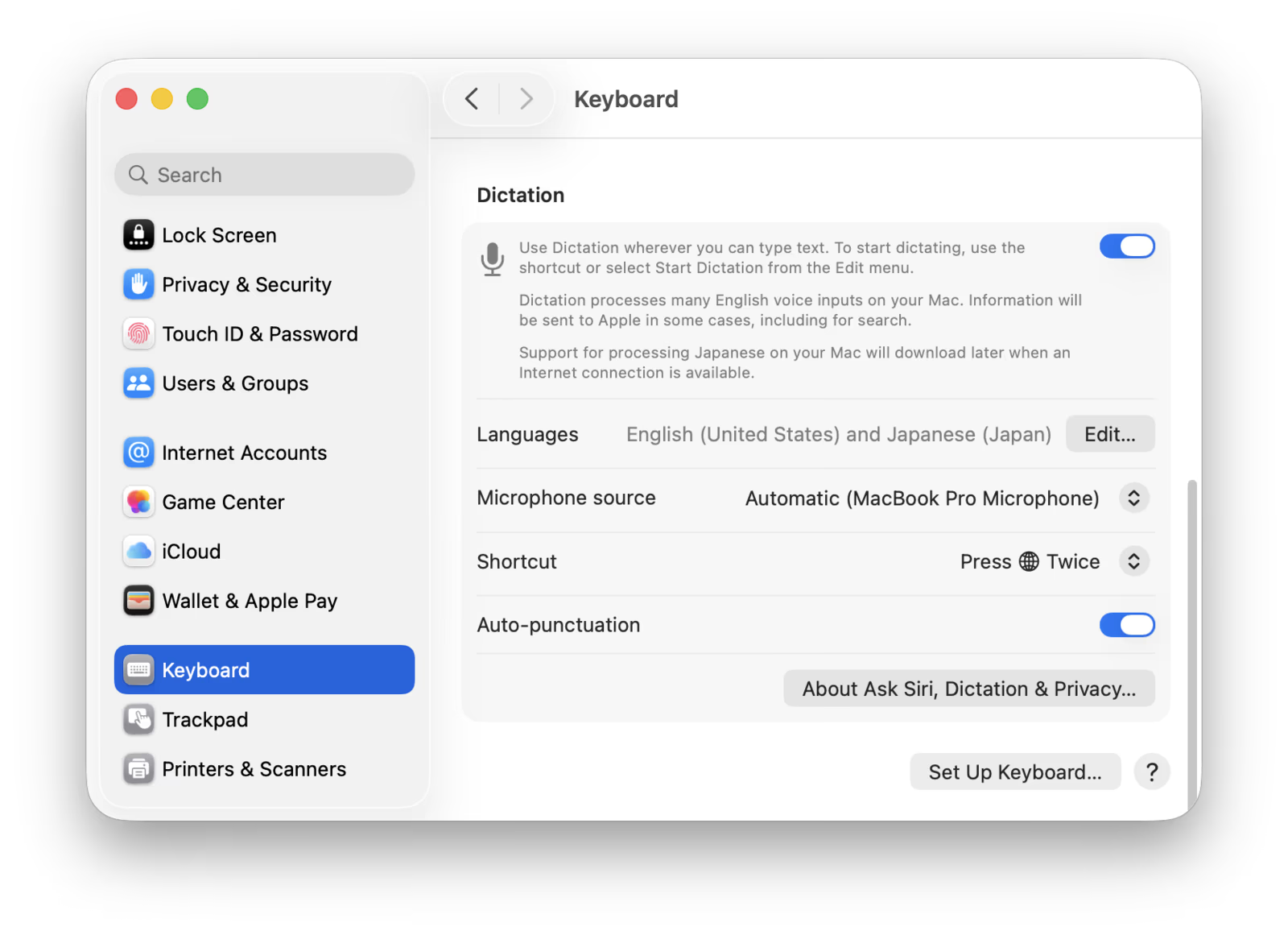
- 1Open System Settings from the Apple menu.
- 2Click Keyboard in the sidebar.
- 3Scroll to the Dictation section. Confirm the toggle is on.
- 4Click the Shortcut popup menu.
- 5Pick a preset, or click Customize and press your keys.
- 6Test the new shortcut in any text field.
Available presets in the Shortcut menu:
- •Press Microphone Key (if hardware has one)
- •Press 🌐 Key Twice (Apple Silicon Macs)
- •Press Right Command Key Twice
- •Press Left Command Key Twice
- •Press Either Command Key Twice
- •Press Right Option Key Twice
- •Press Left Option Key Twice
- •Press Either Option Key Twice
- •Press Right Control Key Twice
- •Press Left Control Key Twice
- •Press Either Control Key Twice
- •Press Fn (Function) Key Twice
- •Customize... (any key combo)
Custom combos that conflict with system shortcuts (like Cmd+Space) are silently rejected. No error appears, but the shortcut never registers.
Common Shortcut Problems
| Problem | Cause | Fix |
|---|---|---|
| Dictation key opens Siri instead | Holding F5 instead of tap-and-release, or shortcut collision | Tap and release. Confirm Siri uses different shortcut in Apple Intelligence and Siri settings. |
| Dictation key does nothing | F-keys set as standard, partially downloaded language, or revoked mic permission | Try fn+F5. Re-grant mic permission. Re-add language under Keyboard, Dictation. |
| Conflicts with app shortcuts (Slack push-to-talk, Discord) | fn fn or Ctrl Ctrl collide with app push-to-talk | Set Dictation to F13-F19 single key, or Option-Z, or double-tap Right Option. |
| Globe key remapped, dictation broken | Globe key set to Show Emoji or Change Input Source | Keyboard, Press Globe Key to, set to Start Dictation. |
| F-key without function row layer | External keyboard lacks dictation key | Customize, press F13 or any unused key. |
| Karabiner-Elements intercepts F5 | Karabiner remaps F5 or F6 to brightness on M1+ | Set F5 to Microphone passthrough in Karabiner Function Keys panel, or use a custom shortcut. |
| Touch Bar dictation stuck | Control Strip not customized, Touch Bar frozen | View, Customize Touch Bar, drag Dictation. Or kill TouchBarServer in Activity Monitor. |
| Voice Control intercepts dictation | Voice Control on disables Dictation entirely | Accessibility, Voice Control, off. |
| Screen Time blocking dictation | Family Sharing Content & Privacy restrictions | Screen Time, Content & Privacy, allow Siri & Dictation. |
| macOS update flips Dictation toggle off | Minor update reset (reported on 13.0, 15.x) | Re-enable Dictation in Keyboard settings, re-set custom shortcut. |
For deeper troubleshooting (silent failures, language model corruption, daemon resets), see Mac dictation not working.
Advanced Power-User Setups
Beyond the built-in presets, three patterns dramatically improve dictation ergonomics.
Single-key F-key Triggers
F13 through F19 are unused by default in macOS, never collide with app shortcuts, and trigger instantly with zero modifiers.
- 1System Settings, Keyboard, Dictation, Shortcut, Customize.
- 2Press F13 (or F14, F15, etc.).
- 3On laptops without F13+, use Karabiner-Elements to map Right Option to F13 virtual key, then assign Dictation to F13.
- 4Pair with an external keyboard. The Apple Magic Keyboard with Touch ID and Numeric Keypad has F13-F19; the standard Magic Keyboard with Touch ID stops at F12.
Hyper Key Configuration
The Hyper key technique remaps Caps Lock to Cmd+Ctrl+Opt+Shift, creating a modifier no app uses. Then Hyper+D (or any letter) becomes a guaranteed conflict-free dictation trigger.
- 1Install Hyperkey app or set up Karabiner-Elements with a Hyper rule.
- 2In System Settings, Keyboard, Modifier Keys, set Caps Lock to No Action (Karabiner takes over).
- 3Assign Dictation Customize shortcut to Hyper+D (which sends Cmd+Ctrl+Opt+Shift+D).
- 4Use Caps Lock+D anywhere on the system to start dictation.
Trade-off: Caps Lock toggle requires a double-tap-Shift workaround if you still need it. If you rarely use Caps Lock, the trade is worth it.
Per-App Dictation Modes
Apple Dictation is global only. The closest workaround is App Shortcuts in System Settings, Keyboard, Keyboard Shortcuts, App Shortcuts to bind menu items per app, but this only works in apps that expose Dictation in their menu bar.
Spokenly handles this natively: pick a different model, prompt, or vocabulary per active app. Code-only model in Cursor and VS Code, AI-cleanup model in Slack and Mail, plain transcription in Notes. No external automation needed.
- Cursor / VS Code: Whisper Large V3 + custom code dictionary (function names, library imports).
- Slack / Mail: GPT-4o Transcribe + AI cleanup prompt for clean prose.
- Notes / Drafts: Parakeet V3 local for instant capture, no cloud delay.
FAQ
What is the keyboard shortcut for dictation on Mac?
On 2021 and later MacBook Pro and Air models, press the F5 microphone key once. On older Macs without a dictation key, double-tap the function (fn) key. On external keyboards, the default is double-tap of the Control key. You can customize the shortcut to any key or combination in System Settings, Keyboard, Dictation.
How do I change the dictation shortcut on Mac?
Open System Settings, Keyboard, and confirm Dictation is on. Click the Shortcut popup menu under Dictation. Pick a preset like Press Right Option Twice, or choose Customize and press your preferred key combination. F13 through F19 work as single-key triggers if your keyboard has them.
Why is my Mac dictation shortcut not working?
Most common causes: F-keys are set as standard function keys (try fn+F5), the dictation toggle is off, microphone permission is revoked for the app you are typing in, or a third-party tool like Karabiner-Elements is intercepting the key. See the Common Shortcut Problems section above for the full fix list.
Where is the dictation key on a MacBook Air?
On MacBook Air M2 (2022) and later, the dictation key is in the function row at the F5 position with a microphone icon. Older MacBook Air models without the icon use double-tap of the function (fn) key as the default shortcut. The dictation icon visually replaced the previous Spotlight icon at F5.
How do I turn off dictation on Mac?
Open System Settings, Keyboard, scroll to Dictation, and toggle it off. To disable just the shortcut without disabling Dictation entirely, set Shortcut to Off in the same menu. To remove the F5 dictation key behavior, change the shortcut to a different key combination.
Can I use a single key for dictation on Mac?
Yes. Apple Dictation supports any single function key (F13 through F19) via the Customize option. Press Customize, then press F13 to assign it. Most laptop keyboards do not include F13+ physically, so external keyboards or Karabiner-Elements virtual remapping help. Spokenly supports any single key without external tools.
What does the F5 key do on a MacBook Pro?
On 2021 and later MacBook Pro and Air models, F5 is the dedicated dictation key with a microphone icon. Press once to start dictation, press again to stop. Press and hold can open the assistant on macOS Sequoia and later. On older models, F5 had no dedicated icon and acted as a function key or controlled keyboard backlight depending on configuration.
How do I dictate without the fn key?
Open System Settings, Keyboard, Dictation, Shortcut. Pick a non-fn preset like Press Right Option Twice, Press Either Command Twice, or Press Either Control Twice. Or click Customize and assign any single key like F13 or any modifier combination.
Why does Siri open instead of dictation?
On Macs with the dedicated dictation key, F5 is shared with the assistant. Tap-and-release triggers dictation; press-and-hold triggers the assistant. If tap also opens the assistant, the shortcut collides. Open System Settings, Apple Intelligence and Siri, Keyboard Shortcut, and confirm the assistant uses a different combo.
Can I have different dictation shortcuts in different apps?
Apple Dictation does not support per-app shortcuts; it is global only. The workaround is System Settings, Keyboard, Keyboard Shortcuts, App Shortcuts to bind the menu item per app. Spokenly supports per-app dictation modes, AI Instructions per app, and multiple hotkeys natively.
Ready to try Spokenly?
Free to use with local models. No account required.
Download SpokenlyRead next