
What Is Word's Dictate Button
Word Dictate is Microsoft's built-in speech-to-text feature that lets you write into any Word document by speaking. It is available in Word for Microsoft 365 on Windows, Mac, the web, and mobile.
Audio is processed on Microsoft's servers, so the feature needs an internet connection. Word Dictate supports automatic punctuation, voice commands for formatting, navigation, and lists, plus a separate voice-command set for symbols, math, and currency.
Dictate is exclusive to Microsoft 365 subscribers. Word 2019, 2021, and 2024 perpetual licenses do not ship the feature; see the missing-button section for ways to add voice typing to those versions.
Where Is the Dictate Button in Word
The Dictate button lives in the Home tab of the Word ribbon, in the Voice group on the far right. It looks like a small microphone with a dropdown caret for selecting language and settings. On a narrow window the Voice group may collapse into a single icon, but the same click pattern applies.
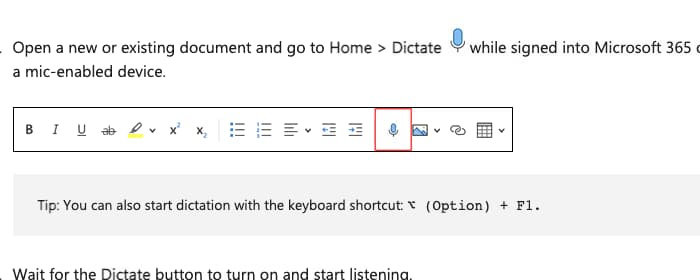
Word for the web shows the Dictate button in the same spot. The mobile apps for iPad and iPhone put a microphone icon in the keyboard toolbar above the on-screen keyboard. If you do not see the button on any of these surfaces, skip to the missing-button fixes below.
System Requirements
| Requirement | Detail |
|---|---|
| License | Microsoft 365 (Personal, Family, Business, or Education). Not available on Word 2019, 2021, or 2024 perpetual. |
| Word version | Word for Microsoft 365 on Windows 10/11, macOS 12+, the web, iPad, and iPhone. |
| Internet | Stable connection required. Audio is processed in Microsoft's cloud, not on device. |
| Microphone | Any built-in laptop mic works. A USB or wired headset mic improves accuracy on accented or noisy audio. |
| Account | Signed in to Word with a 365-licensed Microsoft account. Sign-in status is shown in the top-right of the Word window. |
If any of these are missing, the Dictate button will be grayed out or absent. The fixes are in the next section.
How to Dictate in Word on Windows
- 1Open Microsoft Word on Windows 10 or 11 and sign in with your Microsoft 365 account.
- 2Open a new or existing document. Place the cursor where you want text to appear.
- 3Click the Home tab in the ribbon, then click the Dictate button (the microphone icon in the Voice group on the far right).
- 4Wait for the red recording dot. Speak naturally. Words appear at the cursor in real time.
- 5Click the Dictate button again to stop. Microsoft does not document a Windows-specific keyboard shortcut; the button is the official entry point.
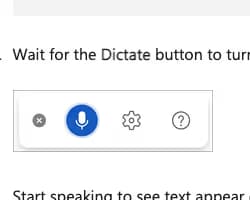
The first time you use Dictate, Windows will prompt for microphone permission. Click Allow. Your default microphone is selected automatically. To switch mics, click the gear icon next to the Dictate panel and choose a different input device.
How to Dictate in Word on Mac
The Dictate button works on Word for Mac the same way it does on Windows. The only difference is the keyboard shortcut.
- 1Open Word for Microsoft 365 on macOS 12 (Monterey) or later. Make sure you are signed in to your 365 account.
- 2Open a document and place the cursor where you want dictation to start.
- 3Click Home in the ribbon, then click Dictate in the Voice group.
- 4Grant microphone permission the first time. macOS will show a system prompt; choose Allow.
- 5Speak. Press Option + F1 or click Dictate again to stop.
Word Dictate vs Apple Dictation
Word's Dictate button is not the same as macOS's system Apple Dictation. Word Dictate is a cloud feature in Word only. Apple Dictation works in any text field on Mac and runs on-device. If the Word Dictate button is missing or grayed out, you can fall back to Apple Dictation by pressing the dictation key (microphone icon on F5, or fn fn on older Macs) inside the Word document. See our guide to Apple Dictation on Mac for the setup.
Voice Commands and Punctuation
Once Dictate is on, you can speak punctuation, navigation, and formatting commands in addition to the text itself. The most common ones for English:
Punctuation
"period" or "full stop"→."comma"→,"question mark"→?"exclamation mark"→!"colon"→:"semicolon"→;"open quote" / "close quote"→" ""open parenthesis" / "close paren"→( )
Editing and navigation
"new line"→Soft line break"new paragraph"→Paragraph break"delete that"→Removes last phrase"delete last sentence"→Removes previous sentence"undo that"→Undo last action"select [word]"→Selects a word"stop dictating" or "pause"→Stops dictation"bold that" / "italic that"→Formats selection
Word also recognizes spoken commands for math, currency, and emoji. The full reference covers symbols ("at sign", "ampersand"), numerals ("Roman numeral three"), and currency words ("dollar sign", "euro"). Voice commands only work when Word's dictation language and your Microsoft account language are both set to English; in other languages a smaller subset is available.
Supported Languages
Word Dictate transcribes around 35 languages and dialects. The full list is published by Microsoft and includes Arabic (Bahrain, Egypt, Saudi Arabia), Bulgarian, Chinese, Croatian, Danish, Dutch, English (US, UK, Australia, Canada, India), Estonian, Finnish, French, German, Greek, Gujarati, Hebrew, Hindi, Hungarian, Irish, Italian, Japanese, Korean, Lithuanian, Marathi, Norwegian, Polish, Portuguese, Romanian, Russian, Slovenian, Spanish, Swedish, Tamil, Telugu, Thai, and Vietnamese.
Switch languages from the Dictate panel by clicking the gear icon and choosing a different language. Voice commands and automatic punctuation behavior vary by language. For languages outside Microsoft's list (most African and several Southeast Asian languages), see the Spokenly alternative below.
Dictate Missing from the Home Tab?
One of the most-reported Word issues is the Dictate button disappearing from the Home tab. There are five usual culprits:
- 1You are signed in with a non-365 license. Word 2019, 2021, and 2024 perpetual do not include Dictate. Confirm by going to File > Account, then check Product Information. It should say Microsoft 365 Apps, not Microsoft Office 2021.
- 2Your IT admin disabled the dictation policy. Microsoft 365 Business admins can turn off Dictate org-wide. Ask IT to enable Optional Connected Experiences for your account.
- 3The Voice group is hidden in your custom ribbon. Right-click the Word ribbon, choose Customize the Ribbon, expand the Home tab, and tick the Voice checkbox.
- 4Your Word install is out of date. File > Account > Update Options > Update Now pulls the latest Microsoft 365 channel build.
- 5The feature crashed on a recent Office update. Run File > Account > Office Updates and then quit Word completely (Cmd+Q on Mac, full close on Windows). Reopen.
If none of these fix it, run Office Quick Repair from the Apps and Features panel on Windows, or reinstall Word from the App Store on Mac. As a last resort, use a system-wide dictation tool that types into Word externally, covered in the next section.
Common Problems and Fixes
| Problem | Fix |
|---|---|
| Dictate button is grayed out | You are offline or not signed in to Microsoft 365. Check the top-right account badge in Word and connect to the internet. |
| Audio cuts off after a few seconds | Word stops listening after a long pause or low input volume. Raise mic gain in System Settings (Mac) or Sound Settings (Windows). Or switch to a tool with a longer silence window. |
| Words appear wrong or missing | Re-select the dictation language in the gear icon. Make sure your account language matches. Move closer to the mic and reduce background noise. |
| Microphone permission denied | Windows: Settings > Privacy & Security > Microphone, enable Word. Mac: System Settings > Privacy & Security > Microphone, allow Microsoft Word. |
| Punctuation not added automatically | Toggle Auto Punctuation in the Dictate gear menu. Only works in English in current builds. |
| Voice commands not recognized | Confirm dictation language is set to English. Speak commands as a separate phrase, not run into the sentence. |
| Dictate works in Word on web but not desktop | Desktop install is on an older channel. File > Account > Update Now. |
5 Limits of Word's Built-In Dictate
- !Microsoft 365 only. No 365 subscription, no Dictate button. Perpetual licenses miss the feature entirely.
- !Cloud only, no offline mode. Audio is streamed to Microsoft servers. Sensitive content, no internet, or air-gapped machines are out of scope.
- !Word and Office apps only. Word Dictate does not work in Notion, Slack, Mail, code editors, or terminal. You learn one workflow that does not transfer.
- !No custom vocabulary. There is no setting to teach Word your product names, jargon, or initialisms. Industry-specific terms get mistranscribed every time.
- !Limited voice command set in non-English languages. Punctuation works in 35 languages but formatting, navigation, and list commands are mostly English-only.
A Faster Alternative: Spokenly
If you hit any of the limits above (no 365, jargon-heavy text, offline requirement, multiple apps), Spokenly is a free system-wide alternative that types into Word the same way you type with a keyboard. No 365 required, no internet required for local models, no per-app setup.
Spokenly for Word
- Modern cloud models by default (GPT-4o Transcribe, Deepgram Nova 3) for top accuracy on jargon and accents.
- Optional local Parakeet V3 or Whisper Large V3 Turbo for fully offline dictation. Audio never leaves your machine.
- 100+ languages, including ones Word does not ship (Indonesian, Vietnamese variants, most African).
- Works in any app on macOS 13.3+ and Windows 10/11. Same dictation in Word, Mail, Slack, Chrome, Pages, code editors.
- Custom Dictionary, modes with AI Instructions per context, Word Replacements with regex. Teach it your team's vocabulary once.
- Free with local models or your own API keys (BYOK). Pro at $9.99/mo unlocks managed cloud models without a key.
See Spokenly for Mac or Spokenly for Windows for the full feature list and the comparison with Wispr Flow, SuperWhisper, and Apple Dictation in the 2026 dictation roundup.
Comparison Table
| Feature | Word Dictate | Spokenly | Apple Dictation |
|---|---|---|---|
| Cost | Microsoft 365 subscription | Free with local + BYOK, Pro $9.99/mo | Free with macOS |
| Works in Word | Yes (Home > Dictate) | Yes (any app) | Yes (any app) |
| Works outside Word | No | Yes (system-wide) | Yes (system-wide) |
| Offline | No | Yes (Parakeet, Whisper) | Yes (Apple Silicon) |
| Languages | ~35 | 100+ | ~40 |
| Custom vocabulary | No | Yes (Dictionary + AI Instructions) | Limited |
| Code dictation | Weak | Strong (with prompts) | Weak |
| Platforms | Win, Mac, web, mobile | macOS 13.3+, Win 10/11, Linux, iOS | macOS, iOS |
Best Tool by Use Case
| Use case | Best pick |
|---|---|
| Casual English drafting in Word, with a 365 subscription | Word Dictate. The built-in workflow is the simplest path when you already pay for 365 and write in English. |
| Multilingual writing or accented English | Spokenly with Whisper Large V3 or GPT-4o Transcribe. Both score noticeably higher than Microsoft's stock model on accented audio. |
| Confidential documents that cannot leave your machine | Spokenly Local Only Mode with Parakeet V3 or Whisper. Outbound network is blocked; transcription runs on-device. |
| Old Word 2019 or 2021 without Microsoft 365 | Spokenly or Apple Dictation. Both type into Word like a keyboard, so the lack of a Dictate button does not matter. |
| Technical and code-heavy writing | Spokenly with a Custom Dictionary and per-context AI Instructions that rewrite spoken intent into Markdown or code. |
| Working across Word, Outlook, Slack, and a browser | A system-wide tool (Spokenly or Apple Dictation). One shortcut, one workflow, no per-app re-learning. |
FAQ
What is the keyboard shortcut for Dictate in Word?
On Mac the shortcut is Option + F1, documented by Microsoft Support. Microsoft does not list a separate Windows shortcut for Word's Dictate button; on Windows click the microphone in Home > Voice instead.
Why is the Dictate button missing from the Home tab in Word 365?
Five common causes: a non-365 license, an IT admin who disabled dictation, a hidden Voice group in the custom ribbon, an out-of-date Office install, or a recent update glitch. Step-by-step fixes are in the Dictate Missing from the Home Tab section of this guide.
Does Word Dictate require Microsoft 365?
Yes. The Dictate button on the Home tab is exclusive to Microsoft 365 subscribers across Word for Windows, Mac, the web, and the mobile apps. Word 2019, 2021, and 2024 perpetual licenses do not include it. Without 365, Spokenly or another system-wide dictation tool inserts text in Word directly.
Does Word Dictate work offline?
No. Word's built-in Dictate sends audio to Microsoft's speech servers, so a stable internet connection is required. Apple Dictation on Mac and Windows Speech Recognition on PC both work offline but are noticeably less accurate. For fully offline dictation in Word, install Spokenly with the local Parakeet V3 or Whisper Large V3 Turbo model.
Can I dictate in Word on a Mac without Microsoft 365?
Yes, but with limits. macOS Apple Dictation works in any text field including Word, so you can press the dictation shortcut (Globe key or fn fn) and dictate into a Word document. Accuracy is decent for English and the 40-odd languages Apple supports. For 100+ languages, custom vocabulary, or jargon-heavy text, run Spokenly with a Whisper model. See our guide to Apple Dictation for the full setup.
Does Word Dictate work on iPad and iPhone?
Yes. The Word mobile apps include a Dictate microphone in the toolbar with the same Microsoft 365 requirement as desktop. Tap the mic icon while editing, speak, and tap again to stop. The mobile experience is more limited than desktop: no formatting voice commands, fewer punctuation phrases, and no custom dictionary. Spokenly's iOS app pairs with the system-wide keyboard to add Whisper-quality dictation in Word for iPad without a 365 subscription requirement.
How accurate is Word's Dictate button in 2026?
Roughly 90 to 95 percent on clean English audio in a quiet room. Accuracy drops for accented speakers, technical jargon, code snippets, and proper nouns. Modern speech-to-text engines like GPT-4o Transcribe, Deepgram Nova 3, and NVIDIA Parakeet V3 measurably beat Microsoft's stock model on the same recordings. All three are available in Spokenly with no extra cost beyond your existing API key or a Pro subscription.
Can I dictate code or technical text in Word?
Word's Dictate handles plain English well but stumbles on code syntax, brackets, operators, and product names not in its dictionary. The Dictate panel itself has no custom-vocabulary setting. For code-heavy writing, see our guide on voice dictation for developers.
Sources: Microsoft Support: Dictate your documents in Word, Microsoft Learn: Release notes for Office for Mac, Apple Support: Dictate messages and documents on Mac, W3C WAI: Voice recognition for accessibility, Microsoft Support: System requirements for Microsoft 365 Apps.
Ready to try Spokenly?
Free to use with local models. No account required.
Download Spokenly