
What a Brain Dump Actually Is
A brain dump is unloading everything occupying your working memory into an external place, unsorted: half-tasks, worries, ideas, the thing you promised someone on Tuesday. Organization is beside the point. A thought written down stops demanding to be remembered, and the mental noise drops.
That definition sets the bar for the workflow: it should accept unstructured input quickly, without forcing categories, forms, or decisions before capture. Every required field adds friction to the thing you are trying to unload. A simple inbox can therefore be more useful than a dedicated brain dump product.
Voice, Typing, or Tasks?
The fastest input method is the one available at the moment of capture. Voice helps when hands are busy or a thought arrives as a sentence. Typing is quieter, easier to skim immediately, and better for precise names. A task inbox adds dates and priorities but can interrupt an unstructured dump with decisions.
- +Choose voice for paragraphs, walking notes, accessibility needs, and moments when opening a keyboard breaks the train of thought.
- +Choose plain text for names, URLs, short fragments, private spaces, and situations where speaking aloud is inappropriate.
- +Choose a task inbox when nearly every captured item needs a due date, project, reminder, or next action.
- +Keep raw audio only when tone matters. Search, editing, and later sorting are easier once the capture is text.
Do not start, review, or organize a brain dump while driving. Distracted-driving guidance recommends pulling over to a safe location and parking before reading or sending text. Let a passenger capture the thought, use Do Not Disturb, or wait until the trip ends.
How the Workflows Were Selected
Each option supports a distinct capture pattern: system-wide voice-to-text, voice with automatic cleanup, voice with later recall, a plain cloud note, a local Markdown file, or a task inbox. The workflows were compared on steps to first capture, input type, where the result is stored, offline options, and how much structure is required before saving.
Disclosure: Spokenly and this site have the same owner. Spokenly is included as one voice-input workflow, not as a standalone brain dump inbox, and it received no automatic first-place score. No company paid for inclusion; the order below follows capture method, not performance.
No timed capture test or clinical productivity study was run for this update. Product capabilities were checked on July 13, 2026 using the linked product and support pages. Pricing changes frequently, so it is described by plan type instead of copied into a ranking score.
Workflows and Tools Compared
Spokenly + your notes app
- Capture pattern
- Voice into any editable field, or record to history
- Plan
- Free with your own API key or on-device models
- Where captures live
- The app you already use, plus Spokenly's transcript history
AudioPen
- Capture pattern
- Voice with automatic rewriting
- Plan
- Limited free use, paid plans available
- Where captures live
- AudioPen account
Voicenotes
- Capture pattern
- Voice archive with AI recall
- Plan
- Free and paid plans
- Where captures live
- Voicenotes account
Apple Notes
- Capture pattern
- Fast Apple-device inbox
- Plan
- Included with Apple devices
- Where captures live
- Notes and iCloud
Google Keep
- Capture pattern
- Cross-platform cards and labels
- Plan
- No separate app fee
- Where captures live
- Google account
Obsidian
- Capture pattern
- Local Markdown and links
- Plan
- Free for personal use
- Where captures live
- Local files or chosen sync
Todoist
- Capture pattern
- Tasks, dates, and reminders
- Plan
- Free and paid plans
- Where captures live
- Todoist account
Spokenly + any notes app: system-wide voice capture
Spokenly dictates into any app: put the cursor in Apple Notes, Obsidian, Notion, Todoist, or another editable field, start dictation, and the transcript appears at that destination. It can also record on its own, and it keeps a history of transcripts, so a thought captured before choosing a destination is not lost. On-device transcription or your own API keys can be used free; Pro adds managed cloud transcription and hosted AI.
This route avoids a later export because the text starts in the system that will keep it, and the transcript history covers captures made before a home was chosen. It also lets privacy-sensitive captures stay on the device when a local model is selected. The trade-off is that Spokenly does not tag ideas or schedule tasks, so sorting still happens in the notes or task system. Cleanup depends on the destination and any text-processing prompt you choose.
AudioPen: turning a ramble into readable prose
AudioPen records speech and reshapes it into a cleaner note. It is useful when the desired output is a summary, journal entry, email draft, or coherent paragraph rather than a verbatim transcript. That extra transformation can save a cleanup pass, but it can also change phrasing or omit a detail. Compare the result with the raw thought before treating it as a task list or factual record.
AudioPen is a hosted service, so review its current privacy terms before recording sensitive personal or work information. Also test the export path during the free tier. A polished note is most useful when it can move cleanly into the permanent notes or project system.
Voicenotes: a searchable voice archive
Voicenotes keeps voice notes together and adds AI-assisted recall and organization. It fits recurring reflections, meeting follow-ups, and idea capture when asking questions across older notes matters more than placing text directly in another app. The main decision is whether a dedicated cloud archive should become the long-term home for the material. Before committing, export several notes and confirm that the resulting format preserves dates and text in a usable way.
Apple Notes: a simple Apple-device inbox
Apple Notes works well when it is already open on the devices used every day. Pin one note called Inbox, type or dictate into it, and move only the useful items later. On iPad, Quick Note can be opened from apps or the Home Screen, which removes a navigation step. Notes can hold checklists, scans, links, and attachments, but those features are optional during capture. The ecosystem fit is strongest for Apple users; people who regularly work on other platforms should test the web workflow before making it their only inbox.
Google Keep: cross-platform cards and labels
Google Keep is a lightweight inbox across the web and mobile apps. A pinned capture note works for long dumps, while separate cards suit short ideas that need labels, reminders, or collaborators. Google documents how to create and edit notes across supported devices. Keep is less suited to a deep linked knowledge base, so define an archive rule: delete processed notes, move durable writing elsewhere, or keep the inbox small enough to review.
Obsidian: local Markdown ownership
Obsidian stores notes as Markdown files in a local vault. That makes the text portable, searchable outside the app, and easy to back up with a method you control. Create a single daily note or Inbox file and dictate into it rather than designing folders before the habit exists. Links, tags, templates, and plugins become useful after capture is reliable. They become friction when every thought first needs a category. Sync is a separate choice, so confirm how the vault reaches each device before depending on mobile capture.
Todoist: an inbox for actionable items
Todoist fits a workflow in which most thoughts translate into actions, dates, or reminders. Capture into the Inbox first and assign a project or deadline during processing, not mid-sentence. It is a weaker home for worries, reference material, and early ideas because forcing everything into a task can create a noisy backlog. A practical split is Todoist for commitments and a notes app for context, with one review that sends each captured line to the right place.
A Free 10-Minute Brain Dump Workflow
- 1Create one note called Inbox in the notes app you already trust. Avoid adding folders or required fields until the capture habit works.
- 2Choose one input path and rehearse it: a Spokenly hotkey on desktop, built-in dictation on a phone, or typing. Remove any lock-screen or permission surprise before a busy moment.
- 3Capture for five minutes without sorting. Include tasks, worries, names, questions, and incomplete fragments. Add a spoken new-line command only when it helps later scanning.
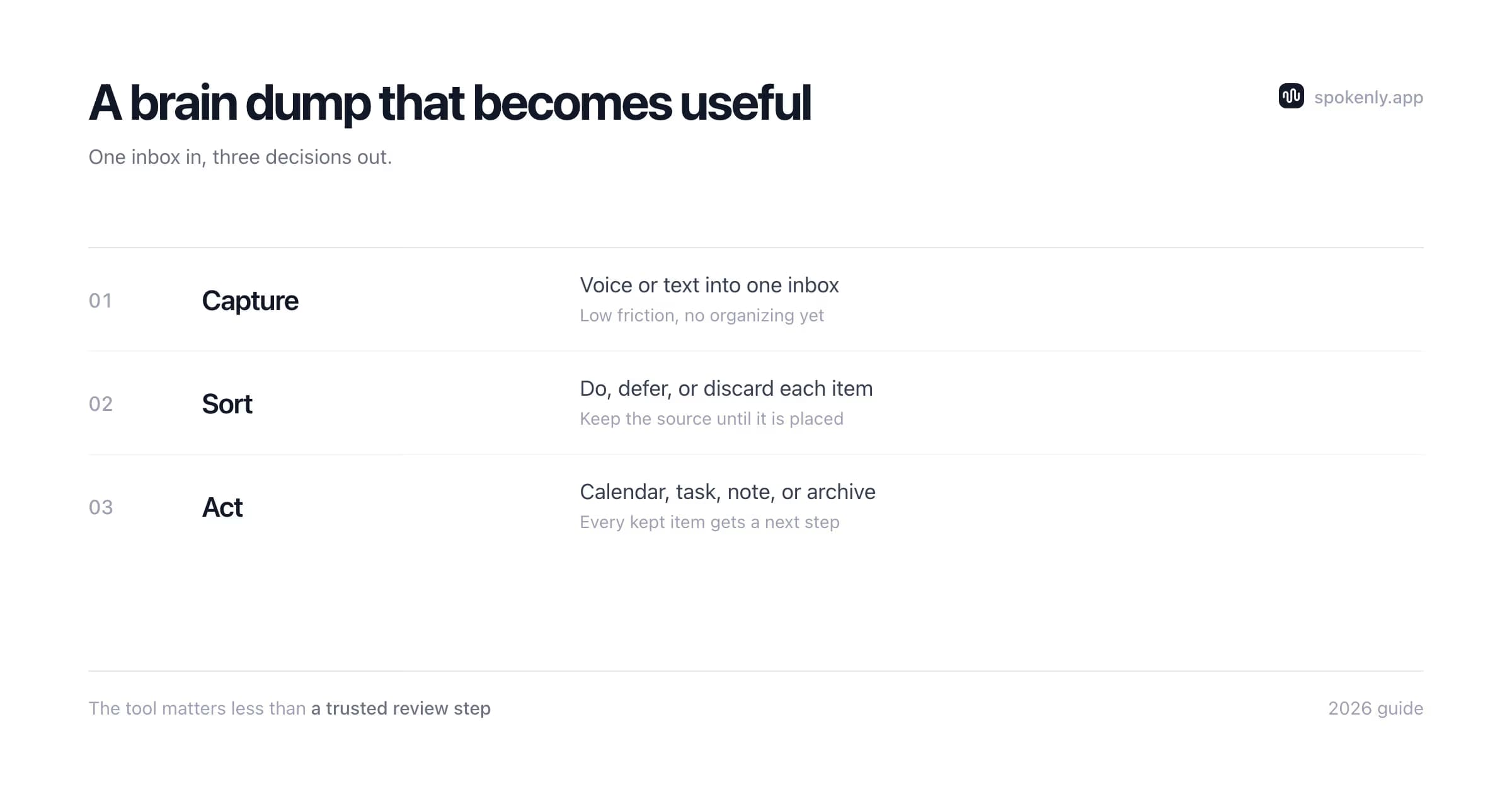
- 4Spend the next five minutes processing. Put dated commitments on the calendar, actions in a task list, durable ideas in project notes, and delete duplicates or material that no longer matters.
- 5If the dump is long, ask a text-processing tool to group it into tasks, ideas, questions, and concerns. Review the output before moving dates, names, or commitments.
This workflow can be free with built-in notes and dictation or Spokenly with an on-device model. The useful metric is not total words. Track how many thoughts were captured, how many became a clear next action, and whether the inbox was processed before it became another source of clutter.
How to Choose a Brain Dump App
Start with the failure point in the current workflow. If thoughts disappear before the app opens, reduce capture steps. If the inbox fills but never gets reviewed, choose a clearer destination or task system. If notes become trapped in a service, prioritize plain-text export or direct capture into the permanent archive.
Friction
Count the actions from noticing a thought to saving the first useful words. Test from a locked phone and from the desktop app used most often.
Destination
Decide whether captures belong in notes, tasks, a voice archive, or local files. Direct capture avoids a migration step; a dedicated inbox can offer stronger recall.
Privacy
Separate ordinary ideas from health, financial, customer, or workplace information. Use on-device processing or an approved service when the content is sensitive.
Export
Export a sample before subscribing. Check whether text, dates, titles, attachments, and links survive in a format another app can read.
Review
Choose a predictable processing time and an archive rule. A fast inbox without a review habit simply moves the mental load to a longer list.
Run the candidate with real material for one week. Keep the starting inbox and review schedule the same so the comparison reflects the tool, not a different routine. At the end, count missed captures, unprocessed items, corrections, and manual transfers. Keep the option that produces the most usable output with the fewest abandoned thoughts.
Low-Friction Capture and ADHD
Some people with ADHD find that an external inbox reduces the effort of holding multiple thoughts at once. The useful setup varies: voice may remove typing friction, a visible task list may make commitments easier to revisit, and a plain local note may be less distracting than a feature-heavy app. None of these tools treats ADHD, and no single capture method works for everyone.
Test one change at a time and make retrieval as obvious as capture. A home-screen shortcut, pinned note, or global hotkey can help, but only if there is also a small recurring review. The dictation for ADHD guide covers practical voice-writing patterns and their limits in more detail.
FAQ
Which brain dump workflow should I use?
Choose by destination. Spokenly plus a notes app works when you want voice-to-text in an existing system. AudioPen or Voicenotes suits voice-first cleanup and recall. Apple Notes, Google Keep, or Obsidian suits a plain text inbox. Todoist is better when most captured items are actionable tasks.
Is there a free brain dump app?
Yes, several layers of free. Apple Notes and Google Keep cost nothing for typed capture. Spokenly is free for voice capture with local models and no word caps, turning your existing notes app into a voice brain dump tool. Dedicated voice-note services typically have free tiers with limits and paid plans for unlimited use.
Brain dump vs journaling: what is the difference?
A brain dump empties working memory: tasks, worries, fragments, in no order, for the sake of clearing your head. Journaling reflects: it processes events and feelings with some structure and an audience of future-you. The dump is a bucket; the journal is a narrative. Voice works well for both, covered separately in the voice journaling guide.
What is a good brain dump app for ADHD?
There is no universal ADHD app. Some people prefer one-tap voice capture, while others need a visible task inbox or local plain text. Test one workflow for a week and count missed captures, not feature checkboxes. A productivity tool can reduce friction, but it is not a treatment or clinical recommendation.
What do I do with a brain dump afterwards?
Process it once, briefly: tasks go to your task list, appointments to the calendar, ideas to a projects note, and the rest gets deleted without guilt. An AI pass ("group this into tasks, ideas, and worries") can do the first sort when the dump is text. Raw audio preserves tone, but text is easier to scan, search, and move into another system.
How often should I do a brain dump?
Whenever your head feels too crowded to think straight. Common patterns: a morning dump before starting work, an end-of-day dump to close loops before evening, and an as-needed dump when overwhelm hits. There is no correct schedule; the tool just has to be ready when the pressure builds.
Ready to try Spokenly?
Free to use with local models. No account required.
Download SpokenlyRead next