
What Linux Includes by Default
macOS and Windows expose system dictation in their default desktop settings. A typical GNOME or KDE installation does not provide the same system-wide voice-typing switch, though distributions and accessibility configurations differ. In practice, most Linux users install a dictation app, a script, or a transcription engine.
The missing built-in matters less than it used to. Whisper-class and Parakeet-class models run fast on ordinary Linux hardware, and the tooling around them grew from research scripts into real applications.
Recognition and text insertion are separate jobs. Recognition may succeed while the desktop blocks or misroutes the paste step. Compatibility therefore depends on both the app and the Wayland or X11 session.
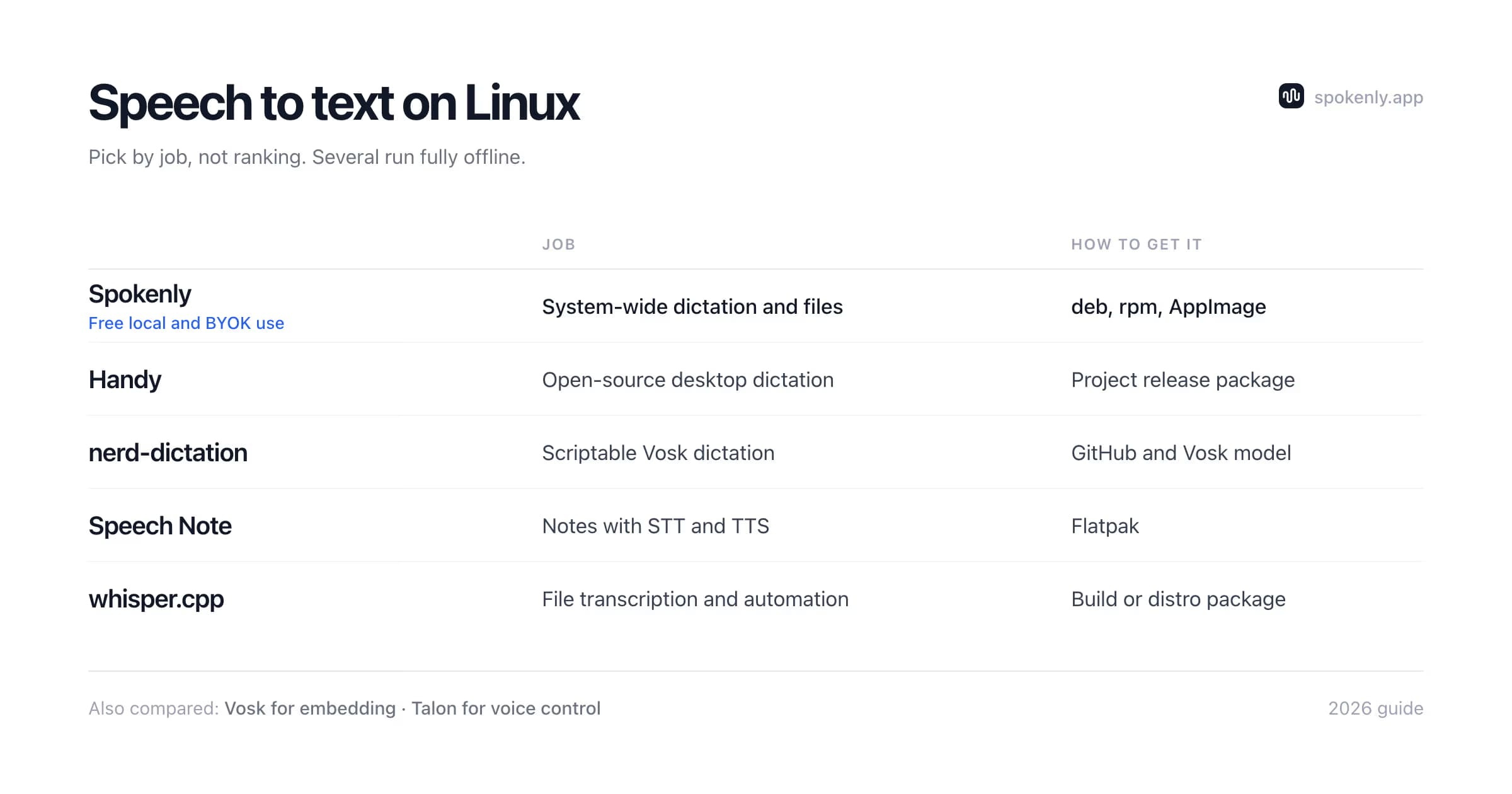
7 Tools Compared
Spokenly
Free local and BYOK use
System-wide dictation and files
Install: deb, rpm, AppImage
Handy
Free, open source
Open-source desktop dictation
Install: Project release package
nerd-dictation
Free, open source
Scriptable dictation
Install: GitHub and Vosk model
Speech Note
Free, open source
Notes with STT and TTS
Install: Flatpak
whisper.cpp
Free, open source
File transcription and automation
Install: Build or distro package
Vosk
Free, open source
Embedding STT in software
Install: Library and model
Talon
Free and paid features
Voice control and coding
Install: Official installer
How to Choose a Linux Speech-to-Text Tool
Start with the destination for the text. Dictating into a browser, terminal, editor, and chat app needs reliable cross-application insertion. Transcribing a saved interview needs file support, timestamps, and export formats. Building speech recognition into another program needs an API or library. A tool can be excellent at one of those jobs and awkward at the others.
Input target
System-wide dictation must return text to the focused app. A notes app can keep text in its own editor. A file tool does not need desktop input at all.
Processing path
Local models keep recognition on the machine and work offline. Cloud models can reduce local hardware needs, but require a network and send audio to the selected provider.
Desktop support
Check X11 or Wayland, the desktop environment, and the text-insertion method. A generic Linux download does not guarantee that every compositor handles global shortcuts and paste the same way.
Install effort
A deb, rpm, AppImage, or Flatpak is easier to update than a hand-built Python stack. A script or library offers more control when reproducible setup matters more than a graphical interface.
Output and automation
For recordings, decide whether you need plain text, subtitles, timestamps, speaker labels, or batch folders. For live use, check word replacements, post-processing, and command-line control.
For voice typing across ordinary desktop apps, compare Spokenly, Handy, and nerd-dictation first. Spokenly favors a packaged setup, Handy favors an open-source desktop app, and nerd-dictation favors a small script that you can reshape. Speech Note is a better match when drafting inside one app is enough and manual copy-and-paste is acceptable.
For saved audio, start with whisper.cpp or a desktop file workflow. For an embedded project, Vosk exposes language bindings without a desktop interface. For full hands-free navigation and coding commands, Talon solves a broader control problem than dictation. The speech recognition software guide explains the same categories across operating systems.
System-Wide Dictation on Linux
Spokenly for Linux
Spokenly for Linux ships as deb and rpm packages for x86_64 and ARM64 systems, plus an x86_64 AppImage. A global hotkey starts system-wide dictation, and the app supports both X11 and Wayland text insertion. Local Parakeet and Whisper models work offline, while cloud providers are optional. It also transcribes audio files and exports TXT, SRT, VTT, and Markdown. The product page carries current packages and requirements.
Handy
Handy is a free, open-source desktop app that performs transcription locally and types into the focused field. Its Linux notes document extra setup: X11 typically uses xdotool, while Wayland needs wtype or dotool and may require a desktop-level shortcut. It is attractive when open source and offline processing matter more than a zero-configuration install.
nerd-dictation
nerd-dictation is a Python script around Vosk that you bind to a key and configure in code. Custom text processing is ordinary Python, which makes the workflow easy to adapt. In exchange, you select a Vosk model and configure the text-insertion path for your desktop instead of getting a packaged application.
Speech Note
Speech Note on Flathub bundles open speech recognition and text-to-speech models behind a desktop interface. Recognition runs offline. Text stays in Speech Note's own window, so cross-application Wayland insertion is not part of the dictation step; you copy the result where it needs to go.
Model choice changes the day-to-day feel of every local app. Smaller or quantized models download faster and use less memory, which helps older laptops. Larger models usually need more RAM and take longer to process, but may handle noisy speech, accents, and uncommon words better. Test a short sample from your real microphone before downloading several gigabytes of models.
Transcribing Audio Files on Linux
For recordings (meetings, interviews, voice notes), the terminal route is excellent on Linux:
- 1whisper.cpp: a C and C++ implementation of Whisper with CPU and GPU backends. It is practical for batch jobs, scripts, and machines where a Python environment is undesirable.
- 2OpenAI Whisper: the reference Python implementation. It is useful when you want the original model interface and the surrounding Python ecosystem.
- 3Spokenly's Transcribe File: the same job without a terminal, with export to TXT, SRT, VTT, and Markdown for subtitles and notes.
The command-line setup, model download, and size trade-offs are covered step by step in running Whisper locally and the Whisper model size guide; both apply to Linux directly. whisper.cpp lives on GitHub.
Plan the output before a long transcription
Plain text is enough for search and notes. Subtitles need timed SRT or VTT output. Interviews may need speaker labels, but a speech model does not automatically provide reliable diarization just because it produces timestamps. Check that capability separately before processing hours of audio.
Long files also expose hardware limits. Run a five-minute sample, note the processing time and memory use, and verify names and language detection. Then choose the model and acceleration backend. A GPU can help, but CPU-only transcription remains useful when speed is not urgent. Keep the source recording until you have reviewed the transcript and subtitle timing.
Batch work benefits from stable file naming and explicit language settings. Store output beside the source or in a separate directory, and avoid overwriting the only copy. If a recording contains long silence, music, or repeated noise, voice activity detection or chunking can reduce wasted work and false text.
For Developers and Scripting
Two tools matter when speech to text is a component rather than an app:
Vosk
Offline recognition with bindings for Python, Java, Node, and other runtimes. Small models can fit low-resource devices, making it useful for embedded software and home automation.
Talon
Talon focuses on full voice control, including navigation, clicking, and coding by voice. It offers Linux downloads and a programmable command layer for specialized workflows.
See the Vosk project for language bindings and models. For dictating into AI coding agents, see voice dictation for developers; for hands-free control, compare Spokenly and Talon.
Linux Setup and Troubleshooting Checklist
Test the audio path and the text-insertion path separately. This prevents a microphone issue from looking like a Wayland issue, or a blocked paste from looking like a poor speech model.
- 1Confirm the microphone first. Record ten seconds in the desktop sound recorder, play it back, and select the correct input device before changing speech-model settings.
- 2Check the session with echo $XDG_SESSION_TYPE. Note the desktop and compositor too, because GNOME, KDE, Sway, Hyprland, and other environments expose different shortcut and input paths.
- 3Download one small local model and test a short sentence. Confirm that recognition completes before adding a global hotkey, post-processing, or a larger model.
- 4Test output in a plain text editor. If text appears there but not in a browser, terminal, or password field, the target app or field may handle synthetic input or paste differently.
- 5On Wayland, follow the tool's documented helper setup and create a desktop-level shortcut when required. Check user groups and service permissions before running helpers as root.
- 6For a packaged app, verify the architecture and package format. For source builds, record model paths, library versions, and launch commands so an update can be rolled back without rebuilding the whole setup from memory.
Recognized text appears in the wrong place
Disable any overlay that takes focus, return the cursor to the target field, and try clipboard paste instead of simulated typing if the app offers both. Delayed post-processing can also return text after focus has moved. Use a longer focus delay or a paste confirmation step when the desktop workflow is prone to switching windows.
The Wayland vs X11 Catch
On Linux, recognition is the easy part. Typing the result into whatever window has focus is the hard part, because the two display protocols handle synthetic keystrokes in opposite ways:
X11
Synthetic input is broadly available, though behavior still depends on the application and toolkit.
Typical tool: xdotool
Wayland
Synthetic input is restricted, so the app needs a method supported by the compositor or a configured helper.
Common paths: wtype, ydotool, dotool, portals
If recognition succeeds but no text appears in the target app, session compatibility is a common cause. Check the session type with echo $XDG_SESSION_TYPE, then follow the app's documented setup for that desktop. Switching to X11 is a useful diagnostic step. Apps that keep text in their own window, such as Speech Note, avoid cross-application insertion.
FAQ
Does Linux have built-in speech to text?
Most mainstream GNOME and KDE installations do not include a system-wide dictation feature comparable to macOS Dictation or Windows voice typing. Distribution packages and accessibility setups vary, so Linux users usually add a desktop dictation app, an open-source script, or a transcription engine.
What is the best free speech to text for Linux?
For a ready-to-use desktop workflow, compare Spokenly and Handy. For a scriptable setup, nerd-dictation is a lightweight Vosk-based option. For finished audio files and command-line automation, whisper.cpp is a strong starting point. Each can run recognition locally, but setup and text insertion differ.
Can I run Whisper on Linux?
Yes. Options include whisper.cpp, the original OpenAI Whisper Python package, faster-whisper, and desktop apps that package local models behind a user interface. Hardware acceleration and installation steps depend on the implementation and your GPU stack.
Does Spokenly work on Linux?
Yes. Spokenly for Linux ships deb and rpm packages for x86_64 and ARM64, plus an x86_64 AppImage. It supports system-wide dictation, local Parakeet and Whisper models, optional cloud models with your own API keys, and file transcription. Local models and bring-your-own-key providers are free to use.
Why does dictation not type into apps on Wayland?
Wayland restricts synthetic input more than X11, so a dictation app needs a compatible path such as wtype, ydotool, dotool, a desktop portal, or its own supported integration. Follow the app's instructions for your compositor. Switching to X11 can help diagnose the issue, but it is not a universal fix.
Is there a Linux equivalent of Dragon NaturallySpeaking?
Nuance does not offer a native Linux edition of Dragon. General dictation apps and scripts cover prose, while Talon focuses on hands-free control and voice coding. Specialized medical vocabulary and command requirements should be evaluated separately because general-purpose tools are not direct replacements for clinical Dragon products.
Can I use speech to text on Linux offline?
Yes. Spokenly with local models, Handy, nerd-dictation with Vosk, Speech Note, and whisper.cpp can process speech on your hardware. Check whether optional post-processing, synchronization, or a selected model provider sends data to a network service.
Ready to try Spokenly?
Free to use with local models. No account required.
Download SpokenlyRead next