
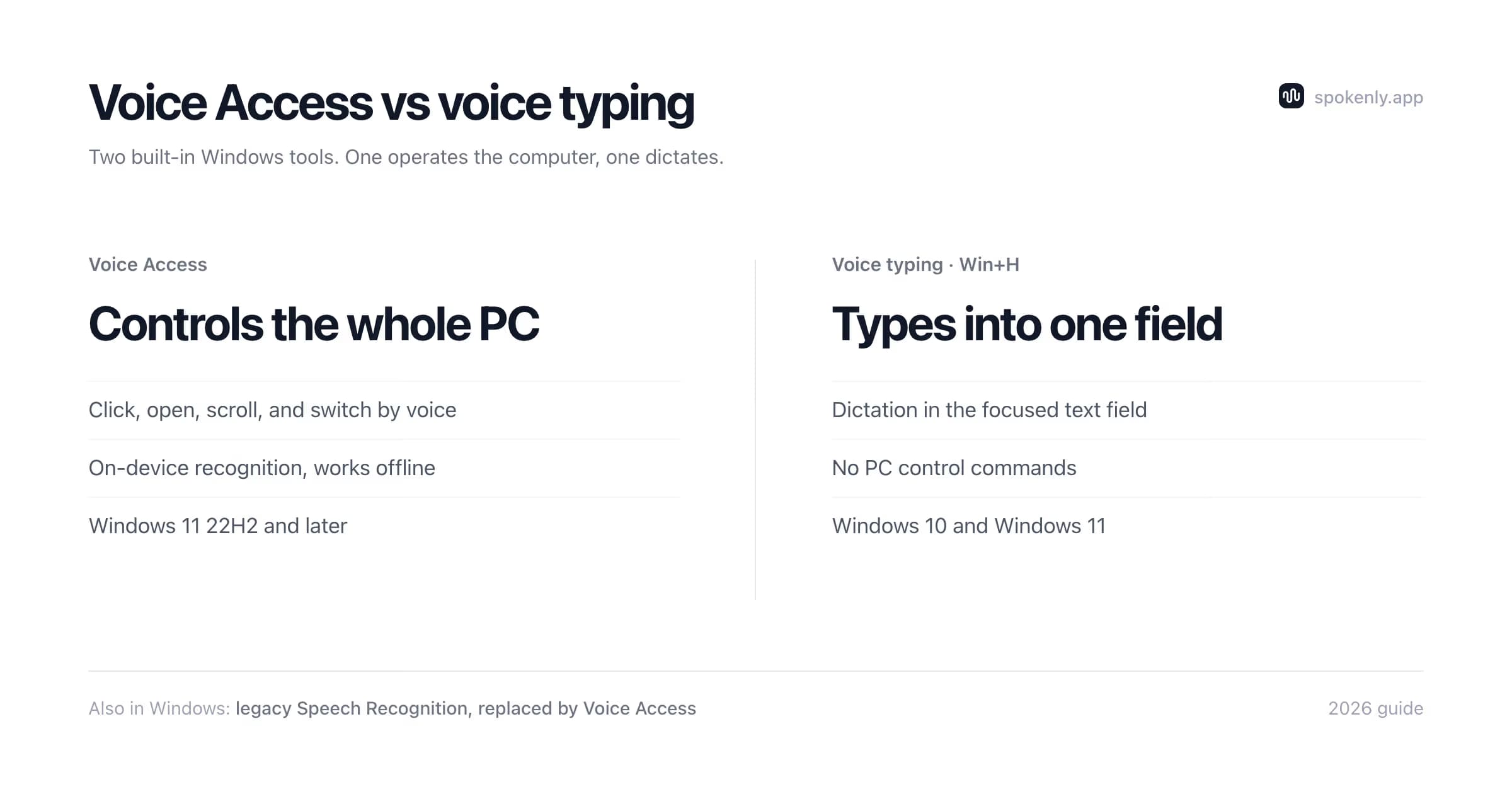
What Voice Access Is
Voice Access is the Windows 11 accessibility feature that puts the entire PC under voice control. Say "open Chrome", "click Submit", "show numbers" to label clickable controls, "scroll down", or "switch to Word". It also dictates into the focused text field and recognizes speech on the device, so it works without an internet connection after the language pack is installed.
It exists first for accessibility: for people who operate a computer without hands, it is the built-in answer, and it superseded the legacy Windows Speech Recognition in that role. Other users encounter the bar at the top of the screen or confuse Voice Access with Win+H voice typing. The distinction matters because each feature has different controls and settings.
Voice Access vs Voice Typing vs Windows Speech Recognition
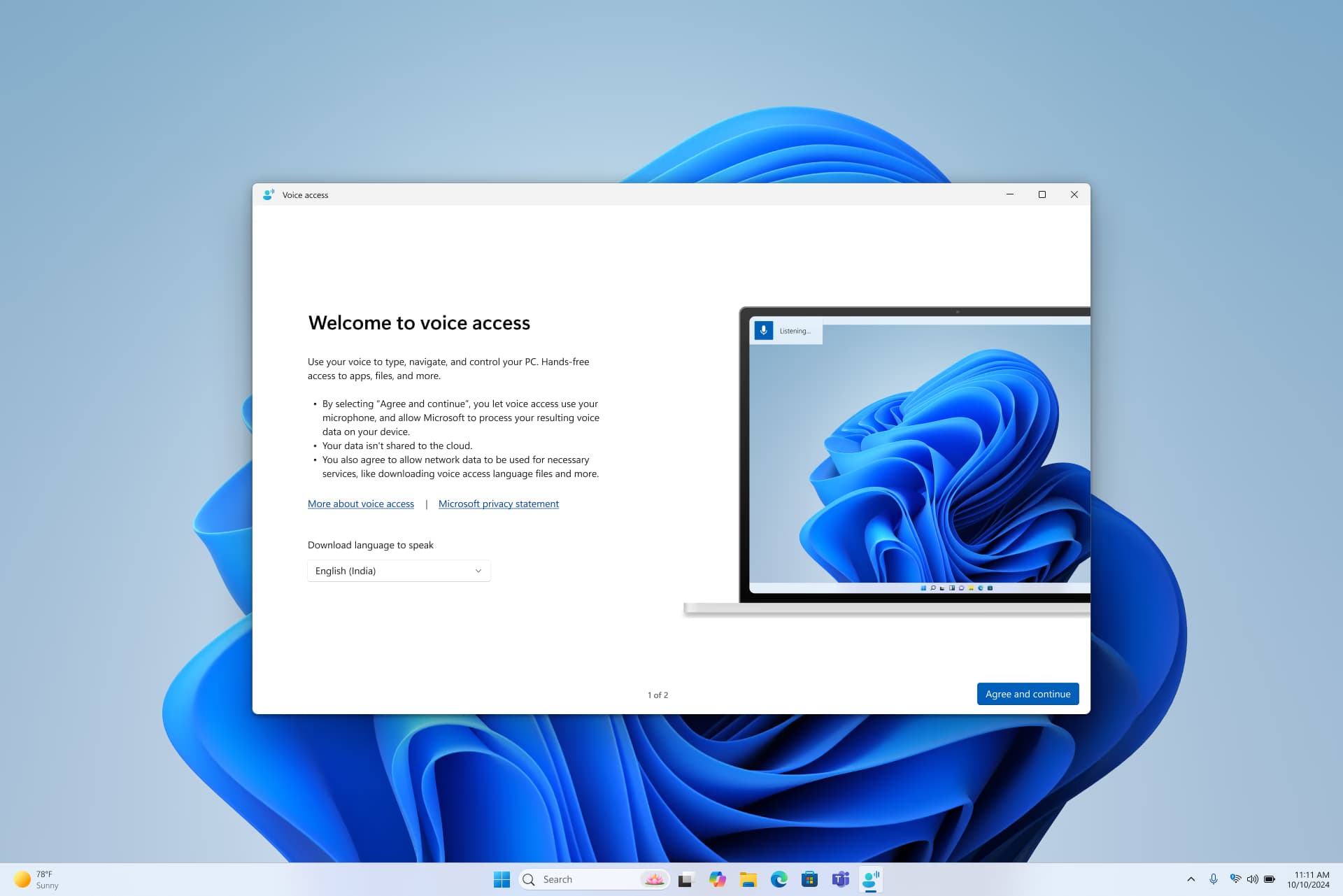
Windows has shipped three voice features, and most confusion comes from conflating them:
Voice Access
Windows 11 22H2 and later
Full PC control and dictation with on-device recognition
Voice typing (Win+H)
Windows 10 and Windows 11
Dictation in the focused text field
Windows Speech Recognition
Replaced by Voice Access on current Windows 11
Earlier voice control and dictation system
Voice typing has its own guide in how to use dictation on Windows, and the legacy feature is covered in the Windows Speech Recognition comparison. Microsoft documents voice typing and the WSR replacement status separately.
How to Turn On Voice Access
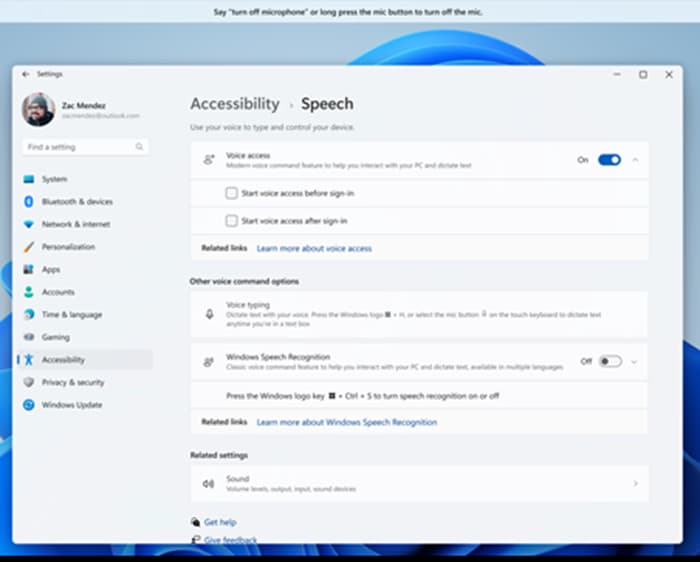
- 1Open Settings, then Accessibility, then Speech.
- 2Toggle Voice Access on. Windows downloads the on-device speech model for your language on first run.
- 3The Voice Access bar docks at the top of the screen. Say "voice access wake up" and "turn off microphone" to control listening.
- 4Run the interactive guide it offers; it is worth doing properly if you will rely on voice control daily.
Requirements are modest: Windows 11 22H2 or later and a working microphone. Language coverage started with English and has expanded since; if your display language is unsupported, the toggle says so.
On first use, wait for the speech pack to finish downloading before testing offline mode. Open the Voice Access settings menu to select the microphone and language. If Windows is listening to a laptop mic while you speak into a headset, recognition can look broken even though the feature is running normally.
Use the interactive guide with the apps you rely on. Practice naming controls, showing number labels, opening the grid, and switching microphone states. A short setup session is useful because a phrase that enters text in a document may act as a command when the same words match a Voice Access action.
The Commands Worth Learning
The full command list is long; this subset covers most real sessions:
"show numbers"
Labels clickable controls with numbers; say a number to select one
"click [button name]"
Clicks the named control
"open [app]" or "switch to [app]"
Launches or focuses an app
"scroll down" or "scroll up"
Scrolls the focused area
"press enter" or "press escape"
Sends a key press
"show grid"
Opens a numbered grid for choosing a screen position
"turn off microphone" or "voice access sleep"
Turns the microphone off or puts Voice Access to sleep
Correction, spelling, and selection commands go deeper than this list. Microsoft maintains the current Voice Access command list, and the built-in guide teaches them interactively.
Five editing commands to practice
- +Correct that: opens alternatives for the last dictated phrase.
- +Spell that: lets you replace the last text by spelling it character by character.
- +Select [text]: selects a named word or phrase before another editing command.
- +Delete that: removes the current selection or the most recent dictated text.
- +No space [text]: inserts text without a leading space, useful for punctuation and joined terms.
Add names and technical terms to vocabulary
Open Voice Access settings and choose Add to vocabulary, or say "Add to vocabulary". Add names, brands, and terms that Voice Access repeatedly mishears. This biases recognition toward those words without turning the entry into a command.
Create custom commands with Voice shortcuts
Say "Open voice shortcuts" to create a custom phrase that opens a file, launches an app, pastes text, presses keys, clicks the mouse, or runs a sequence of up to eight actions. Microsoft's Voice shortcuts instructions note that the feature is currently limited to English variants, so the option may not appear for every Voice Access language.
A useful shortcut is narrow and easy to reverse. For example, one phrase can open a daily notes file, wait for the app, and place the cursor in the editor. Avoid phrases that sound like ordinary prose, or Voice Access may trigger the shortcut when you meant to dictate the same words.
Voice Access Modes, Languages, and Limits
Listening, sleep, and microphone off
Listening accepts commands and dictation. Sleep ignores normal speech but still hears the wake phrase. Microphone off stops listening until you click the mic or use the keyboard shortcut. Closing Voice Access removes the bar and ends the session.
Offline after setup
Core control and dictation work on device after the speech pack downloads. Installing another supported language or updating its pack still needs a connection.
Language-specific features
The main command set supports several languages, but feature availability is not identical. Voice shortcuts are currently limited to English variants, so check the active Voice Access language before planning custom commands.
Fluid dictation
Microsoft currently limits Fluid dictation to English on Copilot+ PCs. It can improve grammar, spelling, and punctuation as you speak, but it should not be treated as a standard feature on every Windows 11 computer.
Vocabulary is not automation
Add to vocabulary helps recognize a word. A Voice shortcut maps a spoken phrase to one or more actions. Use vocabulary for names and jargon, and shortcuts for repeatable computer tasks.
If a command works in one app but not another, show numbers or the grid before assuming recognition failed. Some controls do not expose a useful accessible name, and custom application canvases can be harder to target than standard Windows buttons. Number and grid overlays provide a fallback without changing the speech model.
How to Turn Off Voice Access (Including Auto-Start)
- 1To pause: say "turn off microphone", or click the mic icon in the Voice Access bar.
- 2To close: click the X on the Voice Access bar. Voice control stops until you launch it again.
- 3To stop it appearing at sign-in: open Settings, Accessibility, Speech, then turn off the options to start Voice Access before or after you sign in. You can still launch it manually later.
When a Dictation App Fits Better
Voice Access is a control tool that also dictates. If the actual goal is writing (emails, documents, code comments, messages), a dictation-first tool makes different trade-offs: modern models tuned for prose accuracy, support for 100+ languages, custom vocabulary for names and jargon, and AI cleanup of the raw transcript.
Spokenly for Windows covers that side: one hotkey, local models or optional cloud engines, word replacements, and file transcription. Local models and providers used with your own keys are free. It does not control Windows, so Voice Access remains the better fit for opening apps, navigating controls, and operating the pointer.
Choose by the main task. Use Voice Access when the goal is hands-free navigation, pointer control, and short text entry. Use Win+H when you need quick built-in dictation in a text field. Use a dictation-first app when model choice, long-form text, file transcription, reusable replacements, or post-processing matters more than computer control.
FAQ
What is Voice Access in Windows 11?
Voice Access is the Windows 11 accessibility feature for controlling the entire PC by voice: opening apps, clicking buttons by name or number, scrolling, switching windows, and dictating text. It processes speech on the device, so it works offline once its speech model downloads. It replaced the legacy Windows Speech Recognition as Microsoft's voice control layer.
How do I turn off Voice Access in Windows 11?
Say "turn off microphone" or click the mic button in the Voice Access bar to stop listening. To close it fully, click the X on the Voice Access bar. To stop it launching at sign-in, go to Settings, Accessibility, Speech and turn off Voice Access (and its start-automatically option). That removes the bar from the top of the screen entirely.
What is the difference between Voice Access and voice typing (Win+H)?
Voice typing (Win+H) only types what you say into the focused text field. Voice Access does that plus full computer control: clicking, opening, scrolling, window management. If you just want to dictate text, Win+H or a dictation app is the lighter tool; if you need hands-free control of Windows itself, Voice Access is the built-in answer.
Does Voice Access work offline?
Yes. Voice Access downloads a speech model on setup and recognizes on the device, so control and dictation keep working without a connection. Language support is narrower than cloud services; it launched English-first and has grown from there.
Why does a Voice Access bar appear every time I start my PC?
Voice Access is set to start automatically. Turn that off in Settings, Accessibility, Speech: disable the option to start Voice Access before or after you sign in. The bar stops appearing, and you can still launch it manually when needed.
Is Voice Access good for dictating documents?
It can dictate and now supports custom vocabulary, automatic punctuation, correction commands, and voice shortcuts. A dictation-first app may still fit long-form writing when you need a wider model choice, file transcription, word replacements, or text cleanup. The tools serve different jobs: Voice Access controls Windows, while a dictation app focuses on writing.
Ready to try Spokenly?
Free to use with local models. No account required.
Download SpokenlyRead next