
Extension, Built-In, or Desktop App?
A Chrome extension is a good fit when almost all writing happens in web forms, email, chat, or browser editors. It is also practical on a Chromebook or a managed computer where extensions are allowed but desktop software is not. Installation is quick, and a toolbar button or keyboard shortcut can be easier to remember than a microphone hidden inside each site.
The browser boundary also creates limits. Chrome does not let extensions modify protected pages, administrators can restrict permissions, and rich editors may handle text differently from a normal input. A browser extension cannot dictate into native Word, Slack, a terminal, or another desktop application. Some Chrome extensions can also be installed in other Chromium-based browsers, but compatibility and shortcut behavior should be checked in that browser before relying on them.
A desktop dictation app works at the operating-system input layer, so the same workflow can continue from Chrome to documents, chat, and other software. It is the better category when on-device models, a personal dictionary, reusable replacements, or AI cleanup across apps matters. A built-in tool is the lowest-friction choice when the destination already includes one, especially Google Docs or ChromeOS.
Pick the narrowest tool that covers the actual workflow. An extension avoids installing a full app; a system-wide app avoids rebuilding the workflow for every website. Neither category guarantees compatibility with every editor, so test the sites and applications that are hardest to replace.
How the Extensions Were Selected
The shortlist was checked on July 13, 2026. Each pick had an accessible Chrome Web Store listing, offered speech-to-text rather than text-to-speech, and represented a distinct workflow: free field insertion, broad website coverage, browser commands, correction by resaying, or shortcut-based dictation. Google Docs voice typing, ChromeOS dictation, and the Web Speech API were excluded from the five because none is a Chrome extension.
Selection evidence includes current store descriptions, visible permissions, product behavior documented by each listing, and the Spokenly extension source. No controlled accuracy or latency benchmark was run. Recognition quality changes with language, microphone, network, and the speech engine behind the extension, so a single percentage would not be a reliable cross-product score.
The list is not an accuracy ranking. Disclosure: Spokenly and this site have the same owner, and no placement is paid. The Spokenly extension appears first because its implementation can be verified and its setup is documented below. User counts, ratings, prices, and update dates are snapshots, not accuracy scores. Before settling on one, dictate the same paragraph into the two or three sites used most often and inspect the extension's permissions and privacy disclosure.
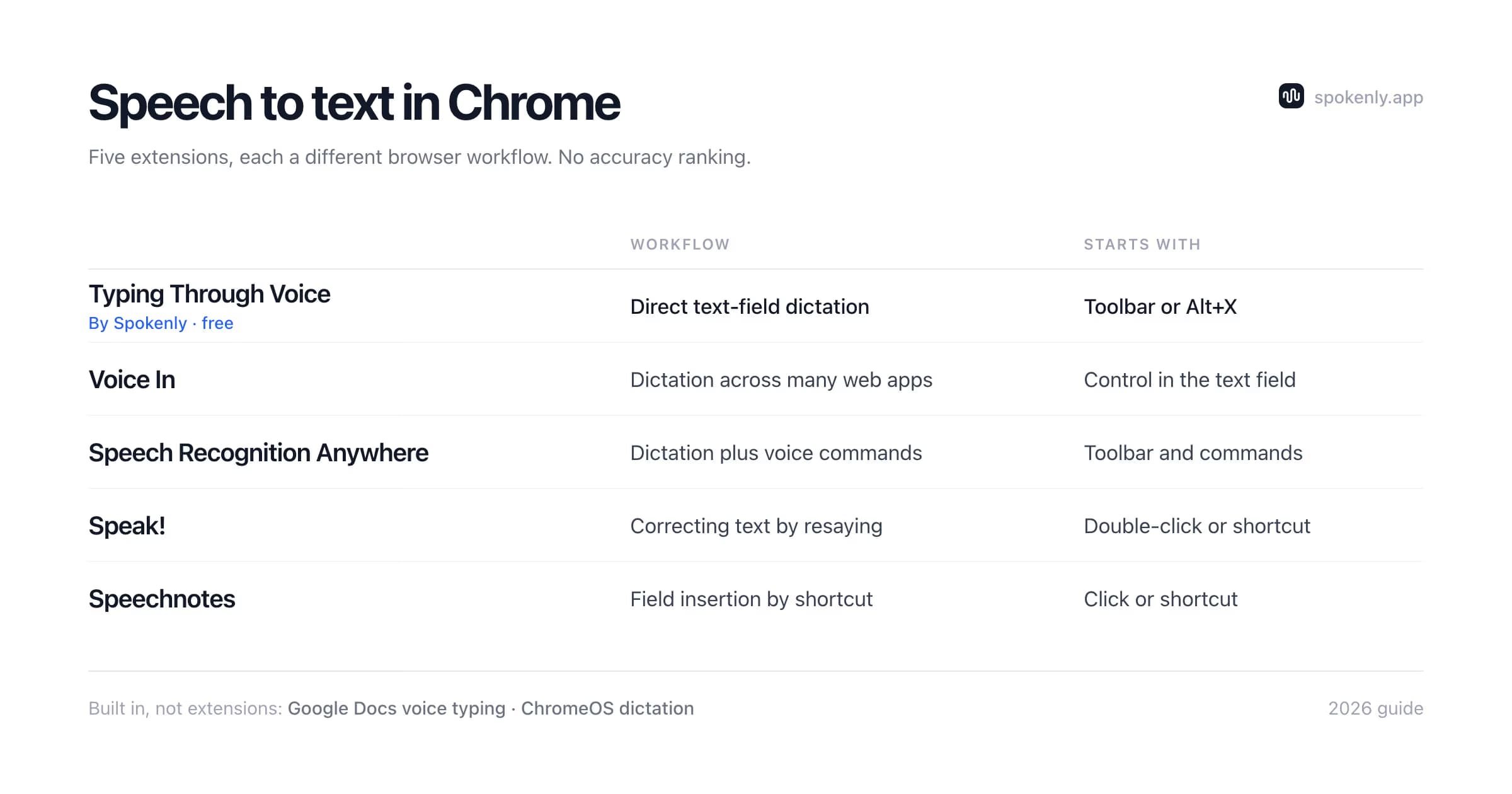
The 5 Speech-to-Text Chrome Extensions Compared
Typing Through Voice by Spokenly
- Workflow
- Direct text-field dictation
- How it starts
- Toolbar or Alt+X
- Plan note
- Free; connection required
Voice In
- Workflow
- Dictation across many web apps
- How it starts
- Extension control in a text field
- Plan note
- Check current free and paid limits
Speech Recognition Anywhere
- Workflow
- Dictation plus voice commands
- How it starts
- Toolbar and command workflow
- Plan note
- Check current store terms
Speak!
- Workflow
- Correcting text by resaying
- How it starts
- Double-click or keyboard shortcut
- Plan note
- Check current store terms
Speechnotes
- Workflow
- Direct field insertion by shortcut
- How it starts
- Click or keyboard shortcut
- Plan note
- Offers in-app purchases
Typing Through Voice by Spokenly: free field insertion
Typing Through Voice by Spokenly starts and stops from the toolbar or the Alt+X shortcut, then inserts recognized text into the active compatible field. The language can be selected in extension settings. Its Web Store listing showed 4,000 users, a 4.4 out of 5 rating from 41 ratings, version 1.1.1, and a May 8, 2026 update when checked on July 13, 2026. Those numbers will change, so use them only as a dated listing snapshot.
The extension is free and requires an internet connection for recognition. It is useful on machines where only Chrome add-ons can be installed. Spokenly also offers separate desktop apps for macOS, Windows, and Linux; those add system-wide dictation, on-device models, custom vocabulary tools, and optional AI text processing. The extension does not need the desktop app, and installing it should not be treated as enabling those desktop-only features. Using it in the Gmail compose window is covered in Dictation for Gmail.
Voice In: broad website dictation
Voice In is designed for dictating into text fields across browser-based email, documents, messaging, and forms. It is the most direct alternative when broad website coverage and a mature installed base matter. Its store offering includes free use and paid capabilities, but limits and supported features can change; review the current listing instead of relying on an old price table.
The listing showed 500,000 users, 4.4 out of 5 from 2,700 ratings, version 4.43, and a July 8, 2026 update. Test Voice In in any custom editor used daily. A conventional textarea and a rich document canvas can accept inserted text differently even when both look like text boxes. Also confirm which languages and commands are available on the chosen plan. This is a browser-only route, so native desktop applications still require another input method.
Speech Recognition Anywhere: dictation plus commands
Speech Recognition Anywhere combines voice typing with commands intended to control parts of the browsing workflow. It is worth considering when hands-free navigation and editing actions matter alongside the transcript. That broader scope also means setup deserves more attention than a single-purpose dictation button.
The listing showed 30,000 users, 3.8 out of 5 from 241 ratings, version 1.7.41, and a November 2, 2025 update. Review its requested permissions, configure only the commands needed, and test accidental activations before using continuous recognition near meetings or shared audio. Voice control can reduce keyboard use, but command recognition and prose recognition are different tasks. A tool that handles one well may still need corrections for the other.
Speak!: correction by resaying
Speak! focuses on editing by resaying a misheard phrase or a replacement, along with automatic punctuation, language switching, and voice formatting. It can start from a double-click in a text field or a keyboard shortcut. That is a useful middle ground for someone who wants correction tools without building a large custom-command library.
Its listing explicitly says Speak! does not work with Google Docs or Word Online. It showed 10,000 users, 4.2 out of 5 from 66 ratings, version 1.0.38, and an April 17, 2025 update. Test the resaying behavior with real corrections because matching the intended earlier phrase is the defining feature, and use another option when those unsupported editors are central to the workflow.
Speechnotes: shortcut-based field insertion
Speechnotes inserts speech into fields across web pages and provides a keyboard shortcut to start or pause recognition. The listing says it uses Google's speech-recognition engine in Chrome and declares that the extension does not collect or share user data. Treat that as the developer's disclosure, while remembering that the recognition engine still processes the speech.
The listing showed 20,000 users, 3.5 out of 5 from 77 ratings, version 3.0.3, and an April 3, 2023 update. That older update date makes a compatibility test especially important. Compare it with Spokenly or Voice In on current rich editors, and use Google Docs' built-in voice typing when the document never leaves that editor.
Setting Up the Spokenly Extension
- 1Open Typing Through Voice by Spokenly in the Chrome Web Store, choose Add to Chrome, and review the requested permissions.
- 2Complete the welcome flow and allow microphone access when Chrome asks. Recognition cannot start while microphone permission is blocked.
- 3Pin the extension from Chrome's extensions menu, then choose a recognition language in the extension settings.
- 4Open a normal HTTPS page, click inside an editable text field, and press Alt+X or the extension toolbar icon. Speak, then use the same control to stop.
- 5Test a second site and reload tabs that were already open during installation. Chrome may not inject a newly installed content script until a tab is refreshed.
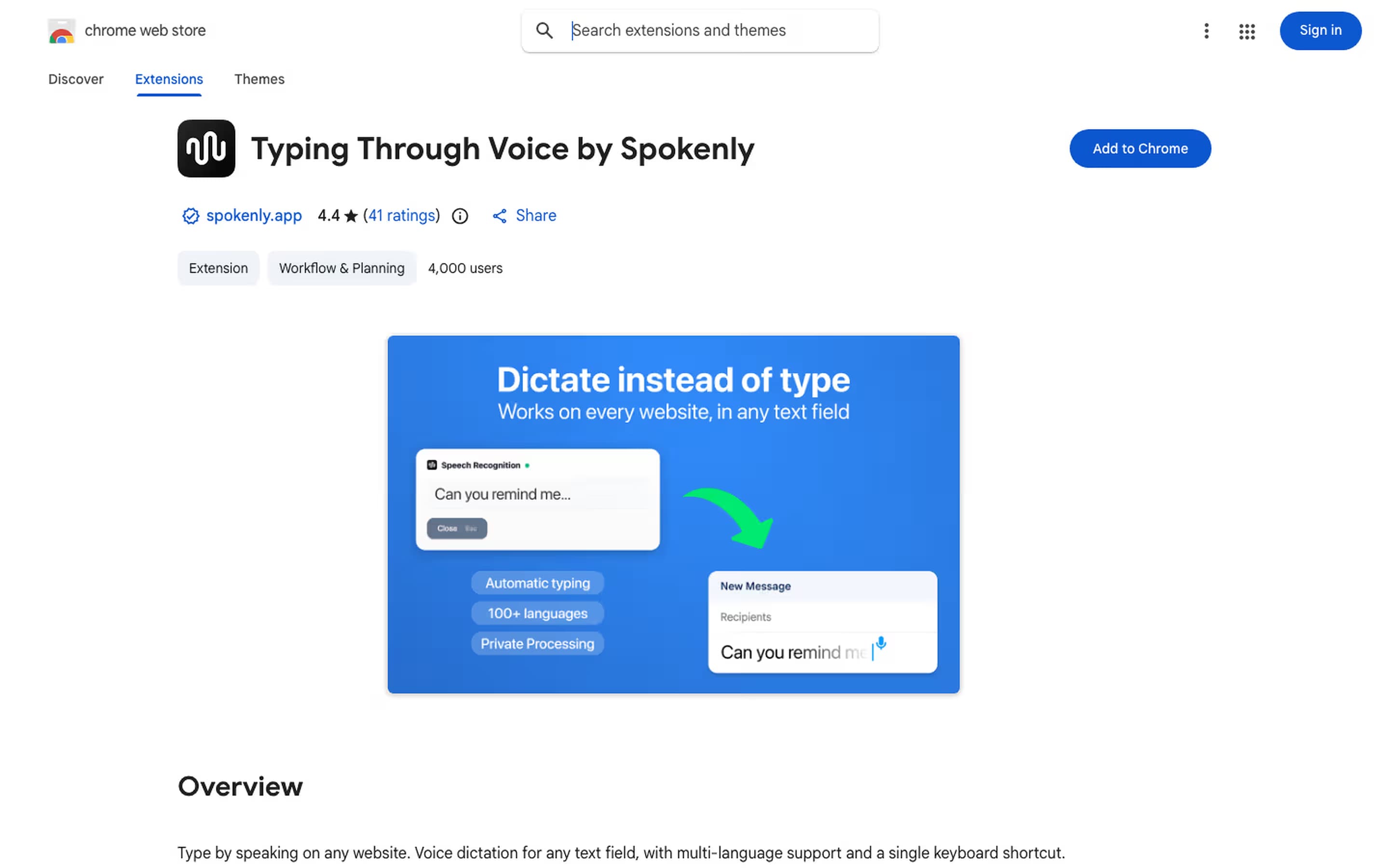
Install it from spokenly.app/chrome-store, which opens the official Chrome Web Store listing. The extension cannot type on chrome:// pages, the Web Store, extension pages, or other protected browser surfaces. That is a Chrome security boundary rather than a microphone fault.
Chrome shortcuts can be changed from the browser's extension shortcut settings. Pick a combination that does not collide with the web apps used for writing. If an organization manages Chrome, the administrator may control installation, microphone permission, site access, or the shortcut.
What Chrome Includes Without Extensions
Before installing anything, check whether the destination or operating system already has dictation. These options are often described as Chrome extensions in search results, but they are separate features:
Google Docs voice typing
Open Tools, then Voice typing in a document. Google currently supports the latest Chrome, Edge, and Safari. It is free, editor-specific, and different from installing an extension.
ChromeOS dictation
Chromebooks include dictation under Accessibility, Keyboard and text input. It works at the operating-system level, so try it before adding another browser tool.
Site-level microphones
Some search, messaging, meeting, and AI sites add their own microphone control. The site decides the recognition engine, data handling, languages, and where the transcript appears.
Live Caption
Chrome can caption audio playing in the browser. It helps read media but does not insert your speech into an editable field, so it is not a dictation substitute.
Many browser speech features are built on the Web Speech API. Recognition may use a server-based service, while supported browsers can also expose experimental on-device recognition after the required language pack is installed. Availability must be detected by the site or extension; the presence of a microphone icon alone does not prove offline operation.
Privacy: Where Extension Audio Goes
Do not infer audio handling from the size of an extension or the absence of an account. Recognition can run through a browser speech service, a vendor API, or an on-device implementation. The Web Store privacy disclosure and the developer's policy should identify what is collected, why it is needed, whether data is linked to an identity, and whether it is retained. Browser permissions show what an extension can access, not everything a remote recognition service does after receiving audio.
Typing Through Voice by Spokenly invokes Chrome's speech-recognition interface. Its extension code does not send recorded audio to the Spokenly backend or store the audio, but the browser's recognition service still handles speech and the extension requires a connection. That is different from the desktop app's on-device models. Keep the distinction clear when choosing a tool for client, health, legal, financial, or confidential workplace text.
For sensitive dictation, use an approved service or an on-device workflow with outbound processing disabled. Spokenly's desktop app can run local Parakeet and Whisper models and provides a Local Only Mode. The offline speech-to-text guide explains how local recognition differs from a browser extension.
Speech-to-Text Extension Troubleshooting
The extension starts but hears nothing
Check Chrome's microphone permission for the extension or recognition page, select the intended input device in the operating system, and close another app that has exclusive microphone control.
Speech is recognized but no text appears
Click a plain textarea and try again. If that works, the original site likely uses a custom editor or blocks injected input. Look for the site's own dictation feature or use a desktop input method.
Nothing happens after installation
Refresh tabs that were open before the extension was added. Pin the extension, open a normal HTTPS site, focus an editable field, and test the toolbar control before debugging the shortcut.
The shortcut opens another command
Open Chrome's extension shortcut settings and assign a unique key combination. Managed browsers may prevent shortcut changes or reserve combinations through policy.
Accuracy is poor
Confirm the recognition language, move closer to the microphone, reduce background audio, and compare a short recording on a second service. Names and product terms may need manual correction if the extension offers no custom vocabulary.
It fails only on one page
Chrome protects system pages and the Web Store, while some sites limit extension access. Check site access in the extension details and avoid granting broader permissions than the workflow requires.
FAQ
Is there a free speech to text extension for Chrome?
Yes. Typing Through Voice by Spokenly is free on the Chrome Web Store. Other extensions may combine free use, trials, or paid features, so check the current listing before installing. Google Docs voice typing is also free, but it is a built-in editor feature rather than a Chrome extension.
Does Chrome have built-in speech to text?
Chrome exposes speech-recognition capabilities that websites can implement, but it does not add a universal microphone to every web text field. Google Docs has built-in voice typing, and ChromeOS has system-wide dictation in its accessibility settings. On macOS, Windows, and Linux, use an extension for browser fields or a desktop dictation app for multiple applications.
Do speech to text extensions work offline?
It depends on the extension and browser implementation. Many extensions use a browser or vendor speech service that needs a connection. The Web Speech API can also support on-device recognition in compatible implementations after a language pack is installed, but support is experimental and not available everywhere. Verify the extension's own offline claim instead of assuming from its interface.
What is the best speech to text extension for Chromebook?
Start with ChromeOS dictation because it works beyond one browser tab. Add Typing Through Voice by Spokenly or another extension when its shortcut, language controls, or browser-specific workflow is a better fit. Test the actual editors you use because extension support varies with each site's input implementation.
Why does my dictation extension not work on some sites?
Chrome blocks extensions from injecting into protected pages such as the Chrome Web Store and chrome:// settings. Enterprise policies can exclude more sites, while custom editors may not expose a normal input field. Refresh an already-open tab after installing, grant microphone access, click a plain text box, and then test the shortcut.
Extension or desktop app: which should I pick?
Choose an extension when the work stays in browser fields, the device is a Chromebook, or desktop software cannot be installed. Choose a desktop app when dictation must continue across Chrome, email, documents, chat, and development tools, or when local model processing matters. Test both with the hardest editor in your workflow before deciding.
Ready to try Spokenly?
Free to use with local models. No account required.
Download SpokenlyRead next