
Word Replacements
Automatically swap words and phrases in your transcripts after recording.
Word Replacements apply after transcription, automatically swapping words and phrases in your transcripts. Navigate to Settings and click Word Replacements to add your rules.
On macOS you can also open it instantly from the menu bar icon, by pressing ⌘R while Spokenly is the active app, or with the spokenly://word-replacements deeplink.
To improve recognition accuracy, see Dictionary.
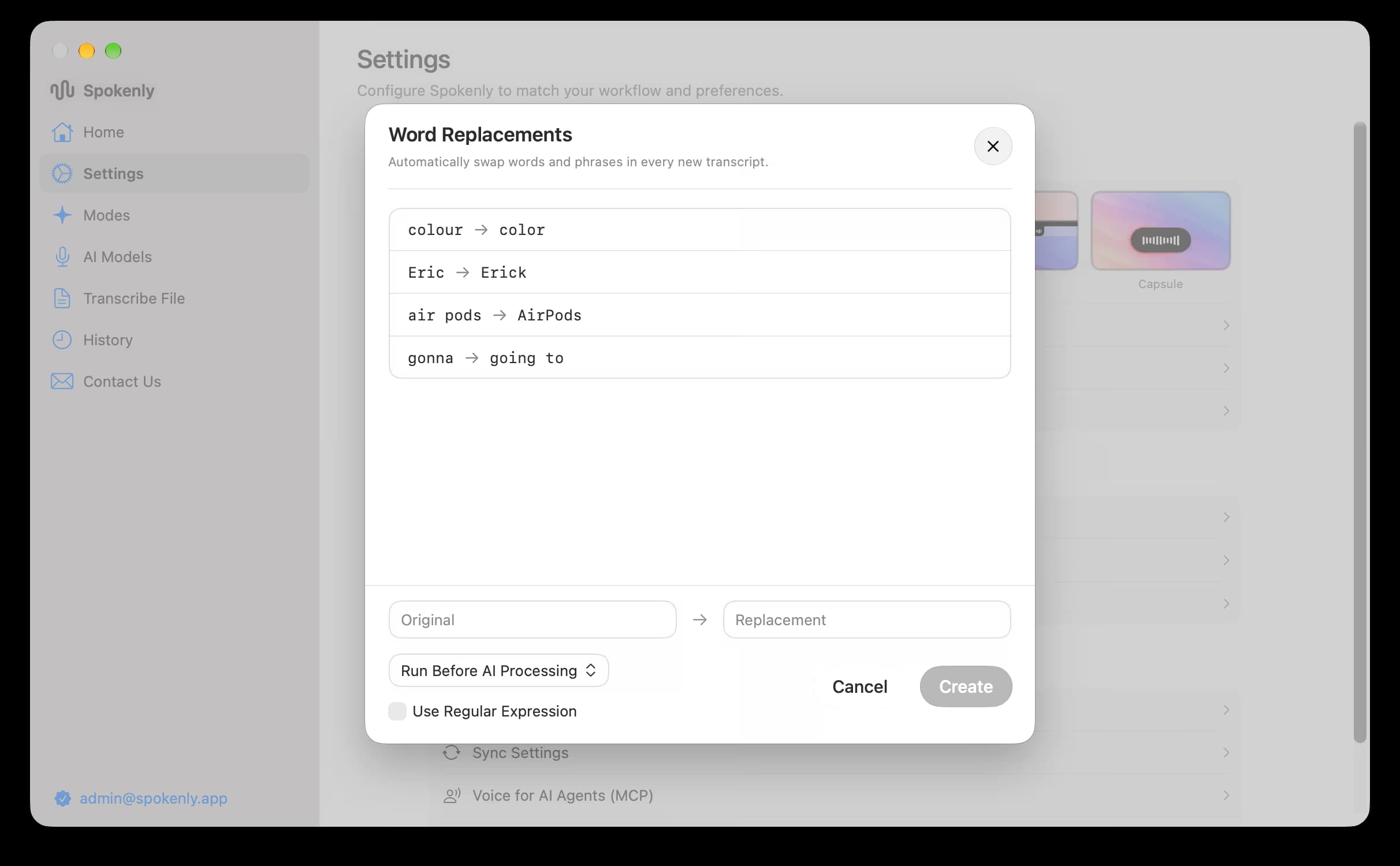
Each replacement has an Original field (what to find) and a Replacement field (what to substitute). Matching is case-insensitive and respects word boundaries.
Examples:
colour→color(spelling normalization)Eric→Erick(name correction)air pods→AirPods(brand formatting)gonna→going to(informal speech)
Multiple Variants
You can list multiple variants separated by commas in the Original field. All of them will be matched and replaced.
Examples:
raycast, reycast, recast→Raycastcloud, claud, clod→Claudeeleven labs, elevan labs, elaven labs→ElevenLabs
Regular Expressions (advanced)
Enable Use Regular Expression to match patterns instead of literal text. The Original field accepts standard regex syntax, and the Replacement field supports capture group references ($1, $2, etc.).
Examples:
\b(yea|yeah|ya)\b→yes(normalize informal variants)\b(um|uh|er)\b→ (empty) (remove filler words)\b(ok|okay|Ok)\b→OK(unify spelling variants)(?-i)\bIT\b→Information Technology((?-i)makes matching case-sensitive, replacesITbut notit)
Unlike plain replacements, regex patterns do not add word boundaries automatically. Wrap the pattern in \b to match whole words only, as in the examples above.
Timing (Before/After AI)
If you have modes with AI Instructions configured, each replacement shows a timing option:
| Timing | When it runs |
|---|---|
| Run Before AI Instructions | Replacement applied to raw transcript before AI processing |
| Run After AI Instructions | Replacement applied to AI output |
| Both | Runs before and after AI processing |
Use Before AI when you want the AI to see the corrected text. Use After AI for final formatting that shouldn't affect AI behavior.
Programmatic Access (macOS)
Build your list from scripts or other apps:
- The
spokenly://word-replacements/add?from=<text>&to=<text>deeplink opens the editor with the add form pre-filled, ready to confirm. - The Spokenly CLI can list, add, and remove replacements from the terminal:
spokenly replacements add "air pods" "AirPods".

