
Background Dictation
Start iPhone dictation from the Action Button, Back Tap, or AssistiveTouch, then insert with the Spokenly keyboard or copy to the clipboard.
Background Dictation starts Spokenly in the background from an Apple Shortcut, so you can keep the app you are typing in open. The same shortcut supports two ways to finish: use the Spokenly keyboard to insert text directly at the cursor, or run the shortcut again to copy the text to your clipboard.
Setup
Install the Shortcuts app
Make sure the Shortcuts app is installed on your iPhone. It comes pre-installed on iOS 13 and later, but if you removed it, re-download it from the App Store.
Add the Spokenly shortcut
Open this link on your iPhone to import the shortcut into your Shortcuts app:
Add Spokenly Background Dictation Shortcut
Tap Add Shortcut when prompted. The shortcut will appear in your Shortcuts library.
Assign a trigger
Choose how you want to run the shortcut: the Action Button, Back Tap, or AssistiveTouch.
Trigger: Action Button
If your iPhone has an Action Button (iPhone 15 Pro and later), you can assign the shortcut to it for quick background dictation.
Open Settings
Go to Settings on your iPhone and tap Action Button.
Select Shortcut
Swipe through the options until you see Shortcut. Tap Choose a Shortcut.
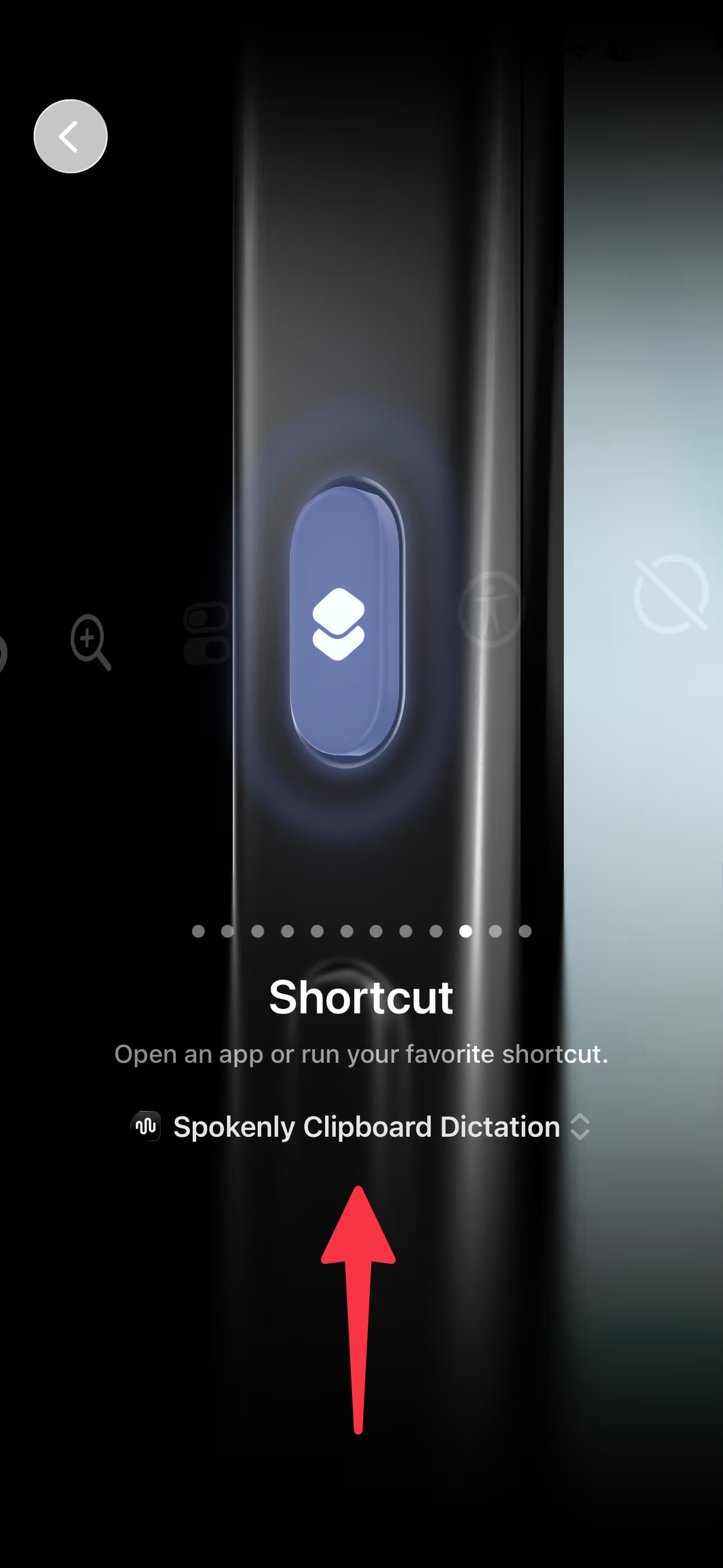
Pick the Spokenly shortcut
Search for the Spokenly background dictation shortcut and select it.
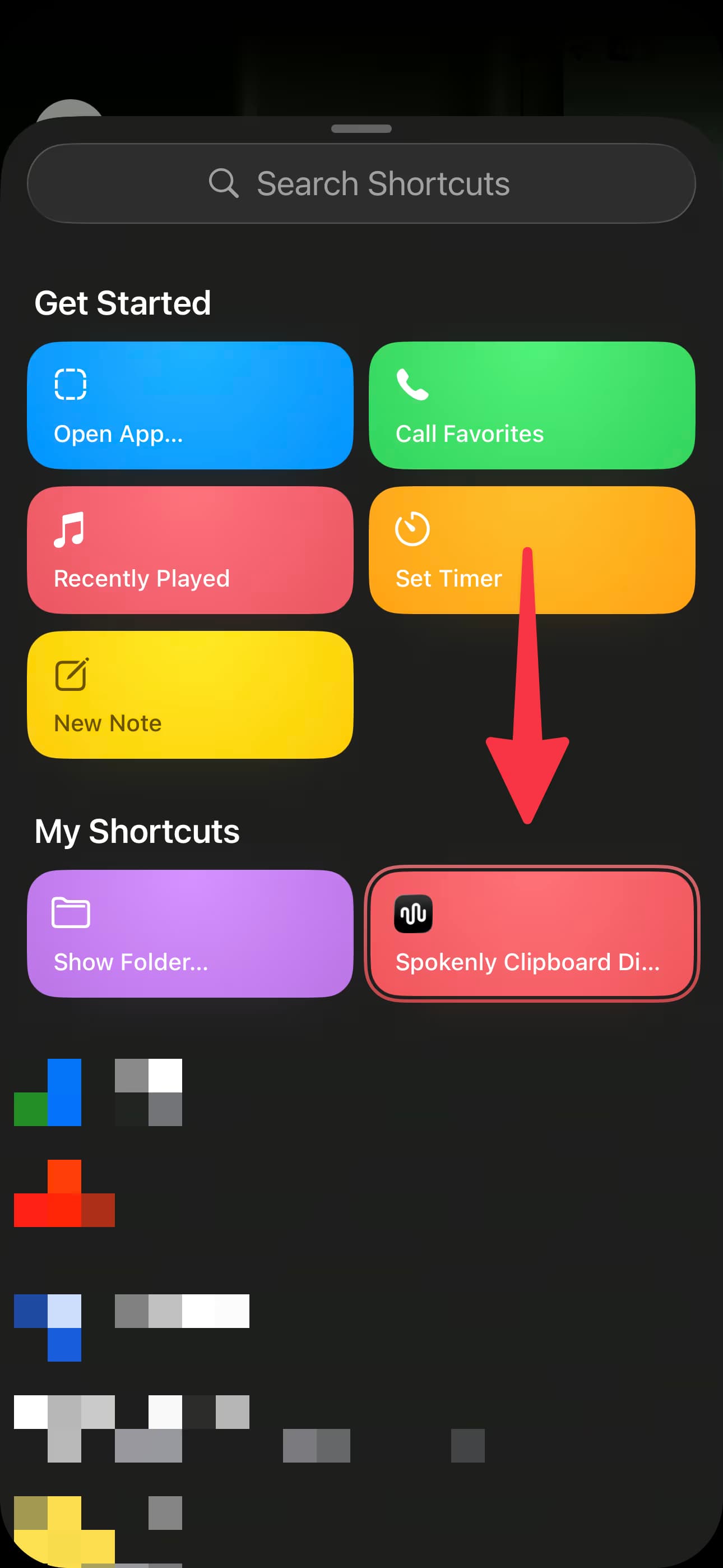
The Action Button is now your dictation trigger. Press and hold it to run the shortcut.
Trigger: Back Tap
You can also trigger the shortcut by tapping the back of your iPhone two or three times. This works on iPhone 8 and later with iOS 14+.
Open Accessibility settings
Go to Settings > Accessibility > Touch, then scroll down and tap Back Tap.
Choose Double Tap or Triple Tap
Tap Double Tap or Triple Tap, depending on which gesture you prefer.
Assign the shortcut
Scroll down to the Shortcuts section and select the Spokenly background dictation shortcut.
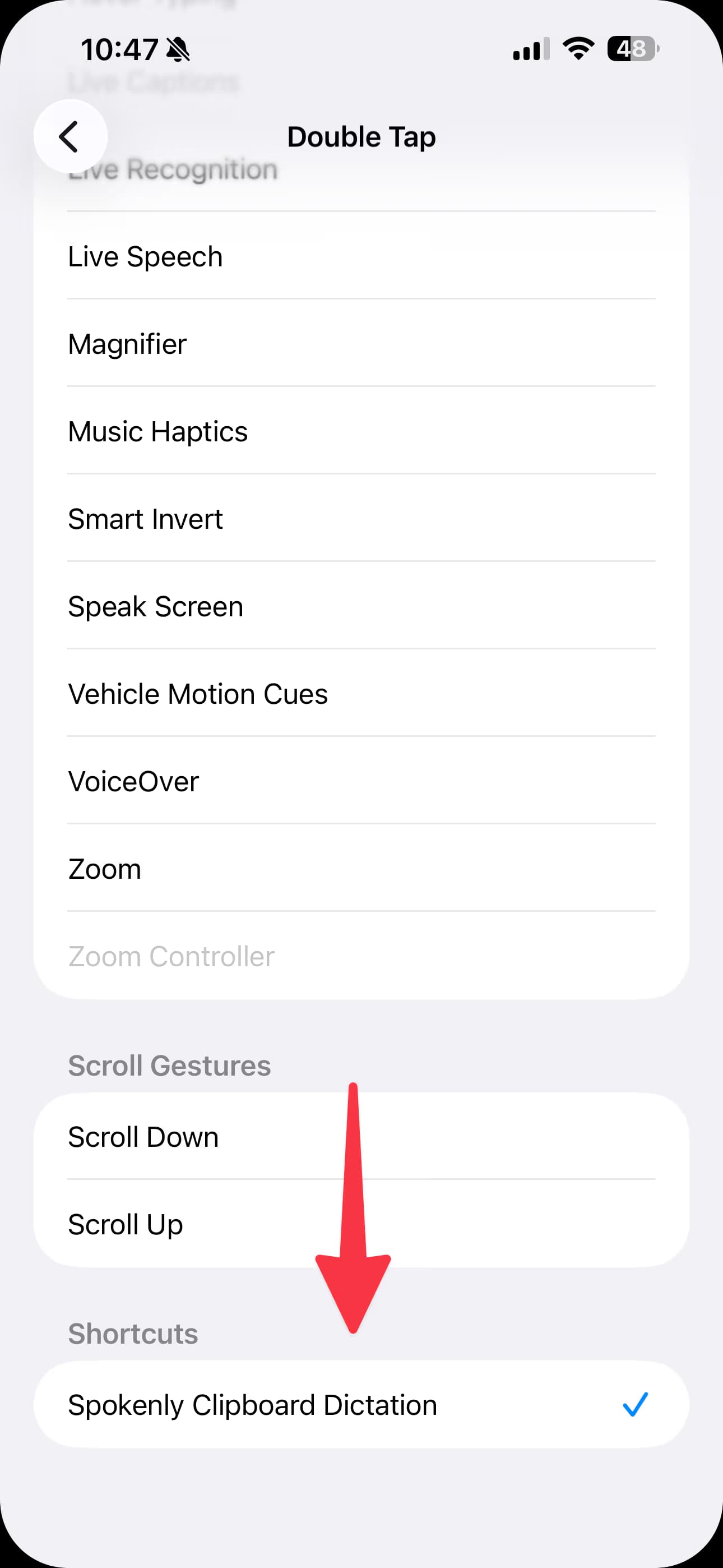
That's it. Back Tap is now your dictation trigger.
Trigger: AssistiveTouch
AssistiveTouch adds a floating button that can run the shortcut with one tap. This is useful on iPhones without an Action Button.
Turn on AssistiveTouch
Go to Settings > Accessibility > Touch > AssistiveTouch, then turn on AssistiveTouch.
Choose the single-tap action
Under Custom Actions, tap Single-Tap.
Assign the Spokenly shortcut
Scroll to the Shortcuts section and select the Spokenly background dictation shortcut.
The floating AssistiveTouch button now runs the shortcut with one tap.
How to use Background Dictation
Once your trigger is set up, choose the workflow based on which keyboard you want to keep open.
Option 1: Insert directly with the Spokenly keyboard
Use this workflow to stay in the current app and avoid pasting from the clipboard. First, add the Spokenly keyboard in Settings > General > Keyboard > Keyboards > Add New Keyboard, then select Spokenly in the keyboard list and turn on Allow Full Access.
- Open a text field and select the Spokenly keyboard so it remains visible.
- Run the shortcut once with the Action Button, Back Tap, or AssistiveTouch. Recording starts without opening Spokenly.
- Speak, then tap the blue checkmark in the top-right corner of the Spokenly keyboard. If you use the Classic keyboard layout, tap Insert instead.
- Spokenly stops the recording, transcribes your speech, and inserts the text directly at the cursor. No paste action is needed.
Run the shortcut only once in this workflow. To insert the text through the Spokenly keyboard, finish with the checkmark or Insert button. If you run the shortcut a second time, Spokenly copies the text to the clipboard instead.
Option 2: Copy and paste with the Apple keyboard
Use this workflow if you prefer the Apple keyboard or another keyboard. You do not need to disable the Spokenly keyboard, just leave your preferred keyboard selected.
- Run the shortcut with the Action Button, Back Tap, or AssistiveTouch to start recording.
- Speak naturally.
- Run the same shortcut again to stop recording.
- After your iPhone vibrates, paste the copied text into the current app.
Troubleshooting
Background Dictation requires iOS 17 or later and Spokenly 1.6.4 or later. Update your iPhone and Spokenly before using the shortcut.
If background dictation is not working, make sure Live Activities are enabled for Spokenly. Go to Settings > Spokenly > Live Activities and check that they are turned on. Due to iOS limitations, background dictation cannot work without this permission.

