
Clipboard Dictation
Dictate text directly to your iPhone clipboard using an Apple Shortcut, then paste anywhere.
Clipboard Dictation lets you dictate directly into your iOS clipboard without opening the app. Everything runs in the background via an Apple Shortcut. Trigger it with the Action Button or Back Tap, speak, and the transcribed text is ready to paste wherever you need.
Setup
Install the Shortcuts app
Make sure the Shortcuts app is installed on your iPhone. It comes pre-installed on iOS 13 and later, but if you removed it, re-download it from the App Store.
Add the Spokenly shortcut
Open this link on your iPhone to import the shortcut into your Shortcuts app:
Add Spokenly Clipboard Dictation Shortcut
Tap Add Shortcut when prompted. The shortcut will appear in your Shortcuts library.
Assign a trigger
Choose how you want to launch the shortcut: via the Action Button or Back Tap.
How to use
- Trigger the shortcut (Action Button or Back Tap) to start recording.
- Speak naturally.
- Trigger the shortcut again to stop recording. The transcribed text is copied to your clipboard.
- Paste into any app.
Your iPhone will vibrate when the text is copied, confirming it worked.
Trigger: Action Button
If your iPhone has an Action Button (iPhone 15 Pro and later), you can assign the shortcut to it for one-press dictation.
Open Settings
Go to Settings on your iPhone and tap Action Button.
Select Shortcut
Swipe through the options until you see Shortcut. Tap Choose a Shortcut.
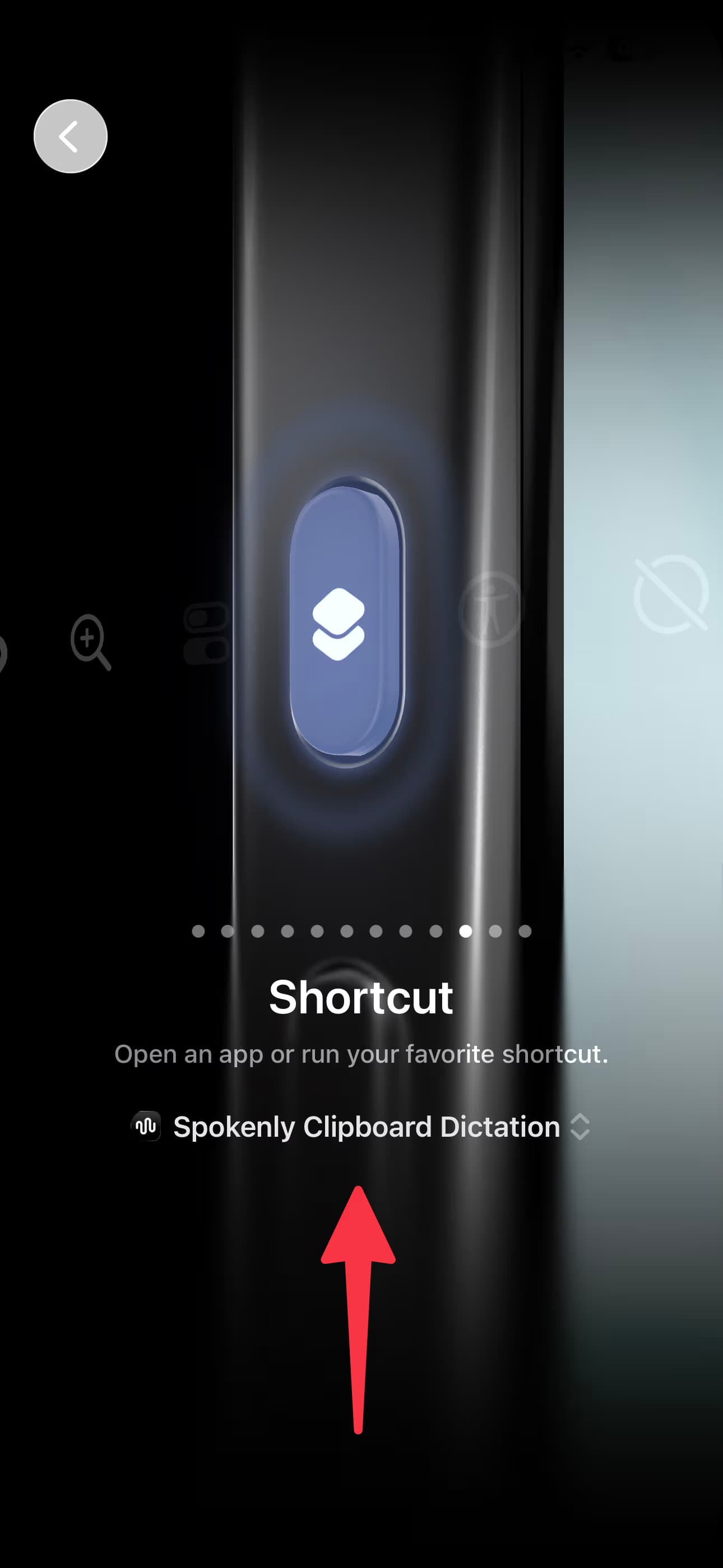
Pick the Spokenly shortcut
Search for the Spokenly clipboard dictation shortcut and select it.
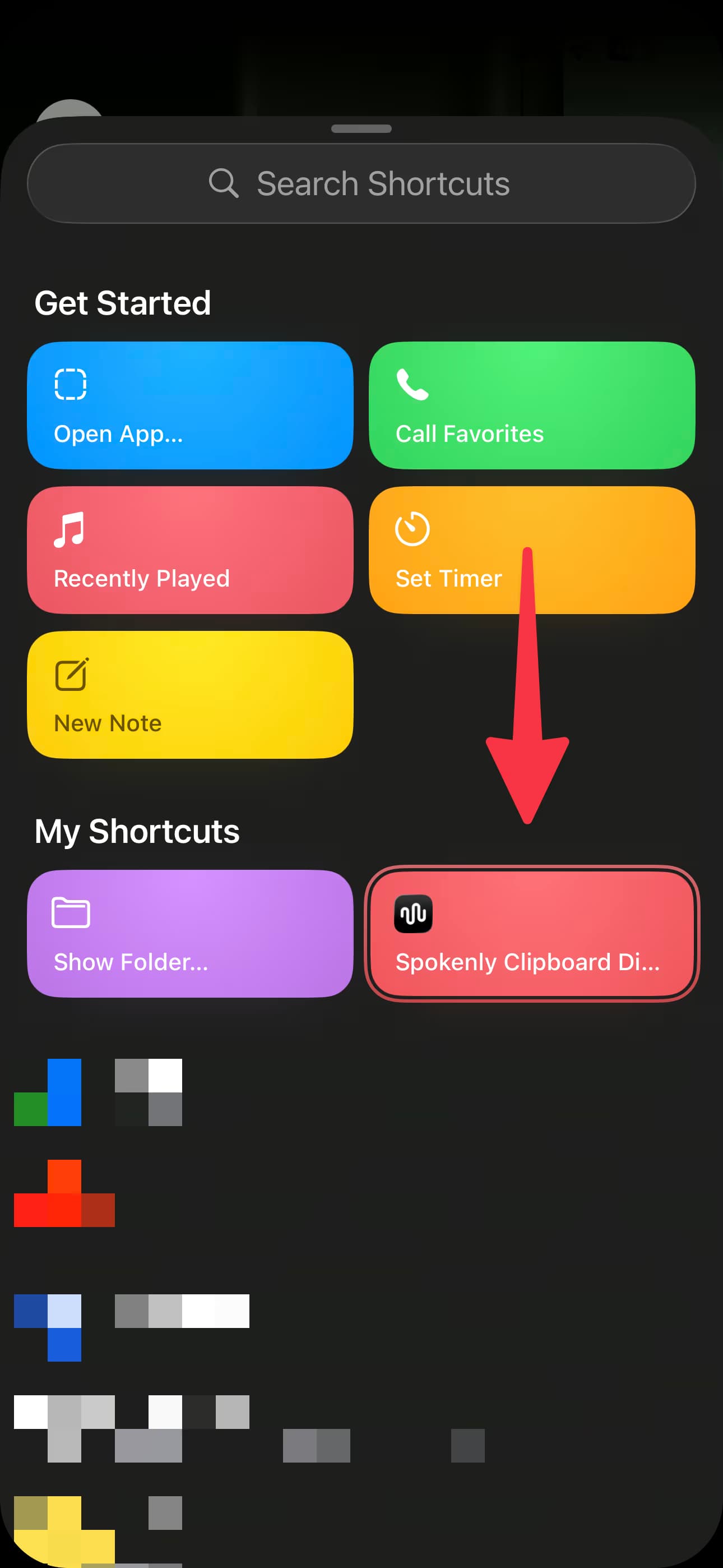
That's it. The Action Button is now your clipboard dictation trigger.
Trigger: Back Tap
You can also trigger the shortcut by tapping the back of your iPhone two or three times. This works on iPhone 8 and later with iOS 14+.
Open Accessibility settings
Go to Settings > Accessibility > Touch, then scroll down and tap Back Tap.
Choose Double Tap or Triple Tap
Tap Double Tap or Triple Tap, depending on which gesture you prefer.
Assign the shortcut
Scroll down to the Shortcuts section and select the Spokenly clipboard dictation shortcut.
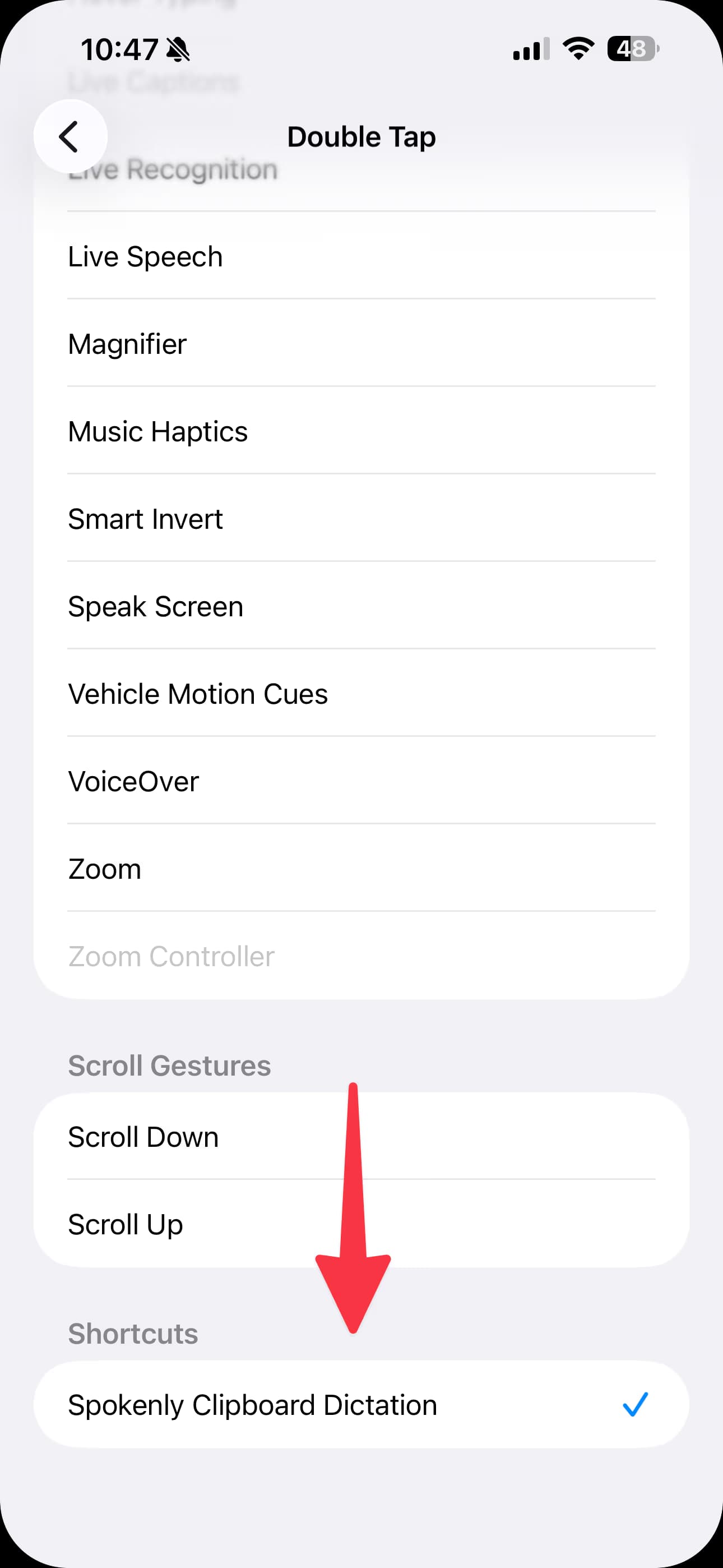
That's it. Back Tap is now your clipboard dictation trigger.
Troubleshooting
Clipboard Dictation requires Spokenly 1.6.4 or later. If you're on an older version, update the app first. The shortcut won't work correctly without it.
If clipboard dictation is not working, make sure Live Activities are enabled for Spokenly. Go to Settings > Spokenly > Live Activities and check that they are turned on. Due to iOS limitations, clipboard dictation cannot work without this permission.