
iPhone Voice to Text or Dictation Not Working? 13 Fixes
When voice to text stops typing, the microphone key disappears, or dictation stops responding, the cause is usually a setting, a restriction, or a recent iOS update such as iOS 27. Work through the fixes in order. If the built-in feature keeps failing, Spokenly is a more reliable dictation keyboard.
Start here
Three checks fix most cases: confirm Enable Dictation is on in Settings, General, Keyboard; switch from any third-party keyboard back to the Apple keyboard so the microphone key returns; and make sure no Screen Time restriction is blocking it. On iOS 27, also check the Messages microphone setting in fix 3. If those do not help, work through the full list. For setup and everyday use rather than repair, see the voice to text on iPhone guide.
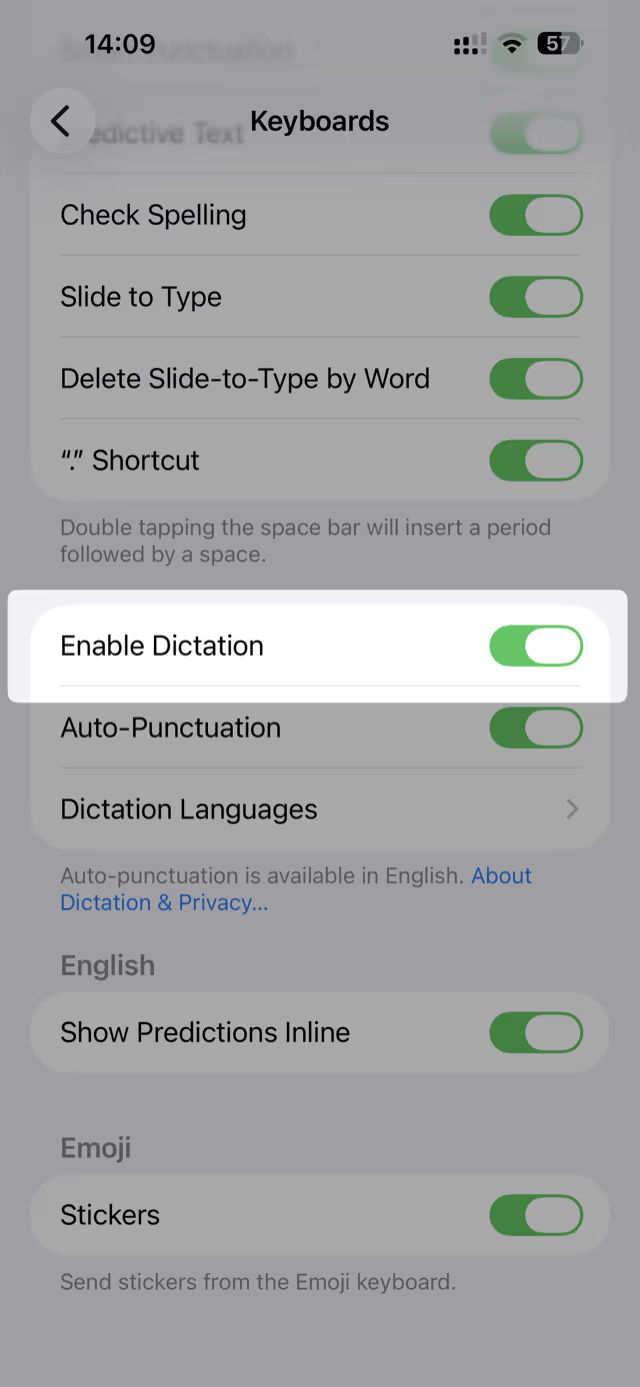
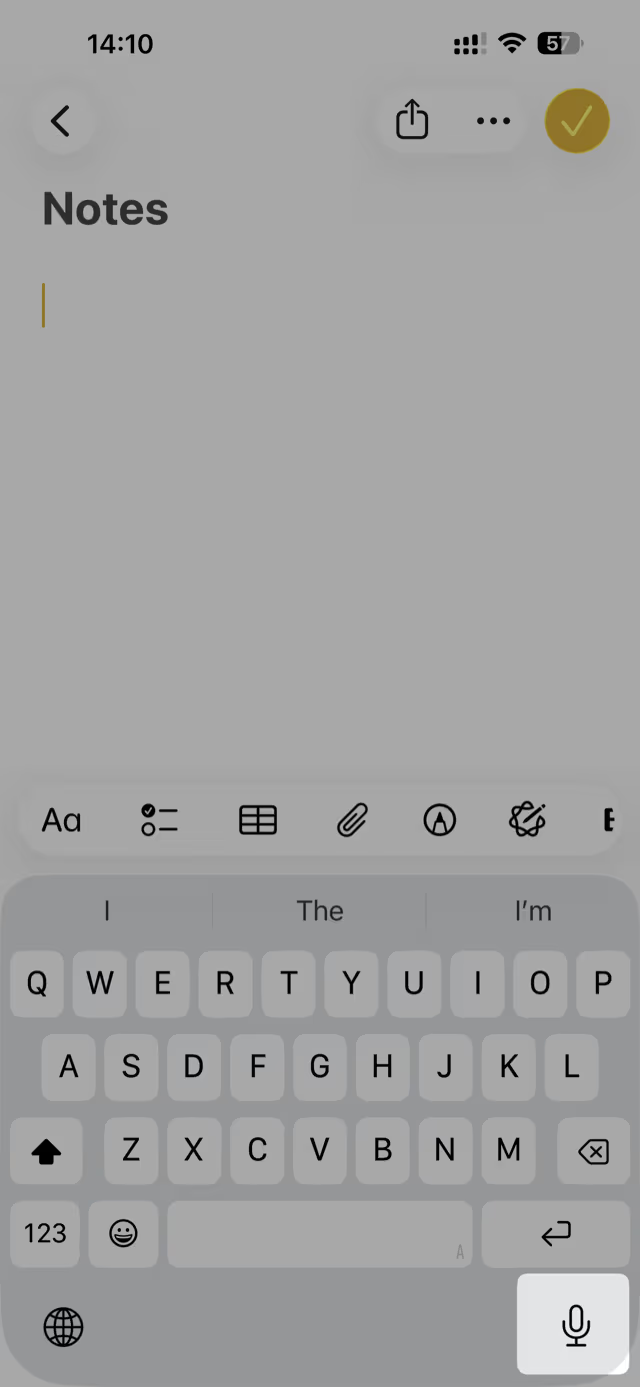
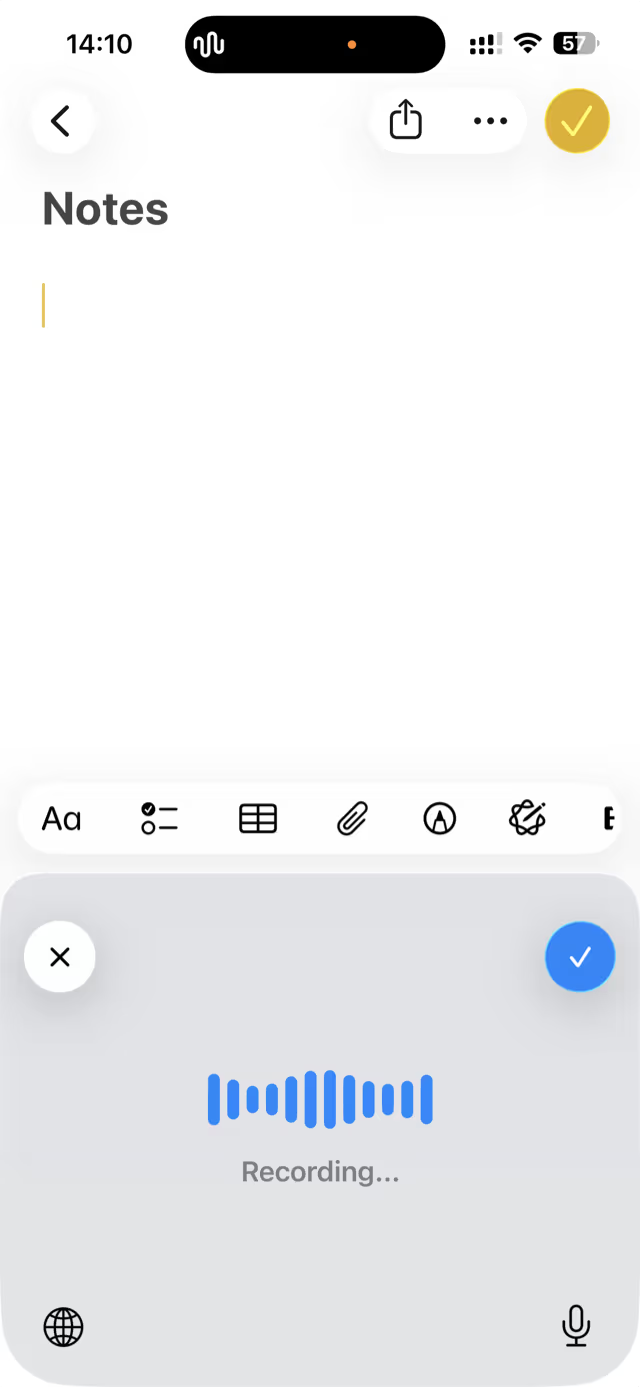
13 Fixes for iPhone Voice to Text and Dictation
Turn Enable Dictation back on
Open Settings, then General, then Keyboard, and check that Enable Dictation is on. If it was off, the microphone key never appears. If the switch is already green but the key is missing, toggle it off, wait a moment, and turn it back on to reset it.
Look for the microphone on the right keyboard
The dictation microphone appears only on Apple's built-in keyboard, next to the space bar or the emoji key. Many third-party keyboards do not show it. Tap the globe key to switch back to the Apple keyboard, and the microphone should return.
Set the Messages microphone button to dictation (iOS 27)
iOS 27 added a setting for the microphone button inside the Messages text field. If tapping it records an audio message instead of typing your words, open Settings, then Apps, then Messages, then Show in Text Field, and choose Start Dictation. The microphone key on the keyboard itself keeps dictating either way.
Check Screen Time restrictions
If Enable Dictation is greyed out and cannot be turned on, a restriction is blocking it. Open Settings, then Screen Time, then Content and Privacy Restrictions. Allow Siri and Dictation under Allowed Apps and Features, and on iOS 27 also check the Siri section, where Apple moved some of these controls. School or company-managed devices often lock this down.
Confirm an internet connection when needed
Newer iPhones run dictation on-device for many languages, but older models and some languages still need the internet. If dictation stalls, connect to Wi-Fi or cellular and try again, or switch to a language that supports on-device processing.
Add or switch the dictation language
Open Settings, then General, then Keyboard, then Dictation Languages, and confirm your language is selected. If the wrong language is active, dictation mistranscribes nearly everything. Add the language you actually speak and remove ones you never use.
Free the microphone from another app
Only one app can use the microphone at a time. If a call, voice memo, or recording app is active in the background, dictation cannot capture audio. Close those apps from the App Switcher and try again.
Check microphone permissions and hardware
Open the Voice Memos app and record a short clip to confirm the microphone works at all. If the recording is silent, clean the microphone port, remove any case covering it, and disconnect Bluetooth headsets that may be capturing audio instead.
Restart the iPhone
A restart clears whatever background state is jamming voice input. Power the iPhone off, wait ten seconds, turn it back on, then test the microphone in Notes before anything else.
Update iOS
Bugs are common right after a major iOS release such as iOS 27, and Apple usually patches them fast. Open Settings, then General, then Software Update, and install the latest version, which often restores a broken microphone key.
Turn off Low Power Mode
Low Power Mode throttles background activity, which can delay or cut off dictation. Open Settings, then Battery, and turn Low Power Mode off while you dictate. Switch it back on afterward if you need the charge.
Reset the keyboard dictionary
A corrupted keyboard dictionary can break dictation and autocorrect together. Open Settings, then General, then Transfer or Reset iPhone, then Reset, then Reset Keyboard Dictionary. This does not delete personal data, only learned words.
Remove and re-add the keyboard
If the microphone is still missing, delete the keyboard in Settings, General, Keyboard, Keyboards, then add it again. Adding it back re-registers dictation and usually restores a dead microphone key.
What Changed for Voice to Text in iOS 27
iOS 27 arrived on September 14, 2026 for iPhone 11 and later. With Apple Intelligence turned on, English dictation on iPhone 17 Pro, iPhone 17 Pro Max, iPhone Air, iPhone 18 Pro, iPhone 18 Pro Max, and iPhone Duo runs on a larger on-device model that handles spelling, punctuation, and capitalization as you speak. Other iPhones and other languages keep the standard dictation engine.
Apple's iOS 27 release notes describe an Advanced Dictation Preview switch in the Dictation section of Settings, General, Keyboard, while forum users report that the final release removed the switch and turns the model on automatically. If your iPhone qualifies and results look unchanged, check that section and give Apple Intelligence time to finish downloading its model.
Two other changes can look like broken dictation. iOS 27 added a choice for the button inside the Messages text field (Record Audio, Start Dictation, or None; see fix 3), and Apple lists voice editing commands such as "Change X to Y", "Delete X", and "Undo" as a known issue that may not work reliably. Until an update fixes it, correct those words by hand.
Why iPhone Dictation Stops Working
- •A restriction in Screen Time silently disables dictation, which is the most common cause when the toggle is greyed out.
- •Older iPhones and some languages require an internet connection, so dictation fails on poor or offline networks.
- •Third-party keyboards do not include Apple's dictation microphone, so the key disappears when one is active.
- •A major iOS update introduces a regression that breaks dictation until the next patch.
Apple documents the built-in feature in its Dictate text on iPhone guide, which is worth a look if a fix above mentions a setting that has moved in your iOS version.
When the Fixes Do Not Stick
The built-in microphone key depends on a single dictation service, so a single failure silences voice input everywhere. Spokenly is a separate keyboard with its own transcription, so it stays up even when Apple's dictation goes down.
- +Works system-wide in any app, with its own microphone key
- +Local models keep dictation working offline, with no signal needed
- +Custom dictionary for names and terms, plus 100+ languages
If the problem is on a Mac rather than an iPhone, the Mac dictation not working guide covers that side, and the voice typing not working guide covers other platforms.
Frequently Asked Questions
Why is voice to text not working on my iPhone after the iOS 27 update?
First check the new Messages setting: in Settings, then Apps, then Messages, then Show in Text Field, choose Start Dictation so the text field button dictates instead of recording audio. Then confirm Enable Dictation is still on under Settings, General, Keyboard, and restart the iPhone. Voice editing commands such as "Change X to Y" are a known iOS 27 issue, so correct those words by hand until Apple ships a fix.
Does iOS 27 improve dictation?
Yes, with Apple Intelligence turned on, on iPhone 17 Pro, iPhone 17 Pro Max, iPhone Air, iPhone 18 Pro, iPhone 18 Pro Max, and iPhone Duo. There, English dictation runs on a larger on-device model that handles spelling, punctuation, and capitalization as you speak. Other iPhones and other languages keep the standard dictation engine.
Why is my iPhone dictation not working all of a sudden?
The most common reasons are a Screen Time restriction that disabled dictation, a recent iOS update with a bug, a missing internet connection on an older iPhone, or a third-party keyboard that hides the microphone key. Re-enable dictation in Settings, then General, then Keyboard, and restart the iPhone if the key is still missing.
How do I enable dictation on my iPhone?
Open Settings, then General, then Keyboard, and turn on Enable Dictation. Tap the microphone key on the Apple keyboard, next to the space bar, then start speaking. If the toggle is greyed out, open Screen Time, then Content and Privacy Restrictions, then Allowed Apps and Features, and switch the Dictation control on.
Why is the microphone button missing on my iPhone keyboard?
The dictation microphone only appears on Apple's built-in keyboard, and only when Enable Dictation is on. If a third-party keyboard is active, tap the globe key to switch back to the Apple keyboard. If it is still missing, toggle Enable Dictation off and on, then restart the iPhone.
Does iPhone dictation work offline?
Newer iPhones can dictate on-device for many languages without the internet, but older models and some languages still require a connection. For fully reliable offline dictation, Spokenly runs local Parakeet and Whisper models, so dictation keeps working with no signal once a local model is downloaded.
What can I use if iPhone dictation keeps failing?
Spokenly is a system-wide dictation keyboard that runs its own transcription instead of relying on the built-in service. It works in any app, supports 100+ languages, and adds a custom dictionary for names and terms, so names and jargon come through right even when Apple's built-in dictation keeps failing.
Ready to try Spokenly?
Free to use with local models. No account required.
Download SpokenlyRead next
Spokenly publishes this guide and updates it as iOS changes. Settings paths reflect recent iOS versions and may differ slightly on yours.