
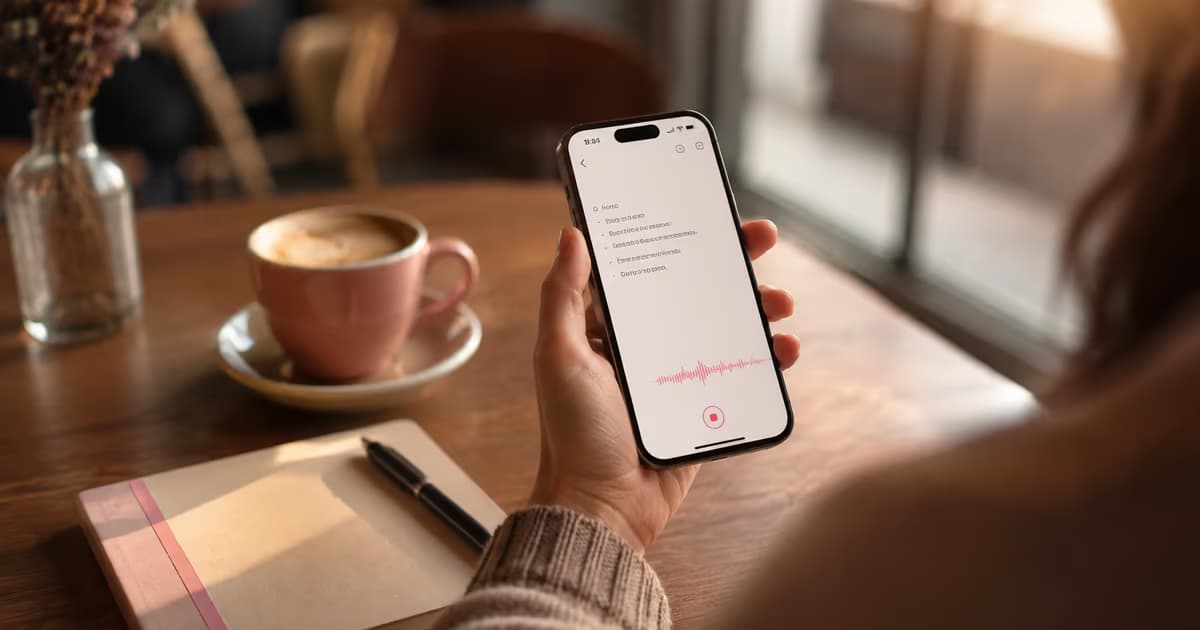
TL;DR
- +Enable: Settings, General, Keyboard, Enable Dictation. Mic icon appears on keyboard.
- +Voice Memos transcript: iOS 18+, tap speech-bubble icon above playback.
- +No 30-second cutoff: use Voice Control (Accessibility) or Spokenly push-to-hold.
- +Best accuracy on accents and jargon: Spokenly with GPT-4o Transcribe (cloud) or Parakeet V3 (offline).
Skip Apple: Use Spokenly Instead
Apple Dictation on iPhone is fine for short replies but limited: ~30 languages, 30-second silence cutoff, and accuracy gaps on accents and technical terms. Spokenly for iPhone is free, supports 100+ languages, and uses modern cloud models for top accuracy.
- GPT-4o Transcribe and Deepgram Nova by default for stronger accuracy on accents and technical terms than Apple Dictation.
- Optional local Parakeet V3 for offline mode. Audio never leaves your iPhone.
- 100+ languages including Indic, Southeast Asian, and African languages Apple does not ship.
- System-wide custom keyboard works in any iOS app.
- Spokenly runs on iPhone, Mac, Windows, and Linux. Pro access varies by build and purchase source.
See Spokenly for iPhone.
What Is Voice to Text on iPhone
iPhone offers three distinct voice-to-text features that often get conflated:
- +System Dictation (mic icon on keyboard): tap the mic, speak, words appear in real-time. Works in any text field across iOS.
- +Voice Memos transcript (iOS 18+): tap the speech-bubble icon above playback to see live transcription of any saved recording.
- +Voice Control (Accessibility): full hands-free iPhone operation by voice, including dictation. No silence timeout.
Live Captions is a fourth feature but produces read-only captions, not editable text. Apple Notes does not auto-transcribe imported audio files; use Voice Memos or a third-party app.
How to Enable Voice to Text
- 1Open the Settings app.
- 2Tap General.
- 3Tap Keyboard.
- 4Scroll to Enable Dictation. Toggle it on.
- 5Tap Enable Dictation when prompted.
- 6Optional: tap Dictation Languages to add or remove languages.
- 7Optional: toggle Auto-Punctuation on for automatic commas and periods.
- 8In any text field, tap the microphone icon on the keyboard and start speaking.
On first activation, iPhone downloads a 30-100 MB on-device language model. Stay on Wi-Fi for the download. After it finishes, dictation runs without internet for that language on iPhone 6s and later. See Apple's official iPhone Dictation guide and the Voice Control reference for full feature details.
Voice Memos Transcript (iOS 18+)
iOS 18 added live transcription to the Voice Memos app on iPhone 12 and later. The feature is on-device and supports about 10 languages.
- 1Open the Voice Memos app.
- 2Tap any saved recording in the list.
- 3Tap the speech-bubble icon above the playback bar.
- 4Wait briefly for the on-device language model to load on first use.
- 5Tap Play. The transcript appears with live word highlighting that follows the audio.
- 6Long-press to copy text, or tap Share to send to other apps.
Voice Memos transcript only works on recordings made in the app. For imported MP3 or M4A files, see voice memo to text on iPhone.
Voice Control (Accessibility)
Voice Control under Accessibility lets you operate iPhone entirely hands-free. It includes dictation but adds device-control commands like "open Mail", "scroll down", "tap Send".
- 1Settings, Accessibility, Voice Control.
- 2Tap Set Up Voice Control, then Continue.
- 3iPhone downloads the language file (~100 MB).
- 4Toggle Voice Control on. The status bar shows a blue mic icon.
- 5Say "Show grid" or "Show numbers" for UI overlay hints.
- 6Disable system Dictation while Voice Control is active to avoid conflicts.
Voice Control has no silence timeout and supports advanced editing commands ("select last word", "delete sentence", "move cursor up"). Steeper learning curve, but the strongest built-in option for accessibility and long-form dictation.
Voice Commands and Punctuation
iPhone Dictation accepts spoken punctuation. Auto-Punctuation handles commas and periods automatically; say the rest by name.
"period" or "full stop"→."comma"→,"question mark"→?"exclamation point"→!"new line"→(soft line break)"new paragraph"→(line break + spacing)"open quote" / "close quote"→" ""smiley" / "winky" / "frowny"→:) / ;) / :("S-T-E-P-H-E-N"→Stephen (spell-out)
iOS 18 added dual-language dictation: speak in two languages mid-sentence and iPhone follows along. Useful for bilingual messaging.
Voice to Text Not Working on iPhone
The most common iPhone dictation problems and how to fix each.
| Problem | Fix |
|---|---|
| Mic icon missing on keyboard | Settings, General, Keyboard, Enable Dictation must be on. Also check Screen Time, Content & Privacy, Allowed Apps. |
| Dictation does not respond | Restart iPhone. Settings, General, Keyboard, toggle Enable Dictation off and on. |
| Privacy permission revoked | Settings, Privacy & Security, Microphone. Verify the app has access. Re-launch after granting. |
| Language model not downloaded | Settings, General, Keyboard, Dictation Languages. Add language and let it download on Wi-Fi. |
| AirPods produce garbled text | Settings, Bluetooth, AirPods info, Microphone, set to Always Left or Always Right (not Automatic). |
| Cellular vs WiFi dependency | Less common languages need server processing. Test on Wi-Fi if cellular fails. |
| Cuts off after 30 seconds | System silence timeout. Use Voice Control (no timeout) or Spokenly with push-to-hold. |
| Error message appears | Server processing failure. Retry on Wi-Fi or switch to a language with on-device support. |
| Low Power Mode active | Disable Low Power Mode for testing. Settings, Battery, toggle off. |
| MDM-managed iPhone | Work iPhones may have dictation disabled by IT policy. Contact your administrator. |
For Mac dictation issues, see Mac dictation not working.
Best Voice to Text Apps for iPhone
| App | Price | Models | Offline | Languages |
|---|---|---|---|---|
| Spokenly iOS | Free + BYOK | GPT-4o, Deepgram, Whisper, Parakeet | Yes (Parakeet) | 100+ |
| Apple Dictation (built-in) | Free | Apple Speech | Yes (most languages) | ~30 |
| Dragon Anywhere | $14.99/mo | Nuance proprietary | No | 8 |
| Otter.ai mobile | Free + paid | Otter cloud | No | 3 |
| Just Press Record | $4.99 once | Apple Speech | Yes | 30+ |
| Whisper Memos | Free + paid | Whisper cloud | No | 99 |
| Gboard (Google) | Free | Google cloud | Limited | 60+ |
See full breakdown in best talk to text apps.
Use Cases
Driving (hands-free messaging)
Reply to texts via dictation through CarPlay or steering-wheel push-to-talk. iOS Driving Focus auto-replies plus dictated overrides.
Walking and commuting
Tap mic, dictate quick replies without thumb typing. Faster than typing while moving.
Long emails and documents
Voice Control or Spokenly push-to-hold for 30+ minute dictation without timeout.
Multilingual messaging
iOS 18 dual-language dictation for bilingual users. Spokenly auto-detects 100+ languages without keyboard switch.
Accessibility (RSI / motor / vision)
Voice Control as primary input. VoiceOver plus Dictation combo. Voice often easier than spelling.
Privacy and On-Device Processing
Apple Dictation runs on-device on iPhone 6s and later for most major languages. Some less-common languages still require server processing, in which case Apple sends audio to its servers and may charge cellular data.
Test your specific language: enable Airplane Mode and try dictation. If text appears, your language is on-device.
For private dictation regardless of language, Spokenly iOS local mode runs Parakeet V3 fully on-device for English with no upload. Cloud BYOK uses your own OpenAI or Deepgram key directly, bypassing the Spokenly servers.
iOS 17, 18, 26 Differences
- +iOS 17: baseline dictation, no Voice Memos transcript view.
- +iOS 18: added Voice Memos transcript view, optional Notes audio recording with Apple Intelligence transcript on supported devices (recordings made in-app only), dual-language dictation, expanded on-device languages.
- +iOS 26 (current): AirPods studio-quality recording for dictation, Apple Intelligence text refinement on supported devices, and an expanded on-device language list.
FAQ
How do I enable voice to text on my iPhone?
Open Settings, General, Keyboard, and toggle Enable Dictation on. Tap Enable Dictation when prompted. The microphone icon appears on your keyboard. Tap it in any text field and speak. Auto-punctuation is enabled by default in supported languages.
Why is my voice to text not working on iPhone?
The most common causes are a disabled Dictation toggle, a revoked microphone permission, a partially downloaded language model, or AirPods routing audio in low-quality call mode. Open Settings, General, Keyboard, and toggle Enable Dictation off and on. Then check Settings, Privacy & Security, Microphone for the affected app.
How do I turn on dictation on iPhone?
Settings, General, Keyboard, Enable Dictation. Confirm by tapping Enable Dictation in the prompt. iPhone downloads a language model on first use (Wi-Fi recommended, 30-100 MB per language). The mic icon then appears on your keyboard.
Why is the microphone icon missing on my iPhone keyboard?
Either Dictation is disabled, Screen Time is blocking it, or you are using a third-party keyboard that hides the mic key. Open Settings, General, Keyboard, Enable Dictation. Check Settings, Screen Time, Content & Privacy, Allowed Apps, and confirm Dictation is allowed. Switch to the default QuickType keyboard to test.
How long can I dictate on iPhone?
iPhone dictation has a 30-second silence timeout. If you pause to think, the session ends. For continuous dictation, use Voice Control under Settings, Accessibility, which has no silence timeout. Spokenly iOS supports push-to-hold mode that stays alive as long as you press.
Does iPhone voice to text work without internet?
Yes for most major languages on iPhone 6s and later. Once the on-device language model finishes downloading, dictation runs without internet. Less common languages still require server processing. Toggle Airplane Mode and test to confirm your specific language is on-device.
How do I add punctuation while dictating?
Auto-punctuation is on by default in supported languages and inserts commas and periods automatically. For specific symbols, say the name: "period", "comma", "question mark", "exclamation point", "new line", "new paragraph", "open quote", "close quote". Spell-out is supported: "S-P-O-K-E-N-L-Y".
How do I dictate in another language on iPhone?
Settings, General, Keyboard, Dictation Languages. Add the language. iPhone downloads its on-device model. Tap the mic icon and use the language picker that appears beside it. iOS 18 and later support dual-language dictation, mixing two languages mid-sentence.
What is the difference between Voice Control and Dictation?
Dictation converts speech to text in any field. Voice Control is a full accessibility tool that controls every UI element by voice (open apps, tap buttons, scroll, edit text) and includes dictation. Voice Control has no silence timeout and supports advanced editing commands, but takes longer to learn.
Can I transcribe a voice memo to text on iPhone?
Yes on iPhone 12 and later running iOS 18 or newer. Open Voice Memos, tap any recording, and tap the speech-bubble icon above playback. iPhone shows the transcript with live word highlighting on playback. For imported MP3 or M4A files, use Spokenly iOS which transcribes any audio file with cloud or local models.
Why does dictation stop after 30 seconds?
System-enforced silence timeout. macOS and iPhone Dictation both end the session when no audio is detected for 30 seconds. The fix is to use Voice Control (Accessibility) or a third-party app like Spokenly that supports push-to-hold mode without timeout.
Does iPhone dictation work with AirPods?
Yes, but AirPods microphones can route in HFP (call) mode, which drops audio bandwidth and degrades accuracy. Open Settings, Bluetooth, tap the i next to your AirPods, and set Microphone to Always Left or Always Right instead of Automatic. This locks bandwidth to higher quality.
Ready to try Spokenly?
Free to use with local models. No account required.
Download SpokenlyRead next