
Bash Scripts
Transform transcribed text through shell scripts, with or without AI Instructions.
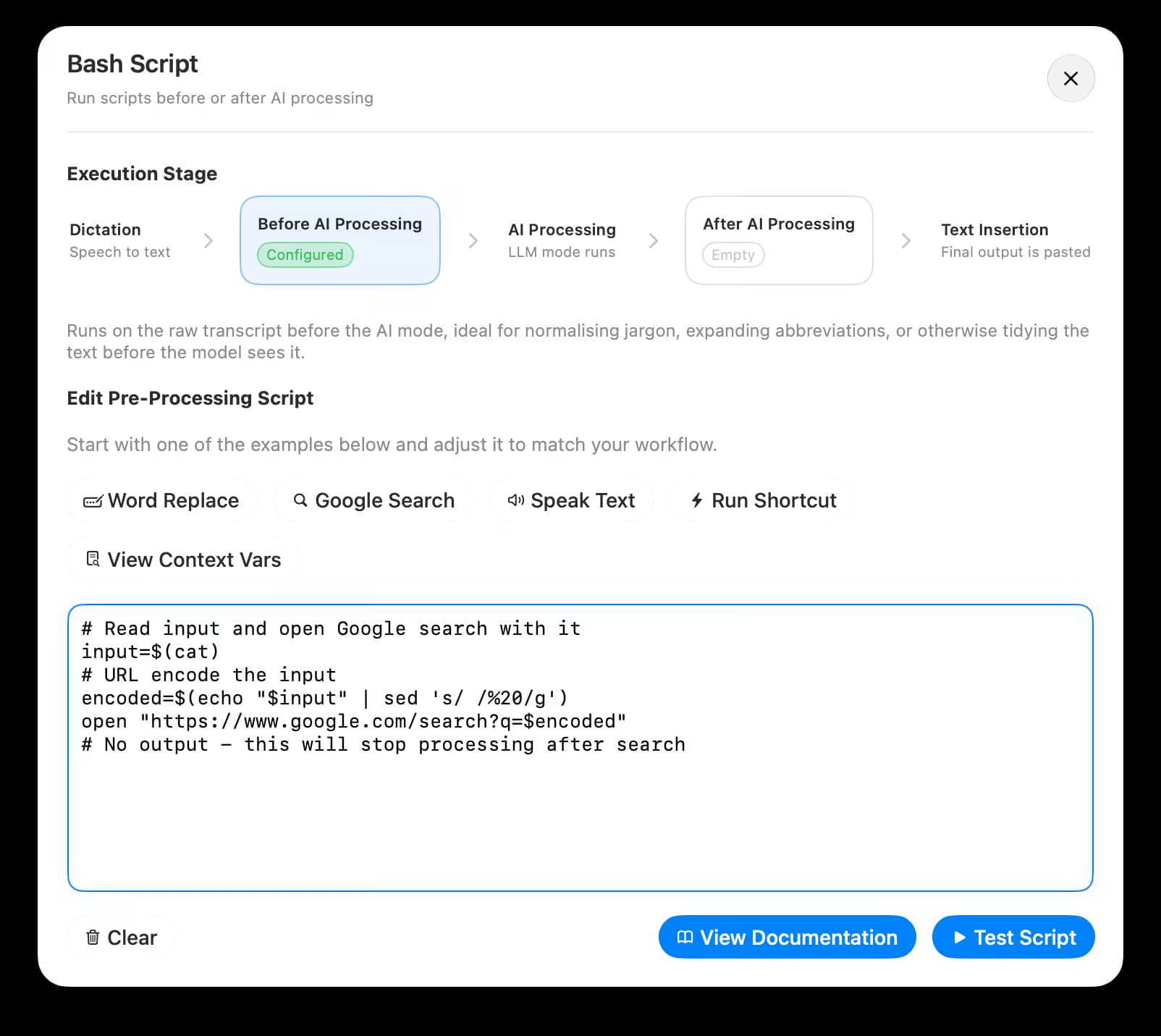
Bash scripts let you pipe your transcript through a shell command before Spokenly types it. Each script runs through /bin/zsh, reads from stdin, and writes to stdout.
Pipeline
Every mode has two optional script slots that wrap the AI step, so a full run goes through three stages:
- Pre-AI Script receives the raw transcript and its stdout becomes the input to the next stage.
- AI Instructions transform that intermediate text with the LLM.
- Post-AI Script receives the AI output and can transform it again before it is inserted.
Any stage can be left empty and the pipeline skips over it. This also means AI Instructions are optional: leaving them blank while filling in only a script gives you plain scriptable text transformations without an LLM call.
Script Contract
- Read the transcript from stdin. Most scripts start with
input=$(cat). - Print the result to stdout. Nothing else is captured.
- Finish within 30 seconds or the run is terminated.
- If a script prints nothing, the pipeline stops silently and nothing is inserted.
- Non-zero exit codes surface the stderr output as an error alert.
Sideload builds run the script through a login shell (zsh -l -c), so your ~/.zshrc is sourced and $PATH is intact. App Store builds are sandboxed and cannot reach the wider filesystem or other processes.
Examples
Uppercase the Transcript
A one-liner that works without any AI Instructions.
cat | tr '[:lower:]' '[:upper:]'Speak the Result Out Loud
input=$(cat)
say "$input"
printf '%s' "$input"
Trigger an Apple Shortcut
input=$(cat)
shortcuts run "My Shortcut" --input-path - <<<"$input"
Accessing Context
When your script needs more than the transcript, Spokenly can expose the same context values AI Instructions can reference. Toggle Include Clipboard Context, Include Cursor Context, or Include Focused App Context on the mode, and the matching variables become available.
| Variable | Toggle |
|---|---|
SPOKENLY_ACTIVE_APP | Include Focused App Context |
SPOKENLY_ACTIVE_APP_BUNDLE_ID | Include Focused App Context |
SPOKENLY_CLIPBOARD | Include Clipboard Context |
SPOKENLY_SELECTED_TEXT | Include Cursor Context |
SPOKENLY_TEXT_BEFORE_CURSOR | Include Cursor Context |
SPOKENLY_TEXT_AFTER_CURSOR | Include Cursor Context |
SPOKENLY_AUDIO_DURATION | Always set for dictations with a recording |
SPOKENLY_CONTROL_FILE | Always set |
SPOKENLY_AUDIO_DURATION holds the recording length in seconds, for example 12.40. It is absent when the mode runs on existing text instead of a fresh recording, so read it with a fallback: ${SPOKENLY_AUDIO_DURATION:-999}.
Always quote the expansions ("$SPOKENLY_CLIPBOARD") so spaces and special characters survive. Variables for disabled toggles expand to an empty string.
Example that appends the clipboard to the transcript:
input=$(cat)
if [ -n "$SPOKENLY_CLIPBOARD" ]; then
    printf '%s\n\n---\n%s' "$input" "$SPOKENLY_CLIPBOARD"
else
    printf '%s' "$input"
fi
Control Directives
Scripts can also send instructions back to Spokenly. Append key=value lines to the file at $SPOKENLY_CONTROL_FILE and Spokenly reads them after the script finishes. Unknown keys are ignored.
| Directive | Effect |
|---|---|
skip_ai=1 | Skips the AI Instructions stage for this dictation. |
output_mode=VALUE | Overrides how the result is delivered, regardless of what the mode configures. Values: auto_insert, paste_and_send, copy_to_clipboard, history_only. Use history_only when the script delivers the text itself. |
switch_mode=NAME | Continues the dictation as another mode, matched by the name shown in the mode list (or a mode id). The stages that follow use the new mode: its AI Instructions, its Post-AI Script, and its output action. Stages that already ran are not repeated. |
This makes AI Instructions conditional. For example, a Pre-AI Script that skips the AI rewriting step for short dictations, so quick prompts insert instantly while longer ones still get restructured:
input=$(cat)
duration=${SPOKENLY_AUDIO_DURATION:-999}
if [ "${duration%.*}" -lt 15 ]; then
    echo "skip_ai=1" >> "$SPOKENLY_CONTROL_FILE"
fi
printf '%s' "$input"
To gate by transcript length instead of recording length, replace the condition with a word count check: [ "$(printf '%s' "$input" | wc -w)" -lt 25 ].
The same pattern routes dictations between modes. A Pre-AI Script that hands short dictations to a lighter mode:
input=$(cat)
if [ "$(printf '%s' "$input" | wc -w)" -lt 25 ]; then
    echo "switch_mode=Quick Notes" >> "$SPOKENLY_CONTROL_FILE"
fi
printf '%s' "$input"
Testing
The script editor has a Test Script button. It runs the script with a sample transcript and filled-in sample values for every context variable, so you can iterate without triggering a real dictation. When the script writes skip_ai=1, the test result says so.

