
What an M4A File Is
M4A is an audio file that stores AAC-encoded sound inside an MPEG-4 container. Apple uses it everywhere: iPhone Voice Memos, QuickTime audio recordings, and most audio you receive from another Mac. The sound quality is good and the files are small, which is why it became the default.
Here is the problem: Apple's dictation only listens to live speech from your microphone. It cannot transcribe a recording you have already saved. So a lecture, interview, or meeting saved as an M4A has no native macOS button to turn it into text. You need a dedicated file transcription tool, and the rest of this guide covers the options.
Convert M4A to Text with Spokenly
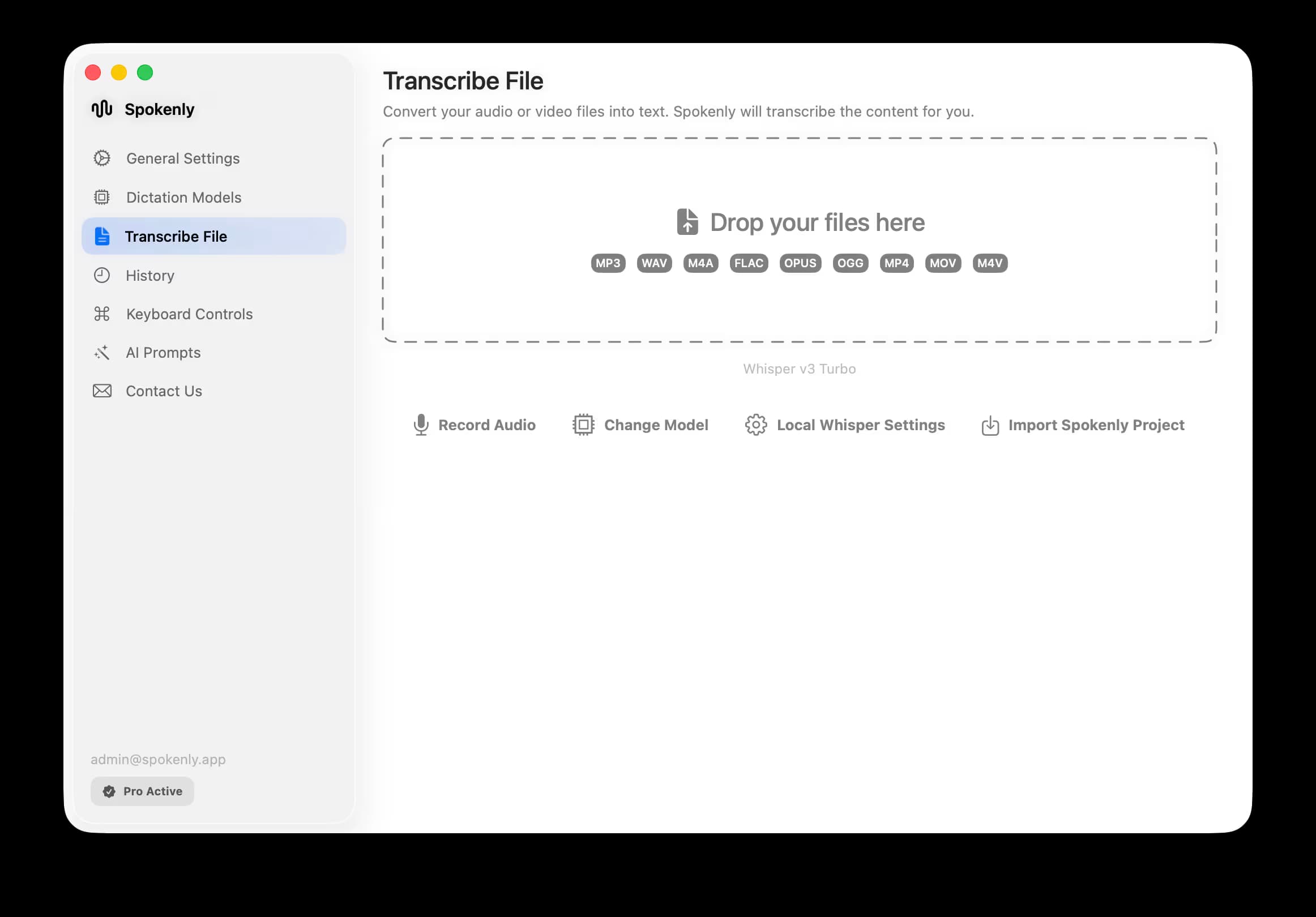
Spokenly reads M4A directly in its Transcribe File tab. You drop the recording into the tab, choose a model, and Spokenly returns punctuated text with optional speaker labels. The same drop zone also accepts MP3, WAV, FLAC, OPUS, OGG, MP4, and MOV, so a video file works the same way.
- 1Download Spokenly and open it on your Mac.
- 2Open the Transcribe File tab.
- 3Drag your M4A into the drop zone, or click to browse for it.
- 4Pick a model (the default works out of the box; choose on-device for privacy or cloud for speed on noisy audio) and set the spoken language.
- 5Run the transcription and wait for the text to appear next to the player.
- 6Copy the result, or export it to TXT, SRT, VTT, Markdown, or JSON.
| What you need | Detail |
|---|---|
| System | macOS 13.3 (Ventura) or later; iOS app available too |
| Input formats | M4A, MP3, WAV, FLAC, OPUS, OGG, MP4, MOV |
| Cost | Free with on-device models; Pro adds managed cloud transcription |
| Internet | Not required for local models |
Free Online M4A to Text Converters and Their Limits
Search for a free M4A to text converter online and you will find many sites offering an instant transcript. They can be fine for a short, non-sensitive clip. The trade-offs are worth knowing before you upload anything important.
- -Your audio leaves your machine. The site uploads the file to a server you do not control, which is a problem for interviews, client calls, and other private recordings.
- -File-size and length caps. Many free tiers cap uploads at a few minutes or a few megabytes, so a one-hour lecture often will not fit.
- -Variable accuracy. Some run an older model and add no punctuation, so any time you saved goes back into cleaning up the text.
- -Ads and sign-up walls. The transcript often sits behind an email form or a paid unlock.
A desktop app avoids all four problems. Spokenly runs on your Mac, so the M4A never leaves the device, file length is limited only by free disk space, and you choose the model. For a broader format overview, see the audio to text converter guide. To transcribe an MP3 file on Mac instead, that guide covers the same workflow for the MP3 format.
Offline M4A Transcription That Stays on Your Mac
For a recording you would rather keep private, transcribe it on-device. Spokenly ships with local models that run on your Mac with no network call: NVIDIA Parakeet for fast multilingual audio on Apple Silicon, and Whisper Large V3 Turbo when you want broad language coverage. Turn on Local Only Mode and the app blocks all outbound network traffic, so the M4A and its transcript stay on your Mac.
The workflow matches a web converter, drag and drop, except the audio never leaves your Mac. That makes it a solid fit for interviews, research recordings, and internal meetings.
Exports, Speaker Labels, and Languages
A raw block of text is rarely what you need. Once an M4A is transcribed, Spokenly exports it to plain text, Markdown, or JSON, and to SRT and VTT when you need subtitles for a video. Speaker labels split a two-person interview into Speaker 1 and Speaker 2 rather than one long paragraph, so the transcript is easier to skim.
Spokenly covers more than 100 languages, with auto-detect for recordings whose language you are unsure of. If your M4A came from an iPhone, the Spokenly iOS app and keyboard can transcribe the same Voice Memo without moving it to a Mac first.
Troubleshooting
The transcript has the wrong words
Set the language manually instead of leaving it on auto-detect, and try a cloud model if the recording is noisy or heavily accented. Cloud models tend to handle messy audio better than a small local model.
A long M4A is slow on a local model
On Apple Silicon, Parakeet is the fastest local option. On an Intel Mac, pick a smaller Whisper size, or use a cloud model to keep a one-hour file from taking too long.
Speakers are not separated
Turn on speaker labels before you run the transcription. Clear, non-overlapping speech gives the cleanest split, so a recording where people talk over each other will still need a quick manual fix.
FAQ
How do I convert an M4A file to text?
Open a file transcription app, add the M4A, pick a model and language, then run it. In Spokenly this happens in the Transcribe File tab, which returns punctuated text you can copy or export.
Is there a free M4A to text converter?
Yes. Spokenly converts M4A to text for free with on-device models, and you can run it without a word limit. Free online converters also exist, but they upload your audio to a third-party server and often cap file size.
What is the best free M4A to text converter online?
Use a free online converter only for short, non-sensitive M4A clips. For long Voice Memos, interviews, or private recordings, Spokenly is a better fit because it can transcribe M4A to text locally on your Mac and export TXT, SRT, VTT, Markdown, or JSON.
Can I transcribe M4A to text without uploading it online?
Yes. With a local model and Local Only Mode, Spokenly transcribes the M4A entirely on your Mac, so the audio never leaves the device. This suits interviews and other private recordings.
How do I turn an iPhone Voice Memo into text?
Voice Memos save as M4A. On iOS 18 and later you can tap the speech bubble inside Voice Memos to read Apple's built-in transcript. For a cleaner result, AirDrop the recording to your Mac and transcribe it in Spokenly, or transcribe it on iPhone with the Spokenly app or keyboard.
What is the most accurate way to convert M4A to text?
Accuracy depends on the model and the audio quality. Cloud models like GPT-4o Transcribe and Deepgram Nova handle noisy or accented speech well, while local Parakeet and Whisper Large V3 Turbo stay accurate offline.
Can I get speaker names in the transcript?
Yes. Spokenly can label speakers on file transcripts, so a two-person interview comes back split into Speaker 1 and Speaker 2 instead of one block of text.
Related Guides
Ready to try Spokenly?
Free to use with local models. No account required.
Download Spokenly