
Quick Answer
The simplest audio to text workflow is: open a file transcription tool, drop in the recording, pick a model and language, then export the transcript. For short public clips, a free online audio to text converter can work. For long files, private recordings, or subtitle export, a desktop workflow is safer and usually faster.
1. Add the file
Use MP3, M4A, WAV, FLAC, OPUS, OGG, MP4, MOV, or M4V. No pre-conversion is needed.
2. Pick model and language
Use the default cloud model for speed, or a local Parakeet or Whisper model when the file must stay on-device.
3. Export the result
Copy the transcript, or export TXT, Markdown, SRT, VTT, JSON, or FCPXML.
Convert Audio to Text with Spokenly
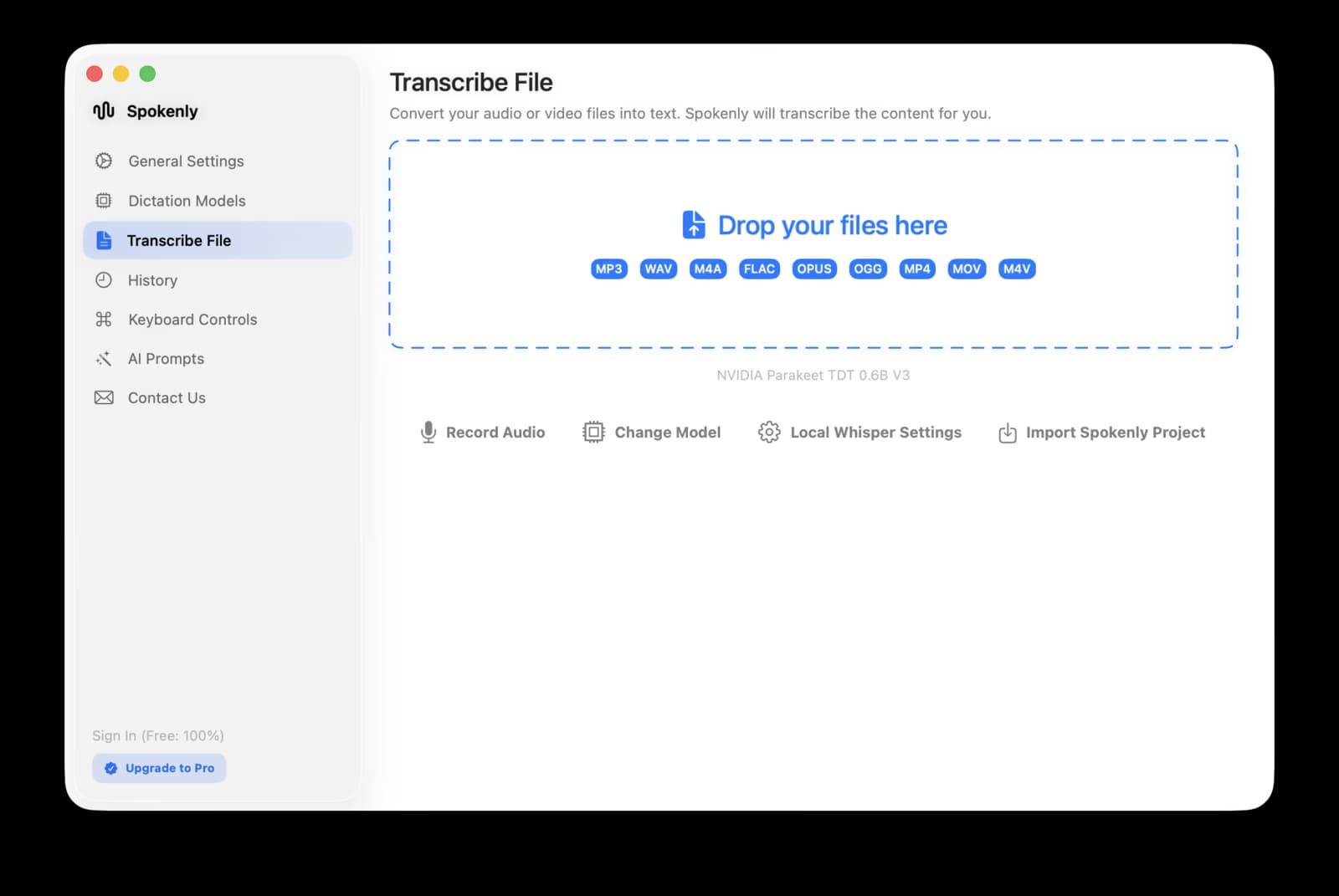
Spokenly is built for system-wide dictation and file transcription, so the same app can handle live speech and saved recordings. To transcribe audio to text, open the Transcribe File tab, drop in the file, choose the model, and run the transcription. The transcript appears next to the file and can be copied, cleaned up with AI, or exported.
- 1Download Spokenly for Mac, Windows, or Linux.
- 2Open Transcribe File and drop in your audio or video file.
- 3Choose a language, or leave auto-detect on when you are not sure.
- 4Use the default cloud model for speed, or switch to a local model for private offline transcription.
- 5Export the transcript as text, subtitles, Markdown, JSON, or FCPXML.
Pricing is simple: free with local models or your own API keys, and Pro if you want managed cloud transcription without setting up provider keys.
Best Workflow by File Type
| File | Search intent | Best use | Guide |
|---|---|---|---|
| MP3 | mp3 to text, convert mp3 to text transcript | Podcasts, calls, downloaded audio, lecture recordings | MP3 to Text on Mac |
| M4A | m4a to text, free m4a to text converter online | iPhone Voice Memos, QuickTime recordings, Apple audio | M4A to Text |
| WAV | wav to text, wav transcription | Studio recordings, lossless interviews, exported DAW files | WAV to Text |
| MP4 or MOV | mp4 to text, transcribe mp4 to text | Screen recordings, video interviews, webinars, captions | MP4 to Text |
| Voice Memo | voice memo transcription, voice memo to transcript | iPhone recordings, field notes, meetings captured on the go | Voice Memo to Text |
Free Online Audio to Text Converter Limits
A free audio to text converter online is fine for a short, non-sensitive clip. It is weaker when the file is long, private, noisy, multilingual, or needs subtitle export.
- -Many free web tools cap file length, file size, or monthly minutes.
- -Your audio is uploaded to a third-party server before transcription starts.
- -Some tools hide download, timestamps, or subtitle export behind a paid plan.
- -Desktop transcription avoids upload caps and lets you use local models when privacy matters.
Transcript and Subtitle Export
The output format matters as much as the transcript. Notes need clean paragraphs. Video files need timestamps. Research and automation workflows need structured data. Spokenly exports the same file transcription in several formats.
TXT and Markdown
Best for meeting notes, summaries, blog drafts, and research transcripts.
SRT and VTT
Best for captions, YouTube subtitles, webinars, courses, and video editing.
JSON and FCPXML
Best for automation, searchable archives, and Final Cut Pro workflows.
Languages and Accuracy
Spokenly supports 100+ transcription languages. English, Spanish, French, Arabic, Japanese, Russian, and many other languages work in both live dictation and file transcription, depending on the selected model. For Spanish files specifically, see the Spanish speech to text guide.
Accuracy depends on audio quality, speaker overlap, vocabulary, and model choice. Clean MP3 or M4A recordings usually need light editing. Noisy calls, heavy jargon, or multiple overlapping speakers benefit from a modern cloud model and speaker labels.
FAQ
What is the fastest way to convert audio to text?
Drop the file into Spokenly's Transcribe File tab, choose a model, and export the result. It accepts MP3, M4A, WAV, FLAC, OPUS, OGG, MP4, MOV, and M4V without a format conversion step.
Is there a free audio to text converter?
Yes. Spokenly can convert audio to text for free with local models or with your own OpenAI, Deepgram, or Groq API key. Pro adds managed cloud transcription if you do not want to manage keys.
Can I transcribe audio files without uploading them?
Yes. Select a local Parakeet or Whisper model and enable Local Only Mode. The audio file and transcript stay on your Mac, which is useful for interviews, client calls, research, legal audio, and medical recordings.
Can I convert MP4 video to text too?
Yes. Spokenly accepts MP4, MOV, and M4V files in the same file transcription flow. It extracts the spoken audio and returns text, subtitles, or a structured transcript.
Which export format should I use?
Use TXT or Markdown for notes, SRT or VTT for subtitles, JSON for structured processing, and FCPXML when the transcript needs to move into a video editing workflow.
Does audio to text work in languages other than English?
Yes. Spokenly supports 100+ transcription languages. For mixed-language files, set the language explicitly when you know it, or use a modern cloud model when the recording includes code-switching.
Related Guides
Private File Transcription
Use local models and Local Only Mode when the recording contains client calls, medical notes, legal interviews, or source-confidential audio.
Ready to try Spokenly?
Free to use with local models. No account required.
Download Spokenly