
Quick Answer
To convert MP4 to text, use a file transcription tool that accepts video directly. Spokenly extracts the audio track from the MP4, transcribes the speech, and lets you export the result as a plain transcript or subtitle file.
Add the video
Use MP4, MOV, or M4V. Spokenly handles the file without a separate audio extraction step.
Set language and model
Choose the spoken language, then use cloud for speed or local models for offline privacy.
Export text or subtitles
Copy the transcript, or export TXT, Markdown, SRT, VTT, JSON, or FCPXML.
Transcribe MP4 to Text with Spokenly
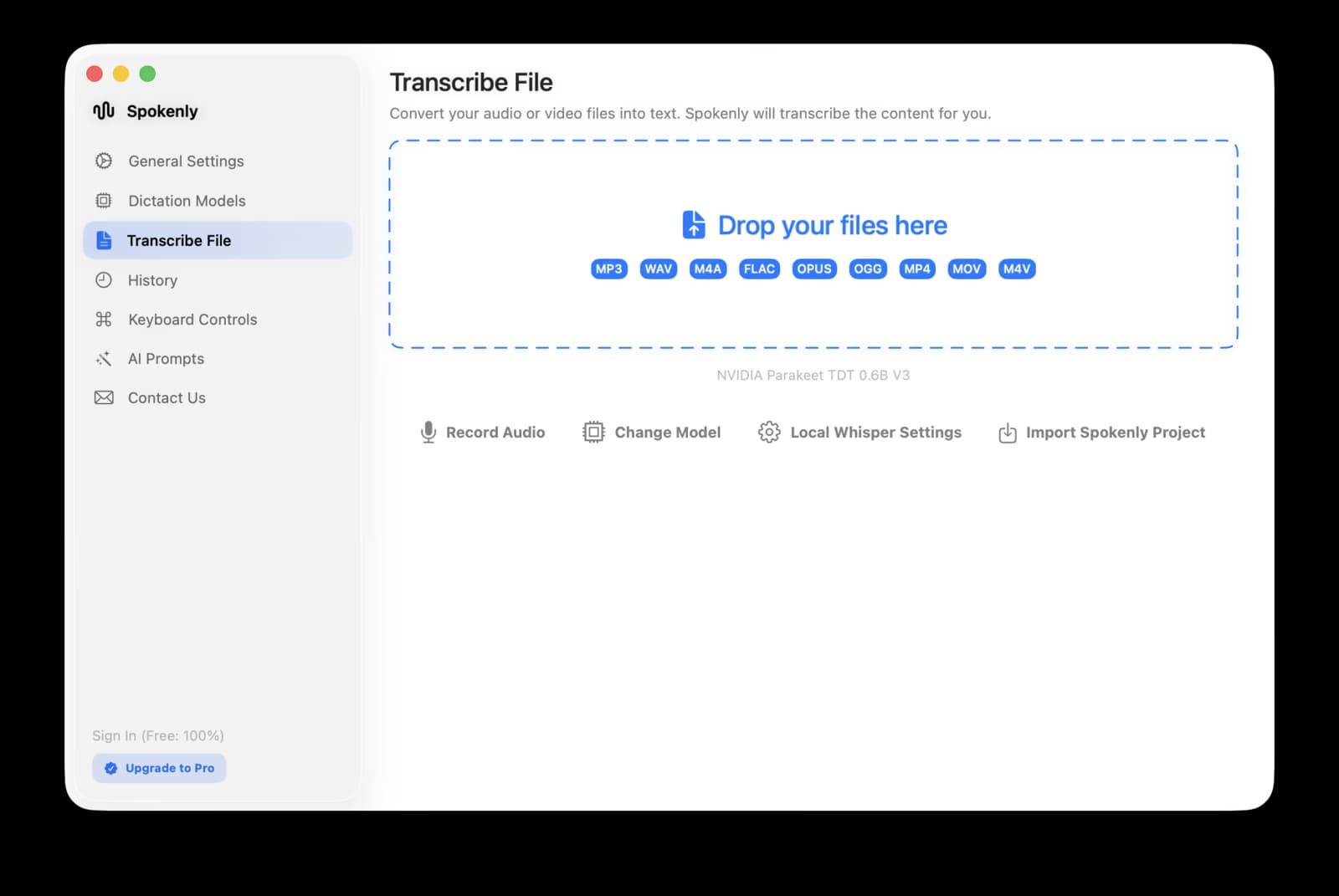
Spokenly's Transcribe File tab accepts MP4 directly. That matters because many video tools force a separate export to MP3 or WAV before transcription. With Spokenly, the MP4 to text workflow stays in one place.
- 1Download Spokenly and open the Transcribe File tab.
- 2Drop in the MP4 file, or click the drop zone and choose it from Finder.
- 3Choose the language spoken in the video, or keep auto-detect for simple single-language recordings.
- 4Pick the default cloud model for speed, or a local model when the video cannot leave your Mac.
- 5Export the result as TXT, Markdown, SRT, VTT, JSON, or FCPXML.
What an MP4 File Contains
MP4 is a container format, which means it can hold video, audio, subtitles, and metadata in one file. MDN's guide to media container formats explains the difference between a container and the codecs inside it. For transcription, the important part is the spoken audio track.
After transcription, subtitle export usually means SRT or WebVTT. WebVTT is standardized by W3C, and MDN has a practical WebVTT API reference for web video workflows.
Text, SRT, and VTT Export
A raw text transcript is enough when you need notes. Subtitle files need timestamps. Spokenly can produce both from the same MP4 transcription run.
| Export | Best for |
|---|---|
| TXT or Markdown | Notes, search, summaries, blog repurposing |
| SRT | YouTube captions, video editors, course platforms |
| VTT | Web video players and browser caption tracks |
| JSON or FCPXML | Automation, archives, and Final Cut Pro workflows |
Best Use Cases
Webinars and online courses
Turn a recorded session into a searchable transcript and subtitle file.
Screen recordings
Transcribe product demos, support walkthroughs, and internal training videos.
Video interviews
Create text notes from customer interviews, podcast video, research calls, and Zoom exports.
Social clips
Extract the spoken content from short videos before rewriting it into posts, captions, or summaries.
Private MP4 Transcription
MP4 files often contain private context that is not obvious from the transcript alone: faces, screens, client names, dashboards, and source footage. If the video is sensitive, use a local model and turn on Local Only Mode before you transcribe it.
Local Only Mode blocks outbound network traffic while allowing local transcription, so the MP4 and transcript stay on your Mac.
FAQ
How do I convert MP4 to text?
Open Spokenly, drop the MP4 into Transcribe File, choose the spoken language and model, then export the transcript as TXT, Markdown, SRT, VTT, JSON, or FCPXML.
Can I transcribe MP4 to text for free?
Yes. Spokenly can transcribe MP4 files for free with local models or with your own OpenAI, Deepgram, or Groq API key. Pro adds managed cloud transcription if you do not want to manage provider keys.
Can I create subtitles from an MP4 file?
Yes. Spokenly exports SRT and VTT subtitle files from the same MP4 transcript. Use SRT for most video editors and platforms, or VTT for web video workflows.
Does MP4 to text work offline?
Yes. Choose a local Parakeet or Whisper model and enable Local Only Mode. The MP4 and transcript stay on your Mac, which is useful for private meetings, legal recordings, research interviews, and client videos.
What is the difference between MP4 to text and video to text?
MP4 to text is a format-specific version of video to text. Spokenly also accepts MOV and M4V, so the same workflow works for most common video files.
Related Guides
Ready to try Spokenly?
Free to use with local models. No account required.
Download Spokenly