
Quick Answer
To convert WAV to text, drop the file into Spokenly, select the spoken language, pick a local or cloud model, and export the transcript. WAV is a strong source format because it usually preserves clean speech detail and avoids lossy compression artifacts.
Use the original WAV
Keep the source file when possible. There is no need to convert WAV to MP3 before transcription.
Set language clearly
Manual language selection helps with short clips, accents, and multilingual archives.
Export the transcript
Use TXT or Markdown for notes, SRT or VTT for subtitles, and JSON or FCPXML for structured workflows.
Convert WAV to Text with Spokenly
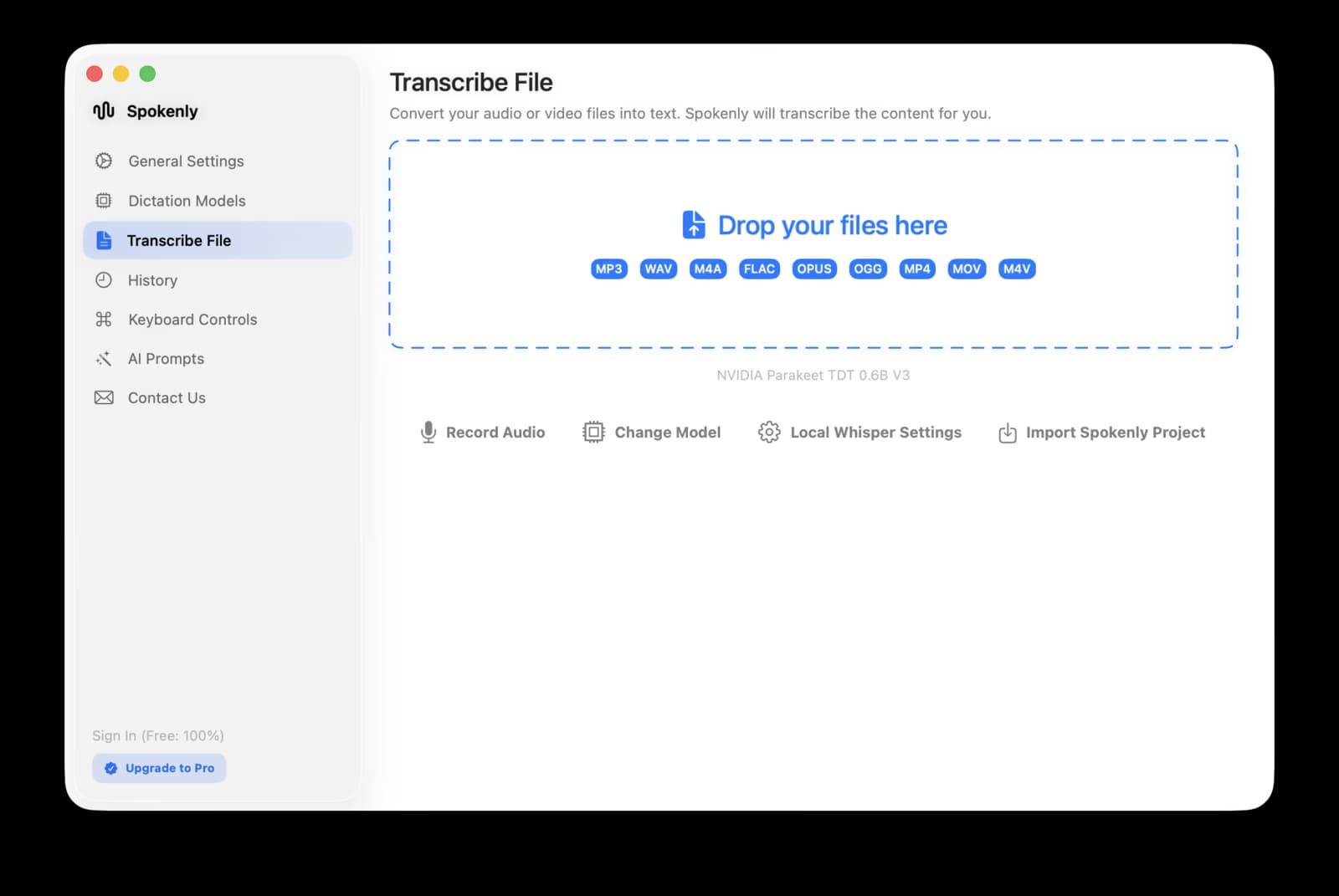
Spokenly accepts WAV directly in the Transcribe File tab. The workflow is the same as MP3, M4A, and video files, but WAV is often cleaner because the recording has not been compressed down for sharing.
- 1Download Spokenly and open the Transcribe File tab.
- 2Drop in the WAV file, or click the drop zone and select it from Finder.
- 3Choose the language spoken in the recording.
- 4Pick the default cloud model for speed, or a local Parakeet or Whisper model for offline transcription.
- 5Copy the transcript, or export TXT, Markdown, SRT, VTT, JSON, or FCPXML.
Why WAV Works Well for Transcription
WAV files commonly store uncompressed PCM audio inside a RIFF container. Microsoft's RIFF format notes explain the container family, and McGill's WAVE file format reference documents common WAV structure.
For speech recognition, the practical benefit is simple: WAV often keeps the original speech signal cleaner than a compressed export. MDN's overview of audio codecs is a useful reference when deciding whether to keep WAV or convert it for sharing.
Best WAV Transcription Workflow
| Step | Why it matters |
|---|---|
| Keep the original WAV | Do not convert to MP3 first. WAV usually preserves cleaner speech cues for transcription. |
| Set the language | Manual language selection helps with accents, multilingual archives, and short clips. |
| Pick model by privacy | Use local models for confidential files and cloud models for noisy or accented recordings. |
| Export with timestamps | Use SRT or VTT if the transcript needs to align with the original recording. |
Export Formats
A WAV transcript can be used as notes, captions, an archive, or a structured input for downstream processing. Spokenly exports several formats from one transcription run.
TXT and Markdown
Best for interview notes, research transcripts, meeting records, and summaries.
SRT and VTT
Best when the WAV belongs to a video edit, podcast clip, or course recording.
JSON and FCPXML
Best for automation, archives, and editor workflows where timestamps matter.
Troubleshooting
The WAV is very large
That is normal. WAV files are often uncompressed. If upload limits are the problem, use a local model in Spokenly so the file does not need to go through a cloud provider.
The transcript has the wrong language
Set the language manually before running the transcription, especially for short clips where auto-detect has less speech to analyze.
The recording has multiple speakers
Use a cloud model with speaker labels when you need diarization. For confidential recordings, transcribe locally first and add speaker names during review.
FAQ
How do I convert WAV to text?
Open Spokenly, drop the WAV into Transcribe File, choose the language and model, then export the transcript as TXT, Markdown, SRT, VTT, JSON, or FCPXML.
Is WAV better than MP3 for transcription?
Often yes. WAV usually keeps more of the original speech signal, while MP3 may remove detail during compression. Clean MP3 still works well, but if you already have WAV, transcribe the WAV directly.
Can I transcribe WAV files offline?
Yes. Choose a local Parakeet or Whisper model in Spokenly and enable Local Only Mode. The WAV file and transcript stay on your Mac.
Can I create subtitles from a WAV file?
Yes. Spokenly exports SRT and VTT subtitles from WAV transcriptions. This is useful when the WAV is the original audio track for a video or podcast edit.
What if my WAV file is huge?
Large WAV files are normal because the format is usually uncompressed. Spokenly local transcription is limited mainly by disk space and processing time, while cloud providers may have upload limits.
Related Guides
Private WAV Transcription
Use local models and Local Only Mode for client calls, medical notes, legal recordings, and research interviews that should stay on your Mac.
Ready to try Spokenly?
Free to use with local models. No account required.
Download Spokenly