
Bash Scripts
Transform transcribed text through shell scripts, with or without an AI prompt.
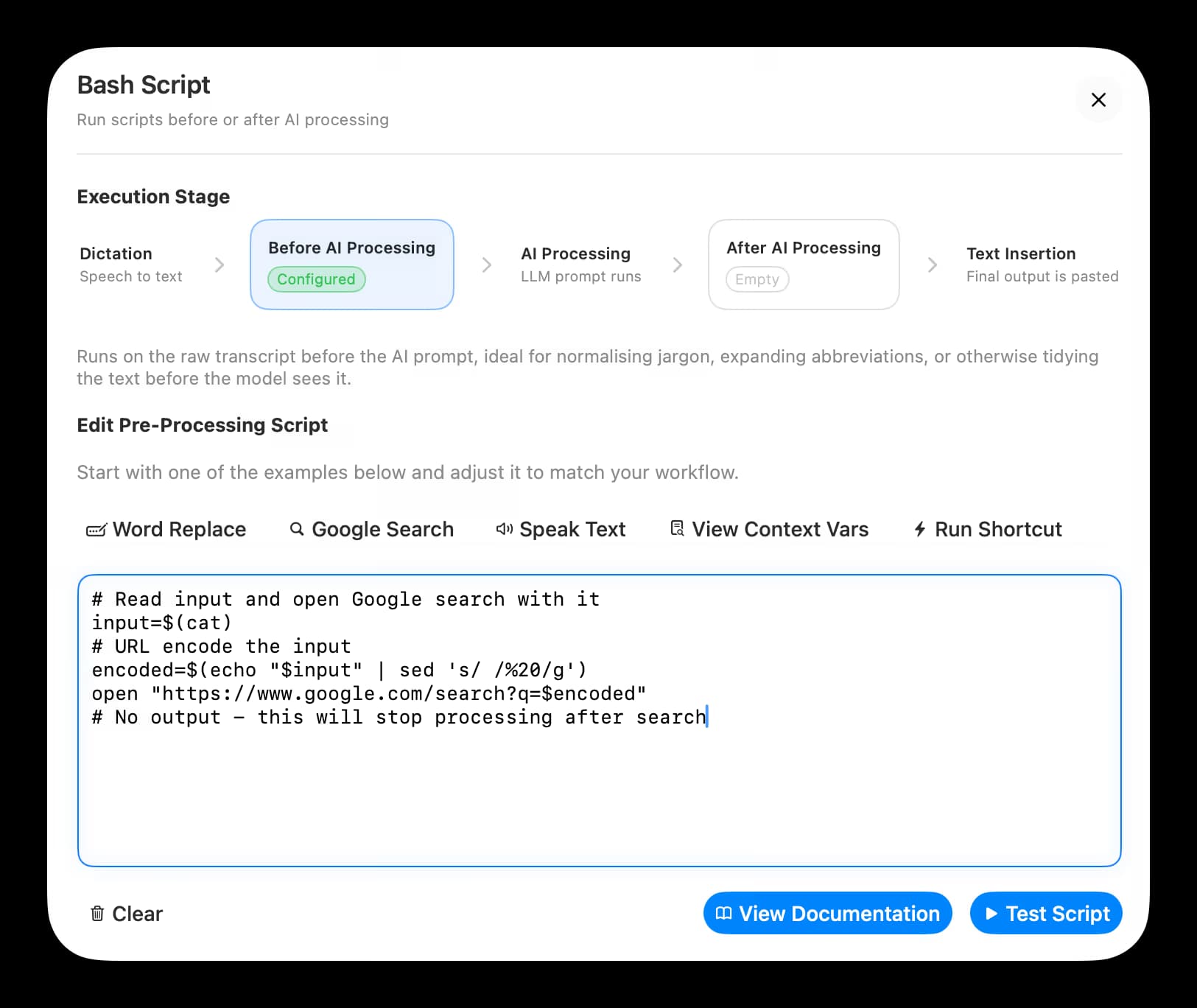
Bash scripts let you pipe your transcript through a shell command before Spokenly types it. Each script runs through /bin/zsh, reads from stdin, and writes to stdout.
Pipeline
Every AI Prompt has two optional script slots that wrap the AI step, so a full run goes through three stages:
- Pre-AI Script receives the raw transcript and its stdout becomes the input to the next stage.
- AI Prompt transforms that intermediate text with the LLM.
- Post-AI Script receives the AI output and can transform it again before it is inserted.
Any stage can be left empty and the pipeline skips over it. This also means the AI Prompt field itself is optional: leaving it blank while filling in only a script gives you plain scriptable text transformations without an LLM call.
Script Contract
- Read the transcript from stdin. Most scripts start with
input=$(cat). - Print the result to stdout. Nothing else is captured.
- Finish within 30 seconds or the run is terminated.
- If a script prints nothing, the pipeline stops silently and nothing is inserted.
- Non-zero exit codes surface the stderr output as an error alert.
Sideload builds run the script through a login shell (zsh -l -c), so your ~/.zshrc is sourced and $PATH is intact. App Store builds are sandboxed and cannot reach the wider filesystem or other processes.
Examples
Uppercase the Transcript
A one-liner that works without any AI prompt.
cat | tr '[:lower:]' '[:upper:]'Speak the Result Out Loud
input=$(cat)
say "$input"
printf '%s' "$input"
Trigger an Apple Shortcut
input=$(cat)
shortcuts run "My Shortcut" --input-path - <<<"$input"
Accessing Context
When your script needs more than the transcript, Spokenly can expose the same context values the AI prompt can reference. Toggle Include Clipboard Context, Include Cursor Context, or Include Focused App Context on the AI Prompt, and the matching variables become available.
| Variable | Toggle |
|---|---|
SPOKENLY_ACTIVE_APP | Include Focused App Context |
SPOKENLY_CLIPBOARD | Include Clipboard Context |
SPOKENLY_SELECTED_TEXT | Include Cursor Context |
SPOKENLY_TEXT_BEFORE_CURSOR | Include Cursor Context |
SPOKENLY_TEXT_AFTER_CURSOR | Include Cursor Context |
Always quote the expansions ("$SPOKENLY_CLIPBOARD") so spaces and special characters survive. Variables for disabled toggles expand to an empty string.
Example that appends the clipboard to the transcript:
input=$(cat)
if [ -n "$SPOKENLY_CLIPBOARD" ]; then
    printf '%s\n\n---\n%s' "$input" "$SPOKENLY_CLIPBOARD"
else
    printf '%s' "$input"
fi
Testing
The script editor has a Test Script button. It runs the script with a sample transcript and filled-in sample values for every context variable, so you can iterate without triggering a real dictation.