
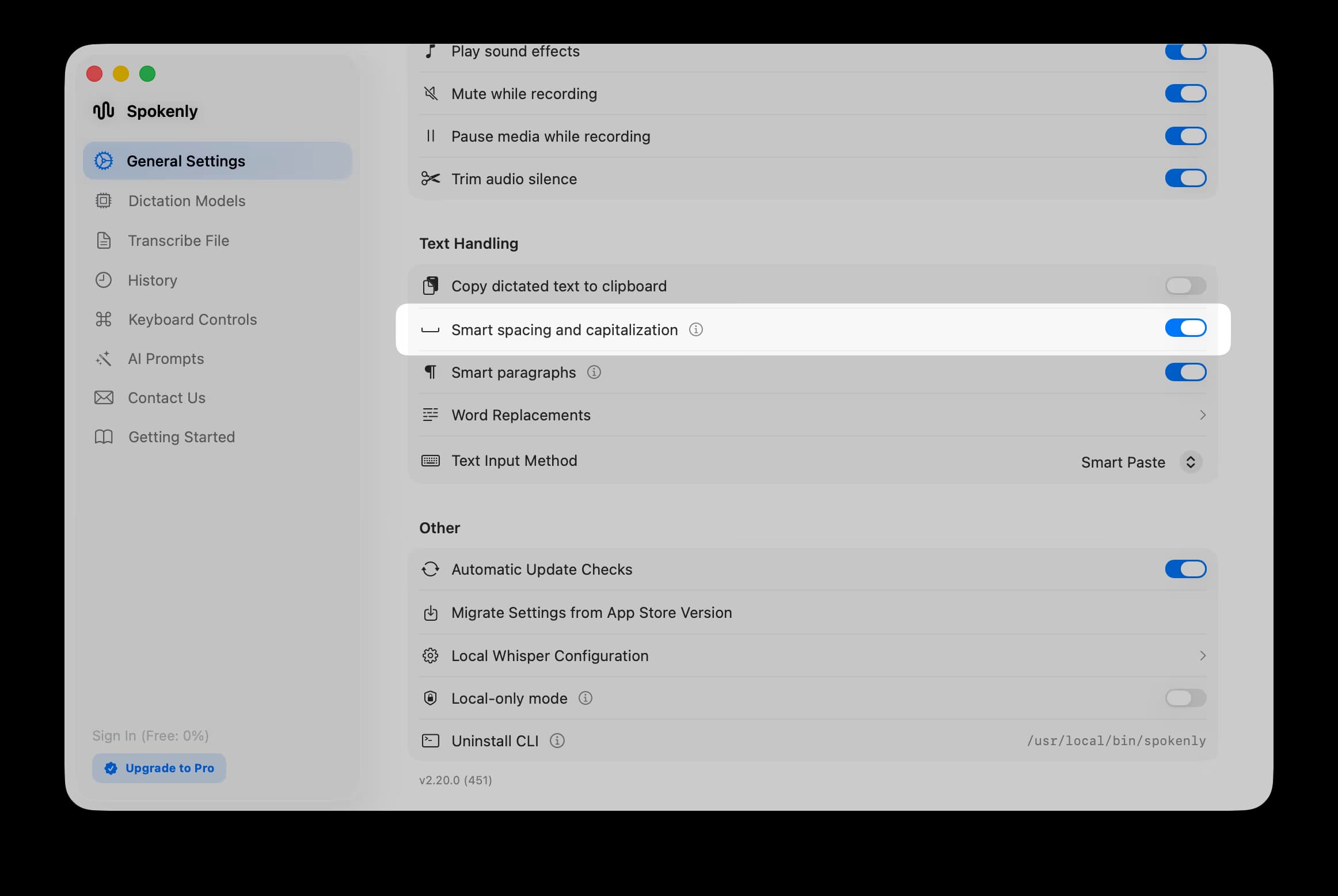
Smart Spacing
Automatically adds spaces and adjusts capitalization around dictated text.
Smart Spacing makes voice input feel natural when you dictate into the middle of an existing sentence. It adds spaces where needed and lowercases the first character if the cursor is inside a sentence. The feature is on by default and runs fully on-device.
What it does
The toggle controls two related rules. In the examples below | marks the cursor position before you start dictating.
| Rule | Before | You dictate | After |
|---|---|---|---|
| Auto-leading space | Hello|world | friend | Hello friend world |
| Auto-trailing space | |Hello | Hi there | Hi there Hello |
| Mid-sentence capitalization | I went to the| | Store today | I went to the store today |
How it works
Spokenly inspects the character before and after the cursor through the macOS Accessibility API. If there is a letter on either side, a space is inserted. If the previous character is a letter (not a sentence terminator like ., ?, !), the first character of the new dictation is lowercased so it flows into the surrounding sentence.
No text is sent anywhere. The check runs locally each time you finish dictating.
When it doesn't apply
- The cursor is at the start of an empty document.
- The previous character is a sentence terminator. The new text stays capitalized.
- The app has no Accessibility permission. A single trailing space is added as a fallback.
- The app doesn't expose cursor context through the Accessibility API. Terminals (Terminal, iTerm, Warp), some Electron apps, and anything that draws its own text view often fall into this category. Spokenly can still type the text, but it can't read what's around the cursor, so the leading space and lowercasing rules are skipped.
How to disable
Open Settings > General > Text Handling and switch off Smart spacing and capitalization.