
Dictate a Text Message on iPhone
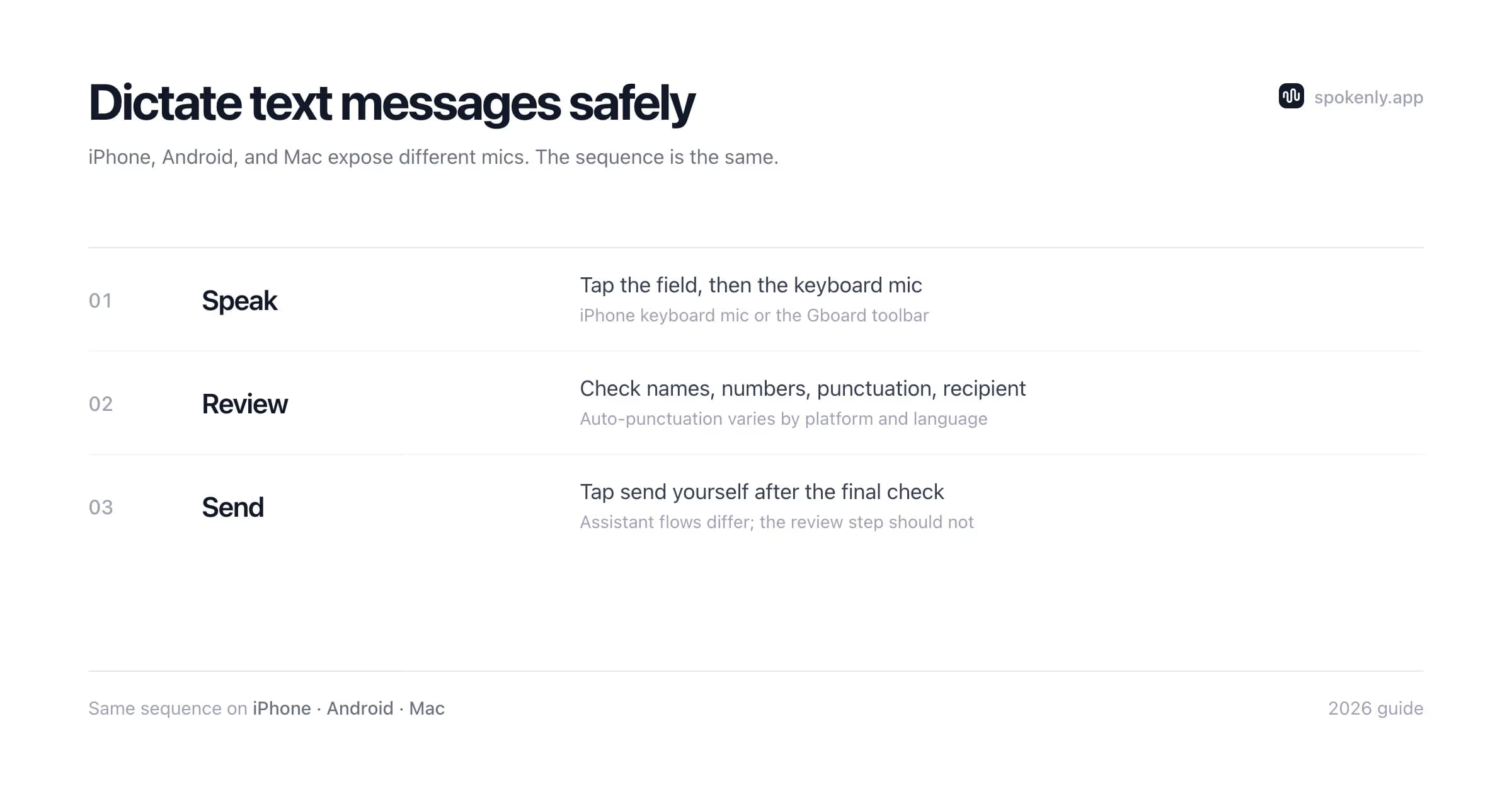
- 1Open Messages and tap into the conversation's text field.
- 2Tap the microphone key at the bottom-right of the keyboard. If it is missing, enable dictation in Settings, General, Keyboard.
- 3Speak the message. Punctuation is automatic on current iOS; the keyboard stays live, so you can fix a word mid-dictation by typing.
- 4Tap the mic again to stop, review, and hit send.
Apple's reference: Dictate text on iPhone. One habit worth building: glance before sending. Dictation confuses names and homophones, and texts forgive typos less than notes do.
Hands-Free Messages with Siri, Gemini, and Car Systems
The keyboard mic needs your hands. The assistant flow works without them:
Send on iPhone
Say "Siri, send a message to Anna", dictate the text, listen to the read-back, and confirm. Availability and activation wording depend on Siri settings, language, and region.
Hear and reply on iPhone
Announce Notifications can read supported app notifications through compatible headphones or CarPlay and accept a spoken reply. Keep confirmation enabled when names or details matter.
Draft with Gemini on an Android phone
Ask Gemini to draft a message to a contact. The available action depends on the device, Gemini settings, and connected apps. Review the recipient and draft onscreen, then explicitly approve sending; do not assume a spoken read-back or confirmation step.
Use Android Auto
Android Auto has a separate voice flow for sending, listening to, and replying to messages in compatible apps. Follow its audio prompts and confirm the recipient and wording when the system offers that step. Availability depends on the device, language, territory, car, and app.
Setup details are available for Announce Notifications and Android Auto messaging. Assistants are most reliable for short messages. Names, addresses, dates, and amounts still need careful confirmation.
Hands-free does not mean attention-free. Distracted-driving guidance recommends pulling over and parking before reading or sending a message. Use Do Not Disturb while driving, let a passenger respond, or wait until the trip ends.
Dictate a Text Message on Android
- 1Open the conversation and tap the text field so Gboard appears.
- 2Tap the microphone icon in Gboard's toolbar and speak. Say punctuation explicitly if the active language does not support automatic punctuation.
- 3Tap the mic or just start typing to stop, then send.
Advanced voice typing requires Pixel 6 or later. Automatic punctuation, emoji insertion, and editing commands are limited to supported languages. Detailed edits require Pixel 8 or later and English (US); some correction features also require a network connection. Other Android devices still have standard Gboard voice typing, but should not be described as having the full Pixel feature set.
Dictate Texts on Mac and iPad
If iMessage lives on your Mac during the workday, dictating there beats picking up the phone. Two routes:
- +Apple Dictation: enable it in System Settings, Keyboard, then press the dictation shortcut inside the Messages text field. Included with macOS and fine for casual replies.
- +Spokenly: one global hotkey dictates into Messages and every other Mac app, with custom word replacements that keep the names you text about spelled right, and local models if the content is sensitive. Free, with Pro at $9.99 per month.
Setup for the built-in route is covered in how to use dictation on Mac. On iPad, the keyboard mic works exactly as on iPhone; the details live in the iPad dictation guide.
Punctuation and Emoji by Voice
iPhone automatic punctuation and Pixel advanced voice typing can add punctuation while you speak. Standard Gboard supports spoken punctuation, but Google notes that punctuation is not available in every language. Use explicit commands when the automatic result is ambiguous:
Say: "comma, period, question mark"
Insert the named punctuation mark when the keyboard language supports the command.
Say: "exclamation point"
Insert an exclamation point. Review tone before sending, since automatic punctuation can choose differently.
Say: "new line or new paragraph"
Start a new line or paragraph. Support can differ between the Apple keyboard, standard Gboard, and Pixel advanced voice typing.
Say: "heart emoji or thumbs up emoji"
Insert an emoji on supported iPhone and Pixel language configurations. If the words appear literally, choose the emoji manually.
Say: "delete last word or clear"
Pixel advanced voice typing supports editing commands on supported devices and languages. Standard Gboard users can select and replace a word by voice instead.
What Gets Processed on the Device
Apple Dictation
Processing mode depends on device, language, and feature availability. Test offline behavior instead of assuming every language stays on the device.
Pixel advanced voice typing
Google states that spoken text stays on the device during normal advanced voice typing. Fix it and detailed-edit features have separate processing rules, device requirements, and language limits.
Gemini or Google Assistant
A message request is handled through the assistant service. On a phone, review the recipient and draft onscreen and explicitly approve sending; do not rely on a spoken read-back. Avoid dictating passwords, payment details, authentication codes, or confidential client information.
Spokenly on Mac
A local model can keep audio on the computer. A cloud or BYOK model sends audio to the chosen provider, so select the processing mode before dictating a sensitive conversation.
Review the message before it leaves
A fluent transcript can still be wrong in exactly the places that matter. Before sending, check the recipient, every name, dates, times, addresses, amounts, and negations such as "not" or "do not." In a group chat, confirm that the reply is going to the intended conversation. With Gemini on a phone, ask for a draft, review it onscreen, and explicitly approve sending. Android Auto uses a separate flow, so follow its prompts without assuming it behaves like the mobile app.
If the message contains medical, legal, financial, workplace, or client information, move to a quiet place and review it as typed text. Avoid dictating passwords, payment-card numbers, authentication codes, or private identifiers. For a long or sensitive message, draft it in Notes first, correct it, then paste it into the conversation. That extra step prevents a voice assistant from sending a plausible but incorrect sentence before there is a chance to catch it.
When the Mic Key Misbehaves
- +Mic key missing: dictation is disabled (iPhone: Settings, General, Keyboard; Android: Gboard settings, Voice typing) or a third-party keyboard is active.
- +Dictation grayed out or stopping instantly: restart the phone, then toggle dictation off and on to refresh the language model.
- +Wrong language coming out: dictation follows the active keyboard language; switch with the globe key.
- +Poor accuracy in a loud place: hold the phone closer and speak in full sentences; single words give the model no context.
- +A misheard word: tap it and pick a suggestion (iPhone underlines dictated words briefly), or retype just that word. For a name that keeps coming out wrong, add it to Contacts or a custom dictionary so it sticks.
Deeper troubleshooting lives in iPhone dictation not working and voice typing not working.
FAQ
How do I dictate a text message on my iPhone?
Open the conversation in Messages, tap the text field, tap the microphone key at the bottom-right of the keyboard, and speak. Punctuation is added automatically on recent iOS versions. Tap the mic again or the send button when done. For a fully hands-free send, say "Hey Siri, send a message to [name]" and dictate when prompted.
How do I dictate a text message on Android?
In a messaging app, tap the text field, tap the microphone in Gboard, and speak. Punctuation commands depend on the active language. With Gemini on a phone, ask it to draft the message, review the recipient and text onscreen, then explicitly approve sending. Do not assume it will read the draft back. Android Auto has a separate hands-free messaging flow.
Can Siri read and reply to texts hands-free?
Yes. With Announce Notifications (headphones or CarPlay), Siri reads incoming messages aloud and listens for a spoken reply, so a full exchange happens without touching the phone. Enable it in Settings, Notifications, Announce Notifications.
How do I add punctuation when dictating a text?
iPhone can add punctuation automatically in supported languages. Standard Gboard accepts spoken punctuation such as "comma" and "new line", but punctuation is not available in every language. Automatic punctuation and advanced editing require a supported Pixel device and language. Emoji-by-name support also varies.
Why is there no microphone on my keyboard?
Dictation is off or restricted. On iPhone: Settings, General, Keyboard, Enable Dictation (and check Screen Time restrictions). On Android: Gboard settings, Voice typing. A third-party keyboard without a mic button also hides the feature; switch keyboards with the globe key.
Can I dictate texts on an Apple Watch?
Yes. When replying on the watch, choose the microphone option and dictate; the watch also takes "Hey Siri, send a message" directly. Short replies work well, and anything longer is more comfortable on the phone. No watch is required for the other methods.
Is voice-to-text safe to use while driving?
Do not read, compose, or review messages while driving. Hands-free systems reduce taps but can still take attention from the road. If a message cannot wait, ask a passenger to handle it or pull over to a safe location and park before reading or sending it. Follow local distracted-driving laws.
Ready to try Spokenly?
Free to use with local models. No account required.
Download SpokenlyRead next