
MacBook Tap Shortcuts
Start and stop dictation by tapping the aluminum case of your MacBook.
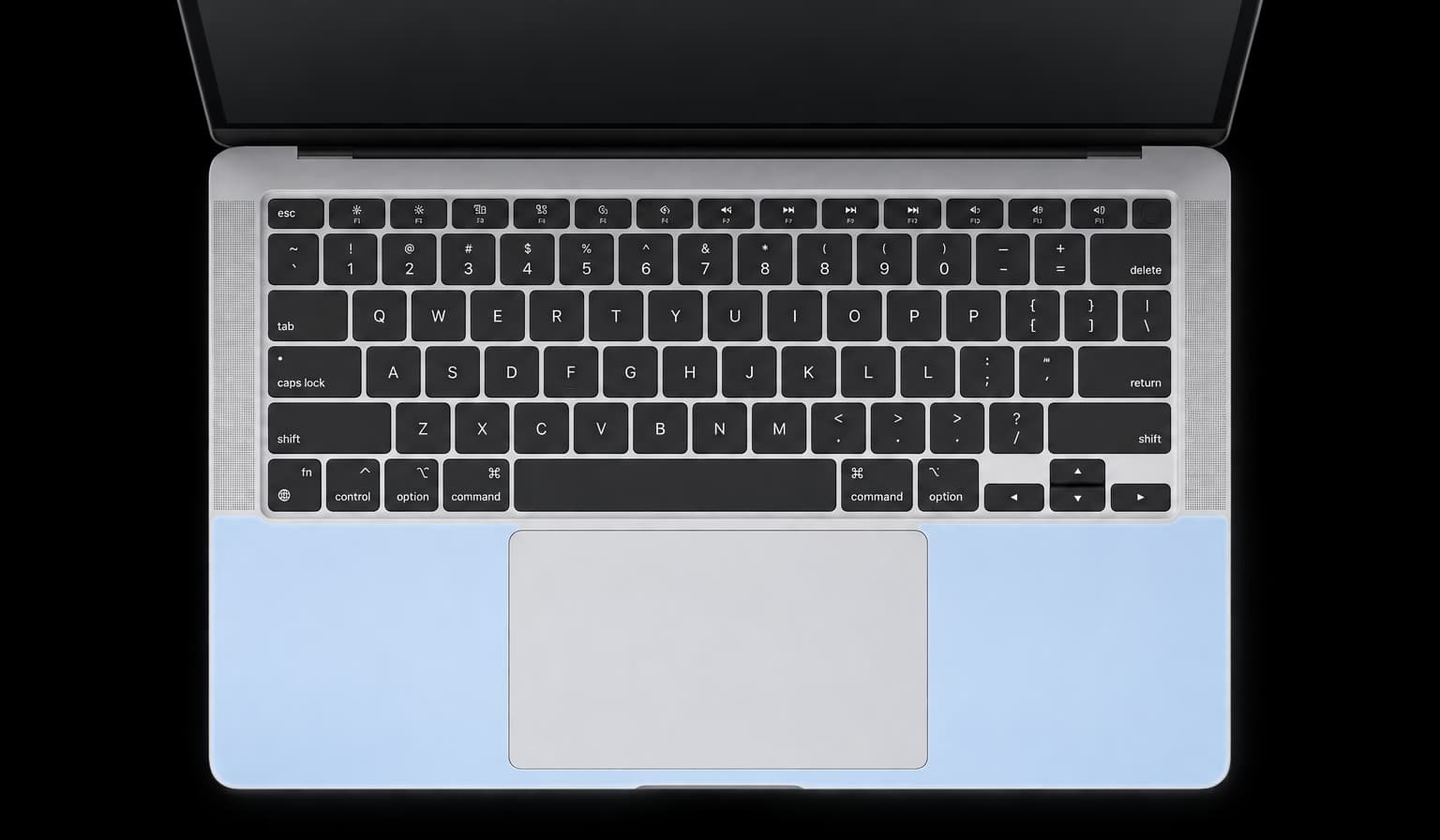
Tap your MacBook two, three, or four times to start recording. Tap the same way again to stop. Each tap count can trigger a different shortcut, for example a double tap for dictation and a triple tap for a mode.
Keep your MacBook still
Place your MacBook on a stable desk or table and keep it still while tapping. Spokenly filters out movement to prevent accidental triggers, so taps may not register if the MacBook moves.
Setup
Open Spokenly and go to Settings.
Open the Recording Shortcut menu, choose MacBook Taps, and pick a double, triple, or four-tap gesture.
A mode can have its own tap shortcut too. In Modes, open the mode and pick the gesture under Activate by. Each tap count can be assigned to one shortcut only.
Timing
Tap at a steady, relaxed pace, like knocking on a door. Rapid taps blur into one and get missed.
Your longest gesture runs as soon as you finish it. Shorter gestures wait so Spokenly can tell them apart: 0.3 seconds per tap of the longest gesture, from the first tap. Assign only the tap counts you use to keep the wait short.
Tips
- Taps right after keystrokes are ignored, so finish typing before you tap.
- Put the MacBook on a desk. A lap or a soft surface absorbs taps, and a shaky surface makes them harder to detect.
Requirements
Tap shortcuts are available in the website version of Spokenly on MacBooks with a compatible motion sensor. On other Macs and in the Mac App Store version, the MacBook Taps option is not shown.

